How-to guide · Communication Draft a text message by voice
Open Aside on your phone, then say or type (replace Sam with whoever you’re writing to):
Aside confirms in the chat history and the SMS app opens with the message pre-filled. Add the phone number if Aside doesn’t know one for that contact, then tap send when you’re ready.
Step by step
-
Open Aside
Tap the Aside icon, or trigger your assist gesture if you’ve set Aside as your default assistant. Aside opens to the orb in its idle state with the prompt “Tell me everything,” beneath it.
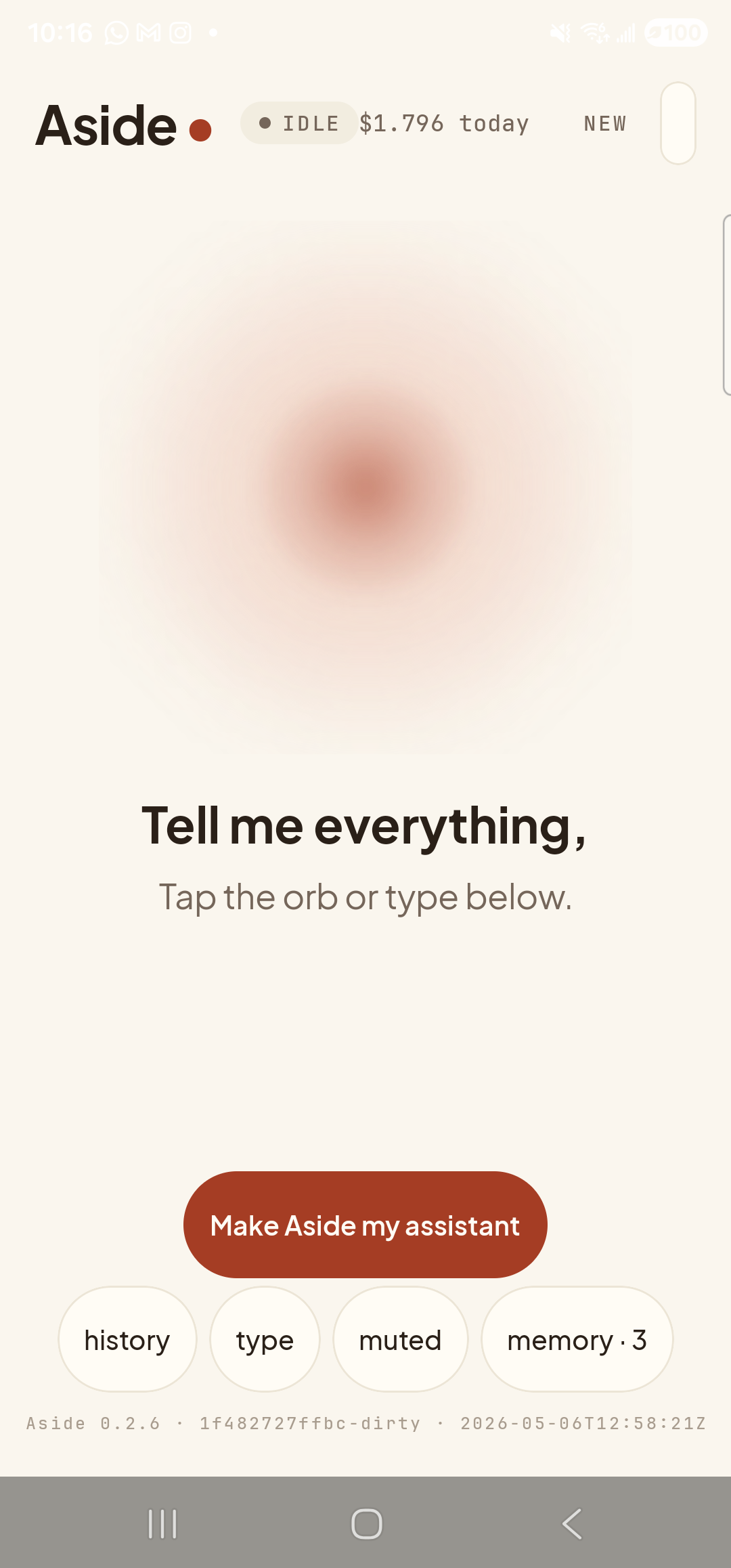
Aside open at idle. The orb breathes; nothing else is happening. -
Say (or type) the recipient and the message
Hold the orb to talk and say “Text Sam that I’m on my way,” or tap the type pill at the bottom and type the same phrase, then send. Use whatever name fits the person you’re writing to. Phrasings that all work: “text…”, “send a text to…”, “message… saying…”, “SMS…”.
Text Sam that I’m on my way.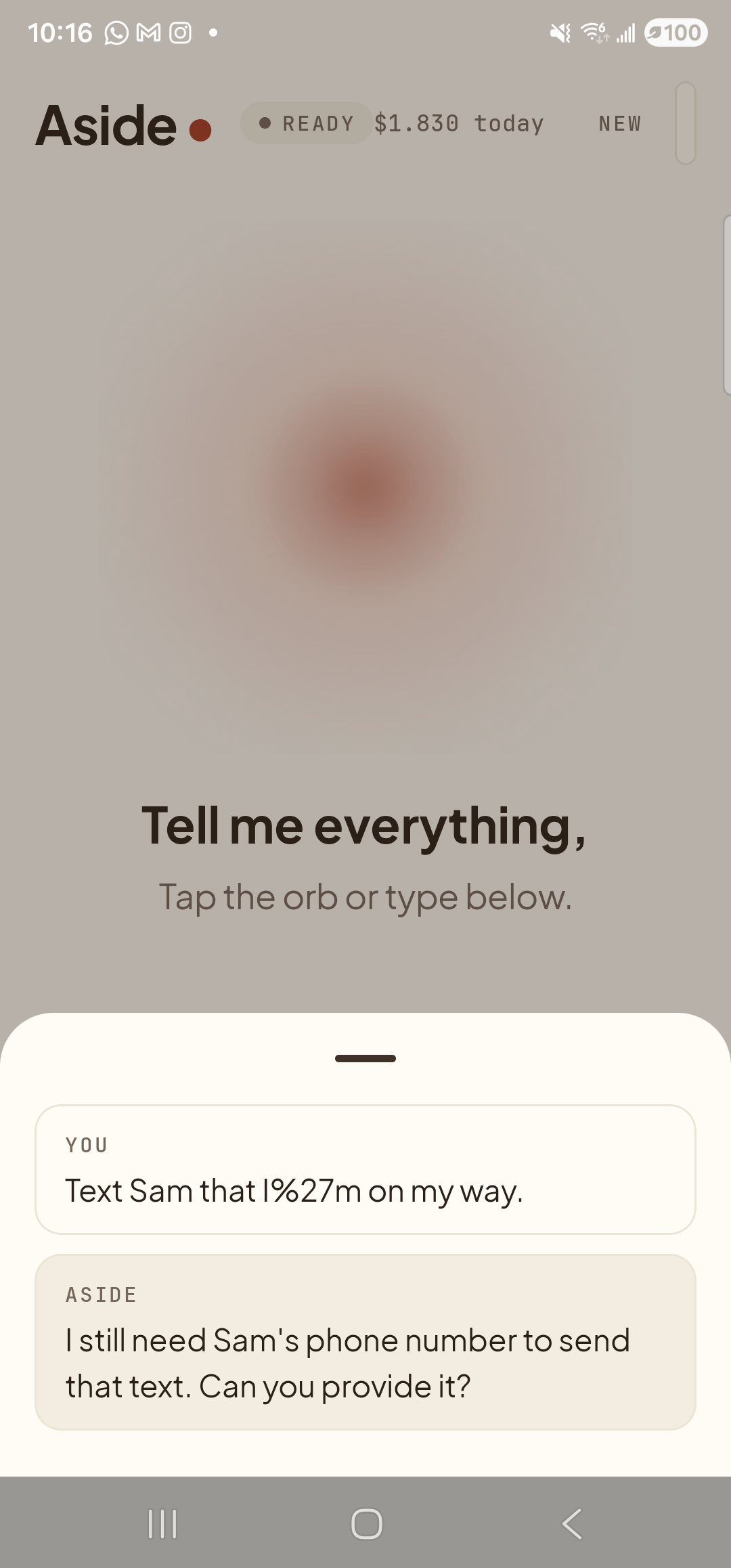
Aside confirms it’s opening a draft only — and asks for the missing phone number rather than guessing. Nothing was sent. -
Your SMS app opens with the message pre-filled
A moment later your phone’s default SMS app opens. The To field shows the recipient name (or a phone-number prompt if Aside doesn’t know one yet for that contact). The Message field reads “I’m on my way.” Nothing has been sent. The send arrow is sitting there waiting for you.
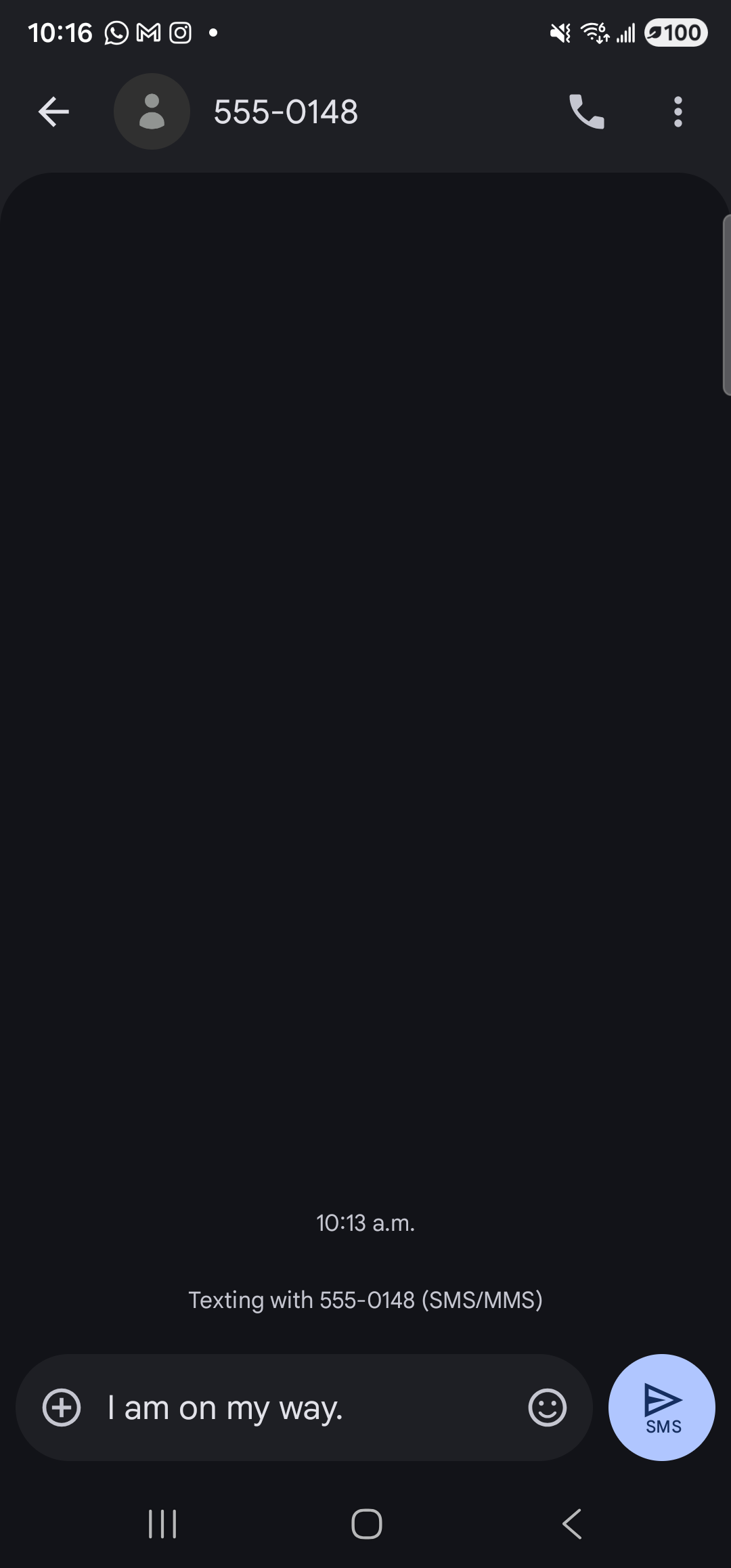
SMS app open with the recipient and the message pre-filled. Nothing leaves your phone until you tap the send arrow. -
Read, edit, and send — or back out
Read the draft. Tap into the message field to fix wording or add detail. When you’re sure, tap the send arrow to send. To not send, tap the back arrow at the top — the SMS app discards the draft and nothing leaves your phone. Aside cannot send a text on your behalf, ever. The send button is the only way the message goes out, and that button is always under your finger.