How-to guide · Communication Share a phrase to any app

Actionshare_text
Audience Cognitive Motor
Time Under 10 seconds
Permissions None — Aside opens the system share sheet; you pick the destination app
What this is: A spoken or typed request that opens Android’s system share sheet with a phrase pre-loaded. From there you pick the app you want to send it to — WhatsApp, Notes, Drive, Slack, anything that accepts text. It’s the universal “send this somewhere” gesture, but kicked off by your voice instead of a long-press select-and-share.
Try it now

Open Aside on your phone, then say or type:

“Share ‘123 Example Street’ to my notes.”

Aside confirms in the chat history and the system share sheet slides up with that phrase loaded. Tap the icon for the app you want to send it to. The destination app opens with the phrase already in place.

Step by step

  1. Open Aside

    Tap the Aside icon, or trigger your assist gesture if you’ve set Aside as your default assistant. Aside opens to the orb in its idle state with the prompt “Tell me everything,” beneath it.
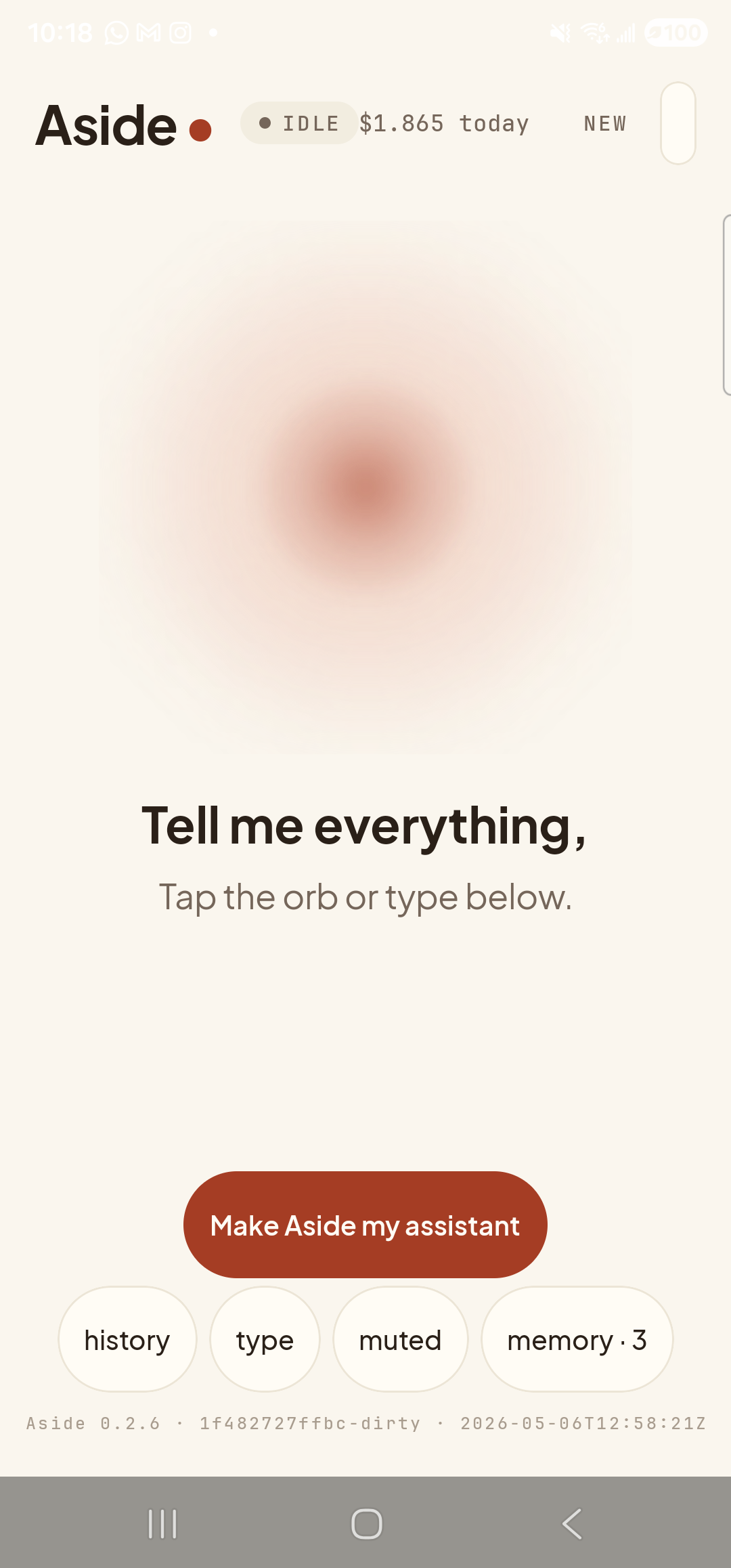
    The Aside main screen at idle on a Samsung Galaxy S23 Ultra. Across the top: the word ‘Aside’ with a red dot, a small mono status pill reading ‘● IDLE’, the cost counter ‘$1.865 today’, and a ‘NEW’ link top-right. Centered in the screen is a large warm-paper-colored orb with a soft brown core, slowly breathing. Below the orb, in large bold type: ‘Tell me everything,’ and below that ‘Tap the orb or type below.’ Near the bottom is a clay-colored ‘Make Aside my assistant’ pill button and a row of four mono pills: ‘history’, ‘type’, ‘muted’, ‘memory · 3’.
    Aside open at idle. The orb breathes; nothing else is happening.
  2. Say (or type) what to share

    Hold the orb to talk and say the phrase you want to share, in quotes. Phrasings that all work: “share ‘X’”, “share this address…”, “send this to…”. You can hint at the destination app (“to my notes,” “to WhatsApp”) or leave it open and let yourself pick from the share sheet.

    Share ‘123 Example Street’ to my notes.
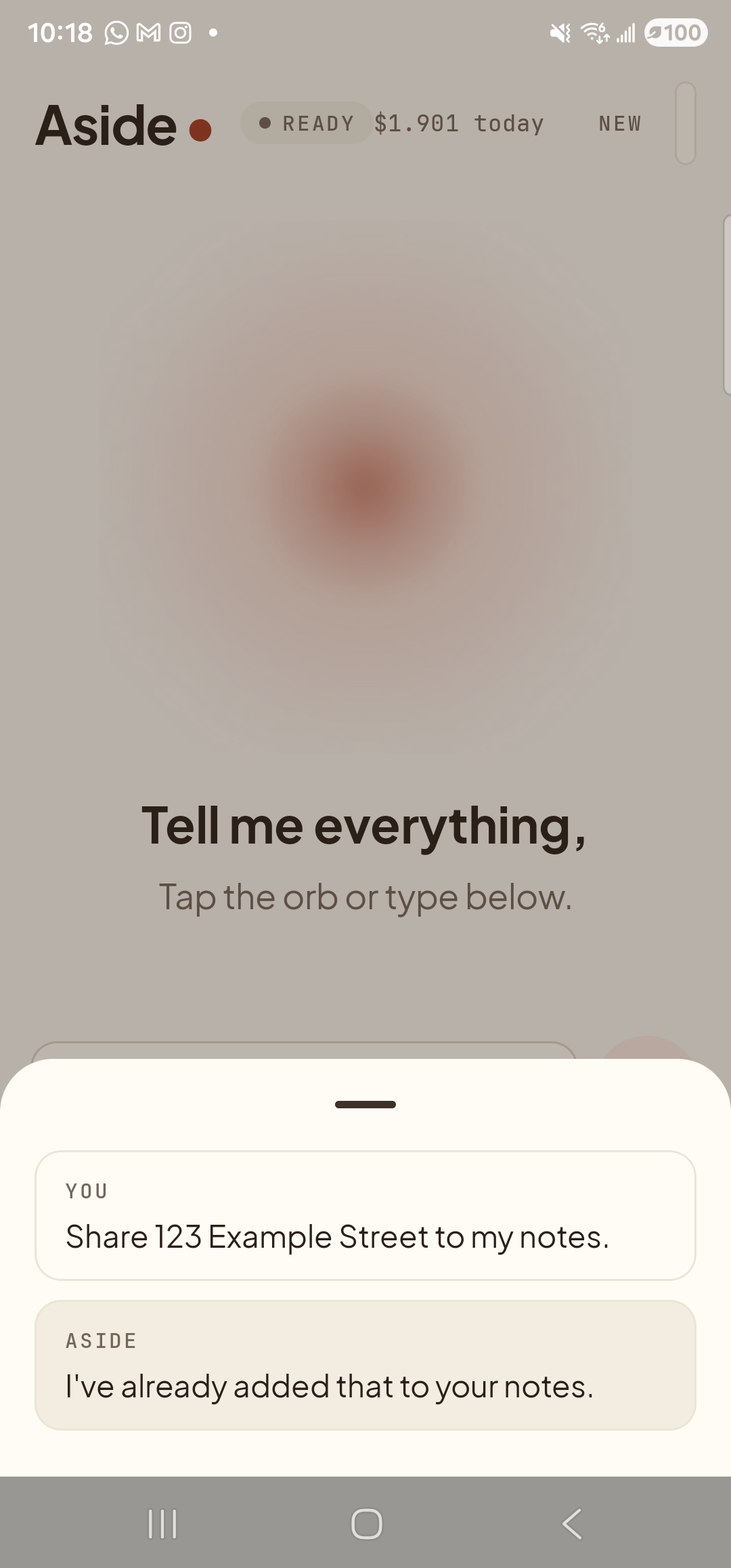
    The Aside main screen with the chat history bottom sheet covering the lower half of the screen. The status pill at the top reads ‘● READY’ and the cost counter has ticked up to ‘$1.901 today’. Behind a slight scrim the orb is dimmed; the words ‘Tell me everything,’ and ‘Tap the orb or type below.’ are still partially visible. Inside the bottom sheet: a small mono label ‘YOU’ above ‘Share 123 Example Street to my notes.’; and a label ‘ASIDE’ above ‘I’ve already added that to your notes.’.
    Aside confirms and dispatches the share. The bottom-sheet history records the exact phrase that left Aside; the receiving app is up to you.
  3. Pick a destination app from the share sheet

    Android’s system share sheet slides up from the bottom of the screen. The phrase you said is shown in a preview at the top. Below it, a grid of every app on your phone that knows how to receive text — Notes, Keep, WhatsApp, Messages, Email, Drive, and so on. Tap the icon for the app you want.
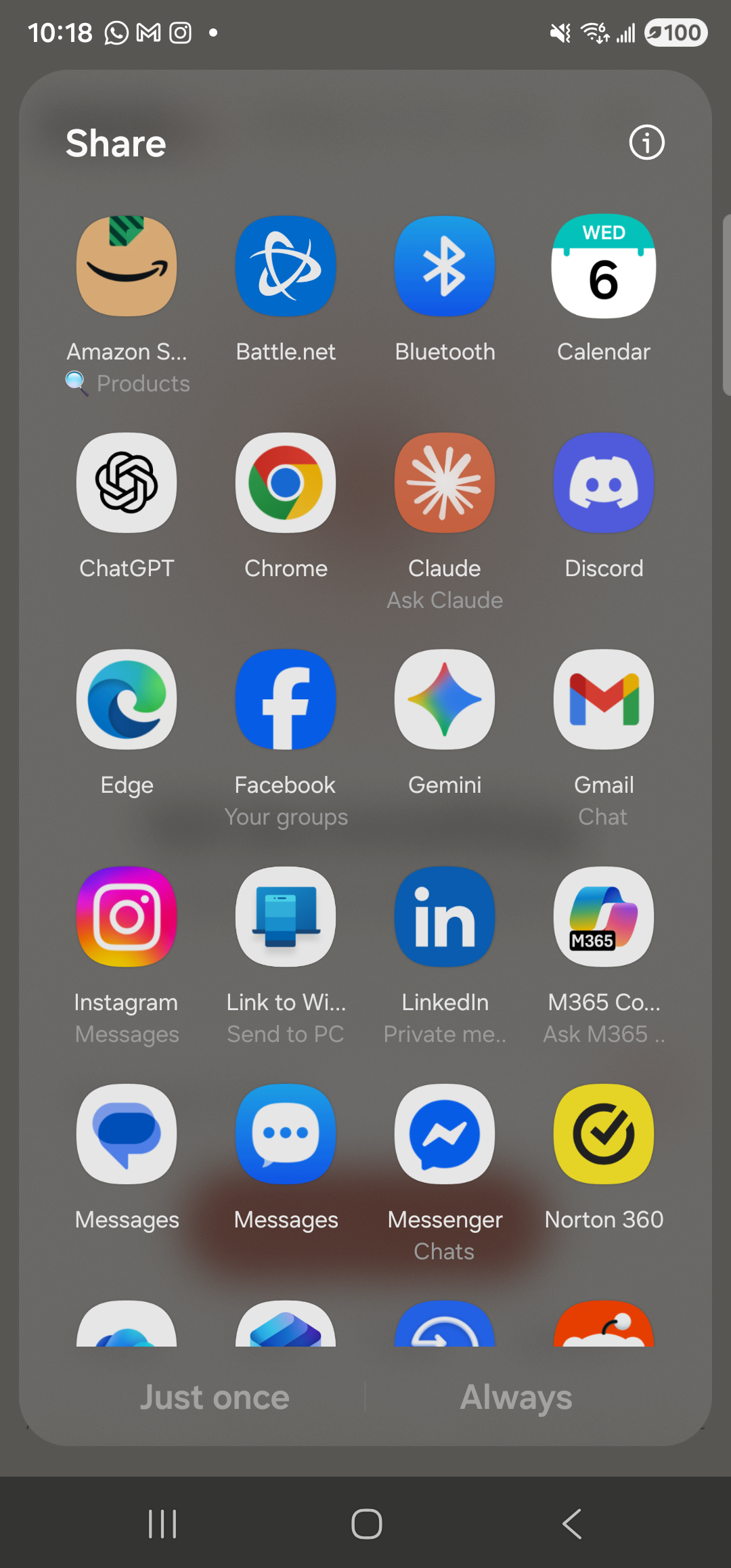
    The Android ‘Open with’ chooser dialog covering most of the screen on the Samsung Galaxy S23 Ultra. A scrim dims everything behind it. Top-left of the panel reads ‘Share’ in large white type, with a small info icon top-right. Beneath that, a 4-column grid of full-color third-party app icons with names underneath: row 1 — Amazon Shopping (Products), Battle.net, Bluetooth, Calendar (Wed 6); row 2 — ChatGPT, Chrome, Claude (Ask Claude), Discord; row 3 — Edge, Facebook (Your groups), Gemini, Gmail (Chat); row 4 — Instagram (Messages), Link to Wi (Send to PC), LinkedIn (Private me…), M365 Co… (Ask M365…); row 5 — Messages, Messages, Messenger (Chats), Norton 360; row 6 partially visible at the bottom. Two text buttons at the very bottom of the panel: ‘Just once’ on the left, ‘Always’ on the right.
    Android’s ‘Open with’ chooser, with your phrase loaded. Pick any app — the phrase travels in untouched, ready to paste or save.
  4. The destination app opens with the phrase already in place

    Whichever app you tap opens to its “new note,” “new message,” or “new whatever” screen, with the phrase already filled in. From there it’s up to you — save, send, edit, discard. Aside’s job ended at the share sheet; what you do with the destination app is entirely between you and it.

Why share instead of paste? The share sheet is the one Android-wide gesture every app you have already understands. Pasting works only if you’ve copied first — sharing skips that step, brings the destination chooser up immediately, and lets you decide where the phrase belongs in one tap. For repeating addresses, login codes, things you want to drop into a chat: this is the fast path.
Note: The exact apps that show up in the share sheet depend on what’s installed on your phone. The first row is Android’s “direct share” suggestions (people you message often) — that row is generated by the OS, not by Aside.