How-to guide · Communication Capture a thought in your notes app
Open Aside on your phone, then say or type:
Aside confirms in the chat history and your notes app opens with that text already in a fresh note. Save it or edit it from there.
Step by step
-
Open Aside
Tap the Aside icon, or trigger your assist gesture if you’ve set Aside as your default assistant. Aside opens to the orb in its idle state with the prompt “Tell me everything,” beneath it.
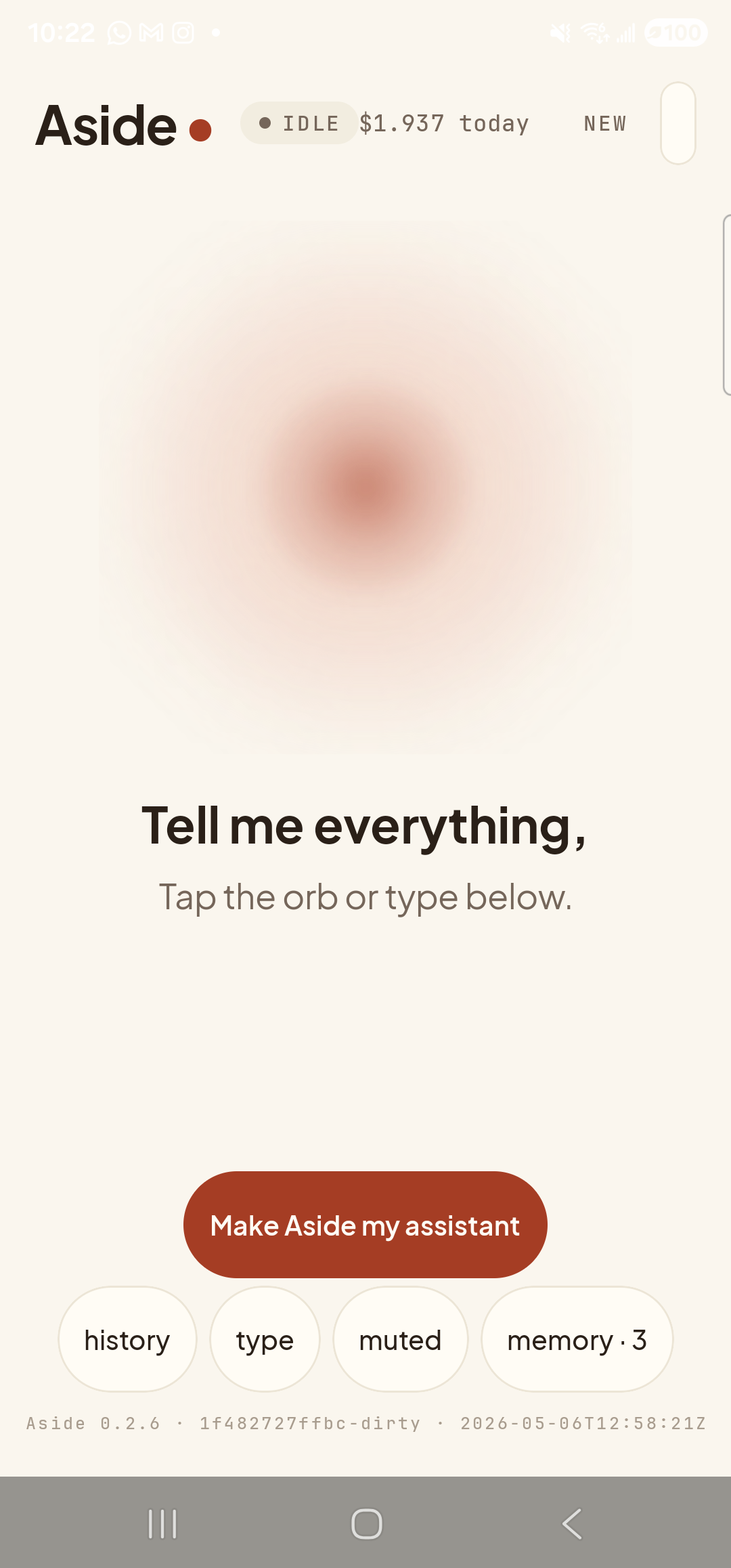
Aside open at idle. The orb breathes; nothing else is happening. -
Say (or type) the note
Hold the orb to talk and say “Add a note — buy milk and call the dentist,” or tap the type pill at the bottom and type the same phrase, then send. The dash (or the word “saying,” or just a comma) tells Aside where the note text starts. Phrasings that all work: “note: …”, “jot down …”, “take a note that …”, “add to my notes …”.
Add a note — buy milk and call the dentist.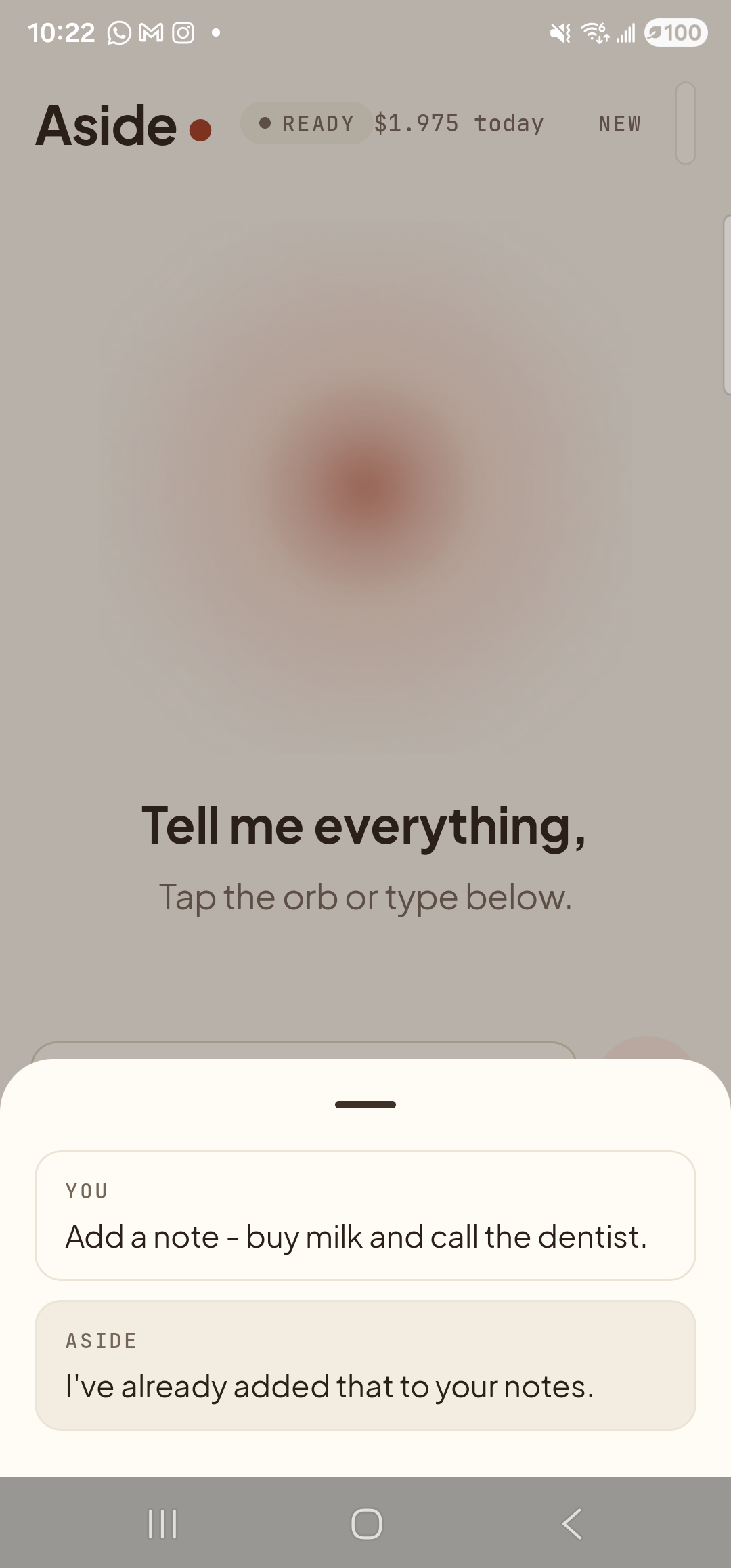
Aside confirms it has handed the note off to the system notes app — the bottom-sheet history captures exactly what gets pre-filled. -
Your notes app opens with the text already in place
A moment later your notes app opens to a fresh new note with “Buy milk and call the dentist” already in the body. Whichever notes app you have set as default takes the hand-off — Samsung Notes, Google Keep, Obsidian, anything that registers for the system “send text” intent.
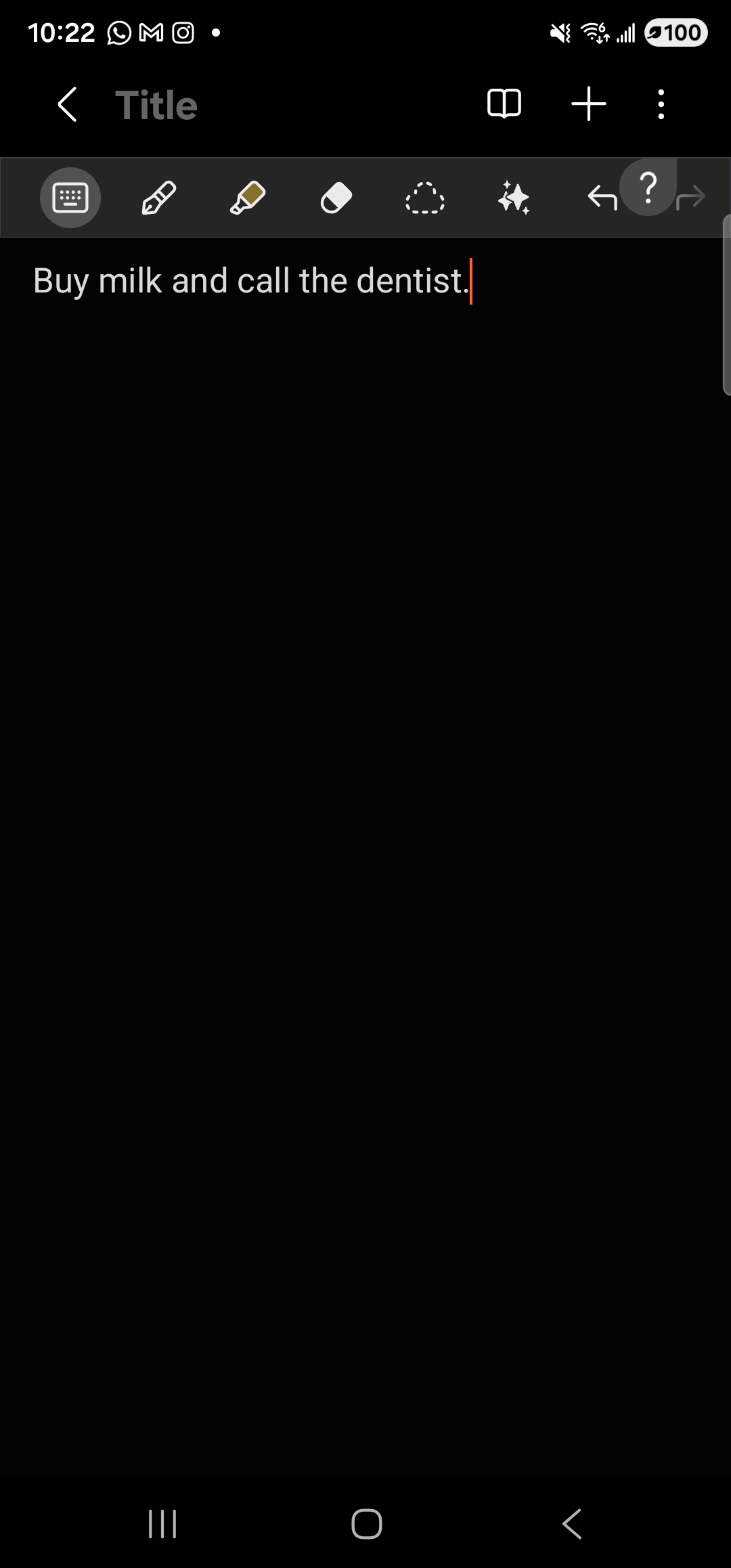
Samsung Notes opens to a draft with your text already typed in. Tap the back arrow to save and exit, or keep editing. -
Save it, edit it, or discard it
Tap the save icon to keep the note. Tap into the body to add or rewrite anything before you save. Tap back to walk away — most notes apps autosave drafts, so the note will likely be there if you change your mind, but check your notes app’s behavior if you’re relying on it.