How-to guide · Media & capture Copy text to the clipboard

Actioncopy_to_clipboard
Audience Motor
Time Under 5 seconds
Permissions None — Aside calls Android’s clipboard directly
What this is: A spoken or typed phrase that lands the words you said straight onto the system clipboard, ready to paste anywhere — no long-press, no draggable selection handles, no “Select all” menu. This is purely additive: no app opens and nothing visual changes other than a chat confirmation in Aside and a brief system clipboard toast. Useful for addresses, account numbers, account names, and any phrase you’d normally have to type into a small selection UI to copy.
Try it now

Open Aside on your phone, then say or type:

“Copy ‘123 Example Street’ to the clipboard.”

Aside confirms in the chat history. The phrase is now on your clipboard — switch to any other app and paste as normal.

Step by step

  1. Open Aside

    Tap the Aside icon, or trigger your assist gesture if you’ve set Aside as your default assistant. Aside opens to the orb in its idle state — calm, slowly breathing — with the prompt “Tell me everything,” beneath it.
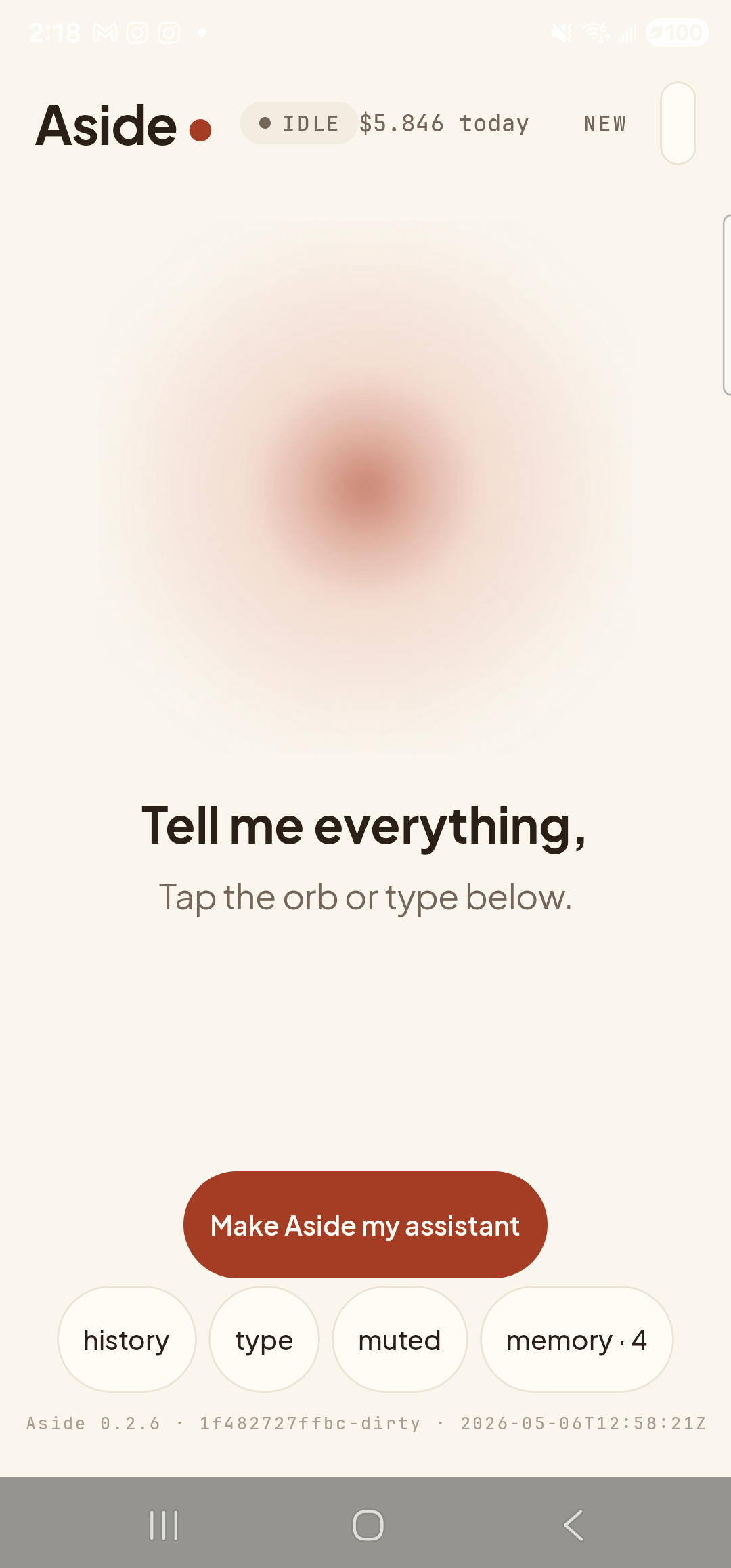
    The Aside main screen at idle on a Samsung Galaxy S23 Ultra. Across the top: the word ‘Aside’ with a red dot, a small mono status pill reading ‘● IDLE’, the cost counter ‘$5.846 today’, and a ‘NEW’ link top-right. Centered in the screen is a large warm-paper-colored orb, slowly breathing. Below the orb, in large bold type: ‘Tell me everything,’. Below that, in lighter type: ‘Tap the orb or type below.’. Near the bottom is a clay-colored pill button reading ‘Make Aside my assistant’ and a row of four mono pills: ‘history’, ‘type’, ‘muted’, ‘memory · 4’. The build-stamp footer reads ‘Aside 0.2.6 · 1f482727ffbc-dirty · 2026-05-06T12:58:21Z’.
    Aside open at idle. The orb breathes; nothing else is happening.
  2. Say or type the request

    Hold the orb and say the phrase you want copied, prefixed with “copy” — or tap the type pill at the bottom and key the same in. Aside copies whatever you put inside the quotes verbatim, exactly as said or typed.

    Copy ‘123 Example Street’ to the clipboard.
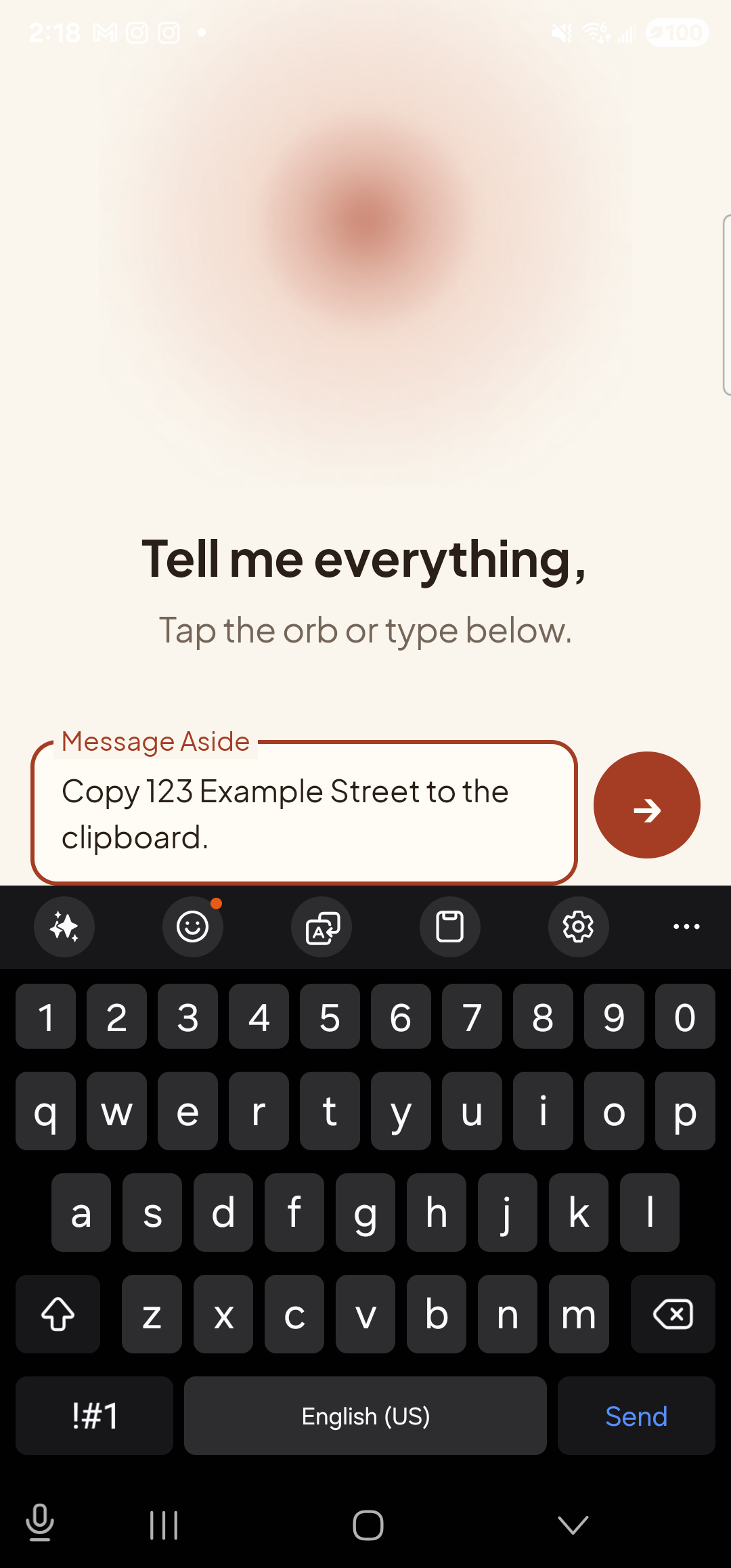
    The Aside main screen with text-input mode active and the soft keyboard up. An outlined text field labeled ‘Message Aside’ contains the typed sentence ‘Copy 123 Example Street to the clipboard.’ — note: the typed text omits quotes around the address (Android’s `adb input text` strips non-ASCII curly quotes, and on a real phone the user would just say or type the phrase plainly). To the right of the text field is a clay-red circular Send button with a white right-arrow glyph. Above the text field, the orb is still visible in its idle state with the prompt ‘Tell me everything,’ and the caption ‘Tap the orb or type below.’ Below the text field is the standard Gboard suggestion bar and full QWERTY keyboard.
    The phrase typed into the chat input, ready to send.
  3. See Aside confirm — clipboard already updated

    Aside replies with a short spoken acknowledgement and an action note chip showing the clipboard write. On Android 13 and newer, the system shows a small toast or snackbar near the bottom of the screen reading “Item copied” — that’s the OS confirming the clipboard is now holding your text. Switch to any other app and long-press a text field to paste as normal.
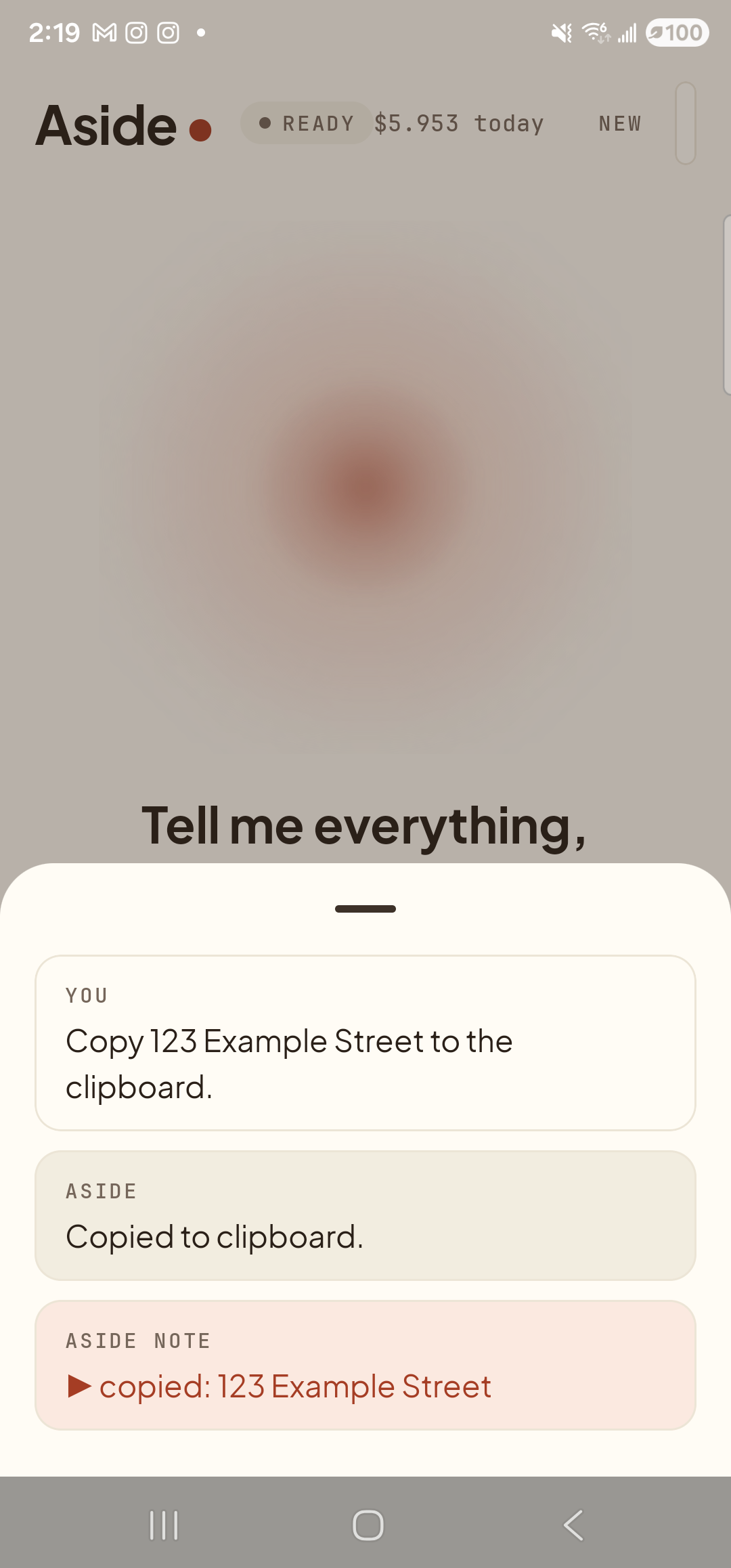
    The Aside main screen with the chat history modal sheet covering the lower half of the screen. The status pill at the top reads ‘● READY’ and the cost counter shows ‘$5.953 today’. Behind a slight scrim, the dimmed orb and the bold prompt ‘Tell me everything,’ are still partly visible above the sheet. Inside the bottom sheet are three stacked entries: a small mono label ‘YOU’ above the line ‘Copy 123 Example Street to the clipboard.’; a label ‘ASIDE’ above the line ‘Copied to clipboard.’; and a clay-tinted ‘ASIDE NOTE’ chip showing ‘▶ copied: 123 Example Street’ — the explicit action marker, naming both the action and the exact phrase that landed on the clipboard. (The Android 13+ system ‘Item copied’ snackbar is brief and had already faded by the time this screenshot was taken.)
    Aside confirms in chat; the OS shows its own clipboard toast. The phrase is on your clipboard.
Want to share the phrase straight to another app instead? Use Share a phrase to any app — the system share sheet opens and you pick the app.
Note: Aside doesn’t open another app to do this — the clipboard is updated in place, no app launch, no scrim, no context shift. To verify, open any text-entry field elsewhere and paste; the copied phrase appears.