How-to guide · Time, alarms & calendar Schedule a local reminder
Open Aside on your phone, then say or type:
Aside confirms in the chat history. Thirty minutes later, with Aside closed and the screen off, your phone will buzz with a notification reading “Remind: stretch.” Tap the notification to open Aside; swipe it away to dismiss.
Step by step
-
Open Aside
Tap the Aside icon, or trigger your assist gesture if you’ve set Aside as your default assistant. Aside opens to the orb in its idle state.
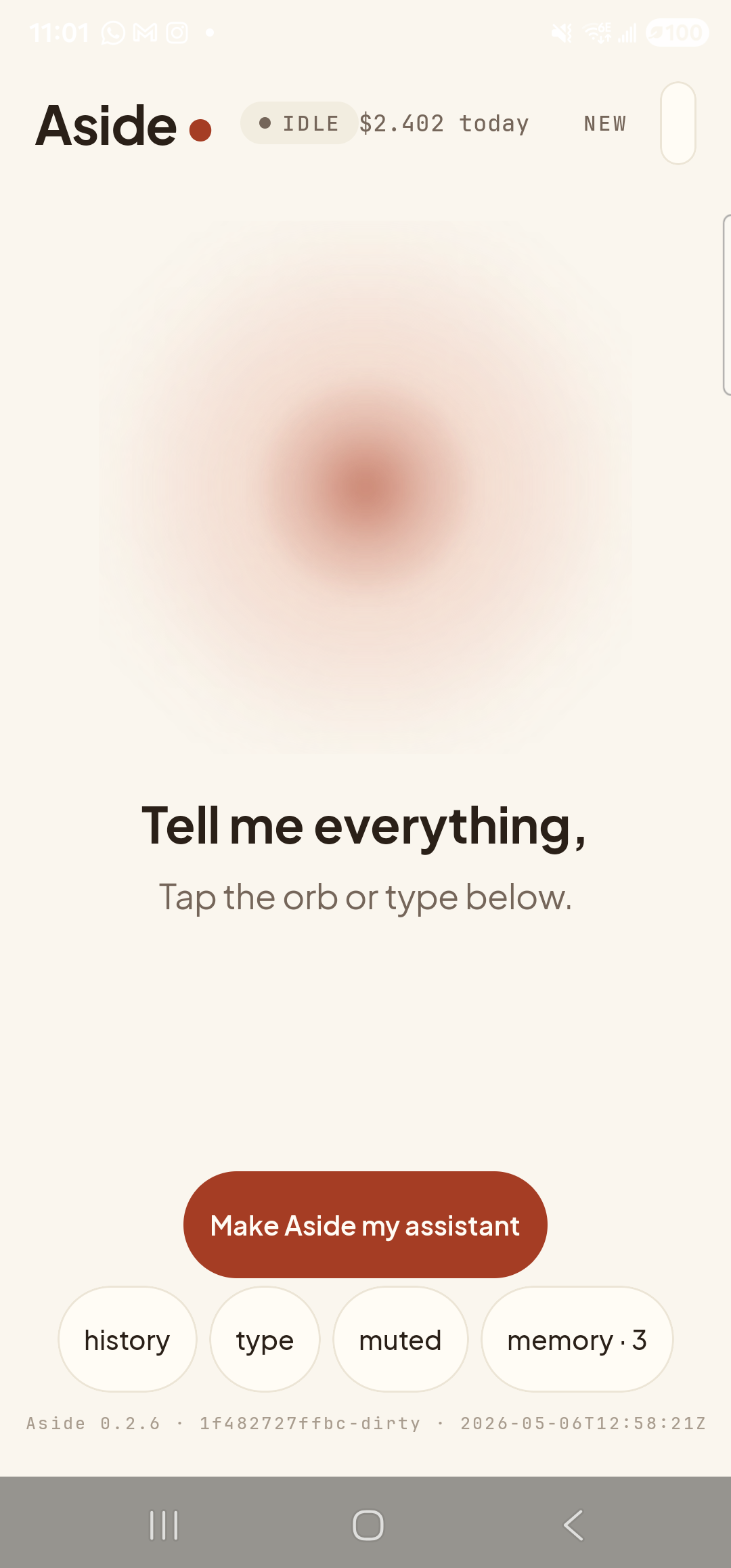
Aside open at idle. -
Say (or type) what to remind you of, and when
Hold the orb to talk and say “Remind me in 30 minutes to stretch,” or tap the type pill and type the same. The time can be relative (“in five minutes,” “in an hour,” “in two and a half hours”) or absolute (“at 4pm,” “at 9:30 tonight”). The reminder text is whatever follows to.
Remind me in 30 minutes to stretch.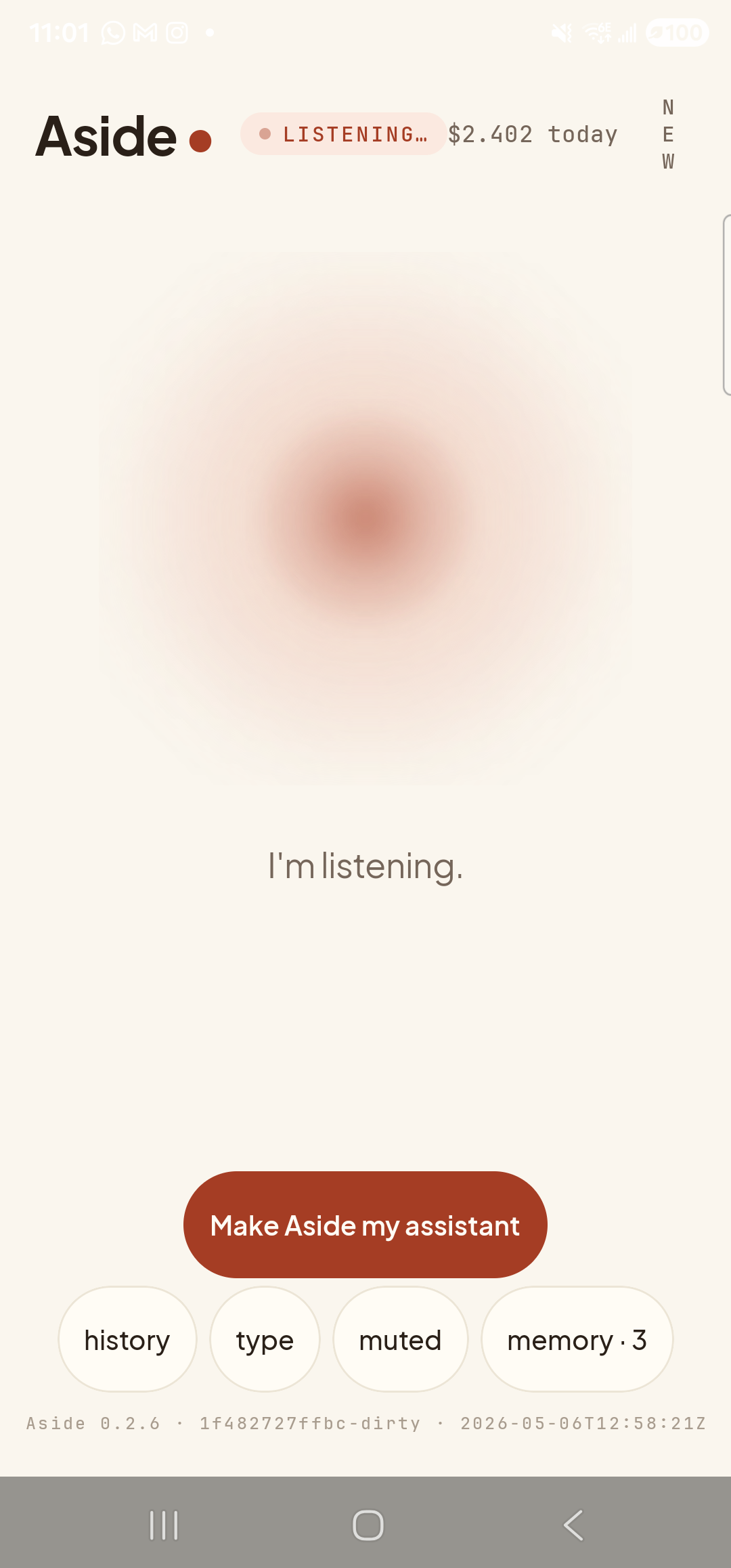
Orb shifts to listening once the mic activates. -
See Aside confirm the reminder is scheduled
Aside replies in both audio and text. The chat history shows your transcribed request, Aside’s spoken reply, and an Aside note chip showing the action that was performed — in this case
reminder_at +30m “stretch”. The reminder is now scheduled inside Aside’s alarm subsystem, which talks to Android’sAlarmManagerdirectly. You can close the app; it will still fire.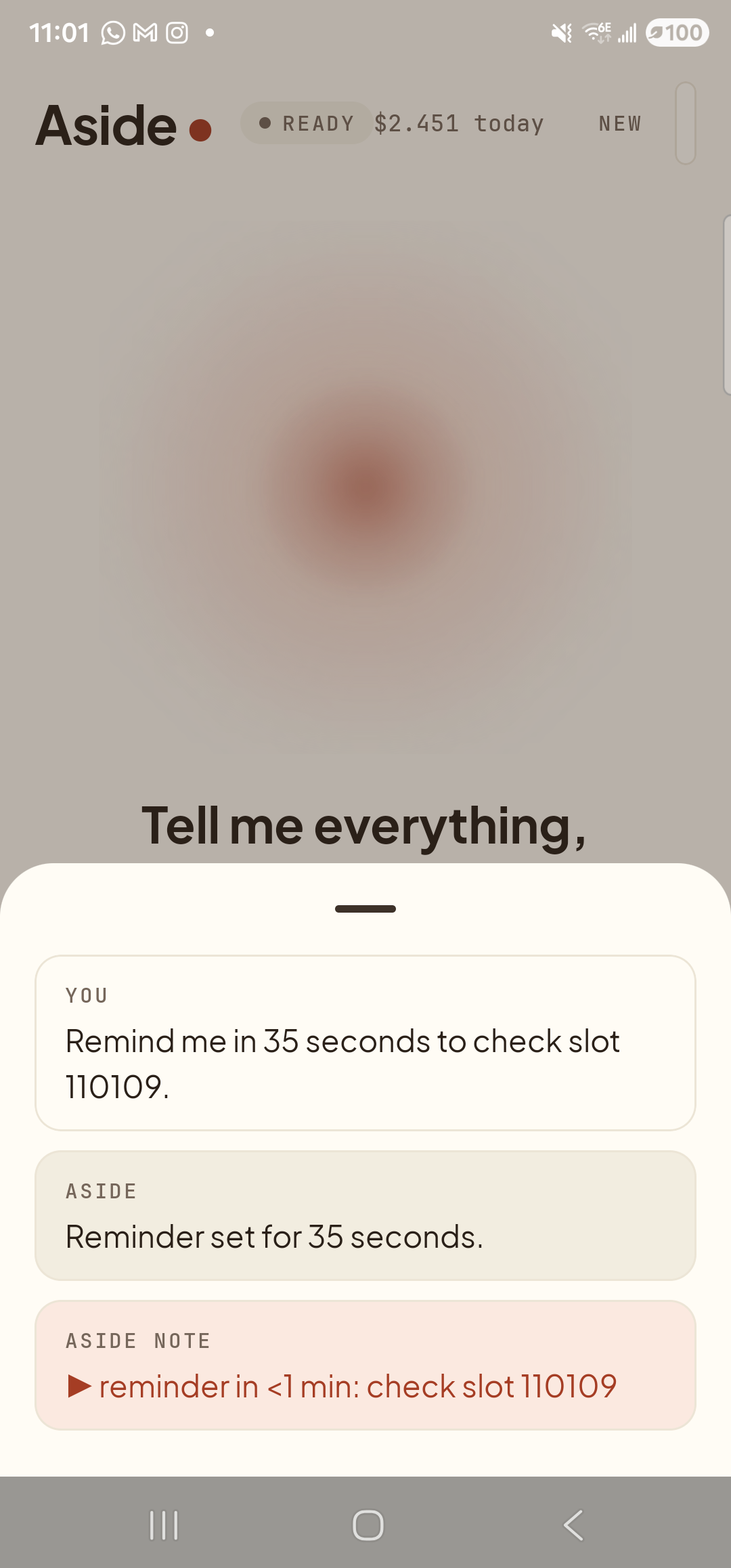
Aside confirms the reminder is scheduled. The action chip shows the offset and the text Aside will say back to you. -
Receive the notification at the scheduled moment
Half an hour later — even if the screen is off, even if Aside has been swiped out of recents — a notification slides in. The icon is the Aside mark; the title is Aside reminder; the body is your text (stretch). Tap the notification to open Aside in case you want to follow up (“remind me again in twenty minutes”). Swipe it away to dismiss it.
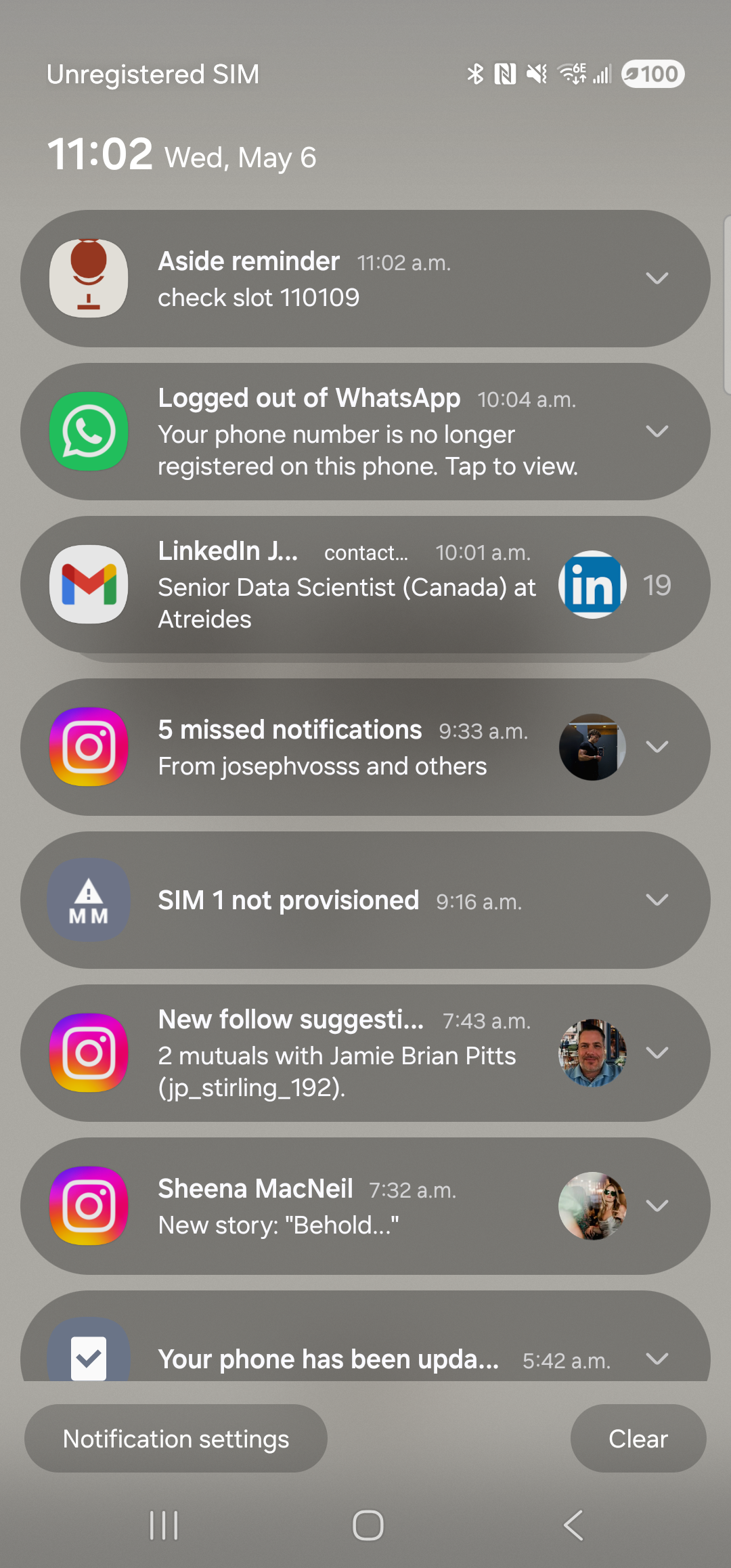
The notification fires at the scheduled time even if Aside is closed and the phone is locked.