How-to guide · Media & capture Take a selfie
Open Aside on your phone, then say or type:
Aside confirms in the chat history and the camera comes up with the front lens already selected. Tap the shutter when you’re ready.
Step by step
-
Open Aside
Tap the Aside icon, or trigger your assist gesture if you’ve set Aside as your default assistant. Aside opens to the orb in its idle state — calm, slowly breathing — with the prompt “Tell me everything,” beneath it.
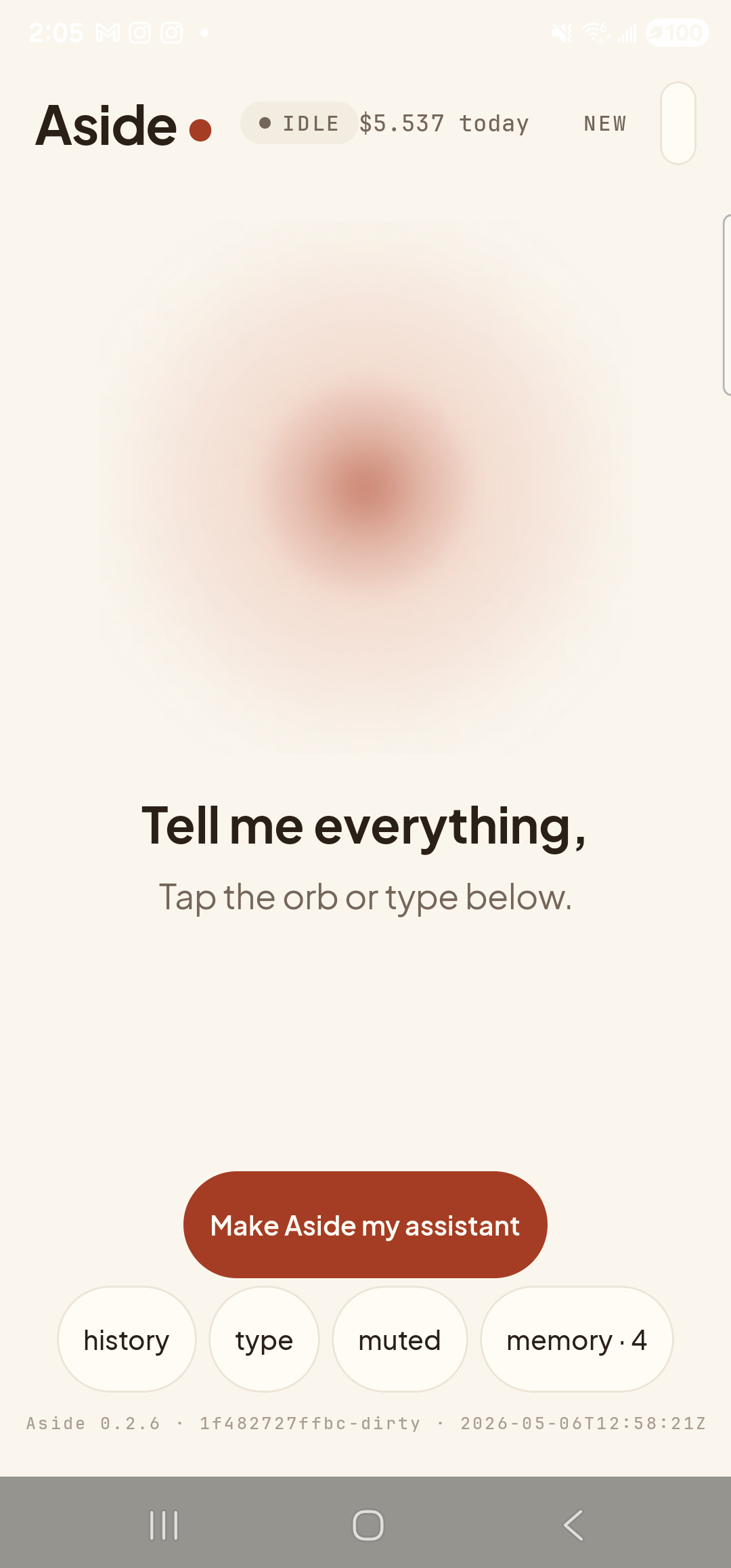
Aside open at idle. The orb breathes; nothing else is happening. -
Say or type the request
Hold the orb and say “Take a selfie,” or tap the type pill at the bottom and key the same phrase in. Phrasing is forgiving — “selfie,” “open the front camera,” and “camera, front lens” all map to the same action.
Take a selfie.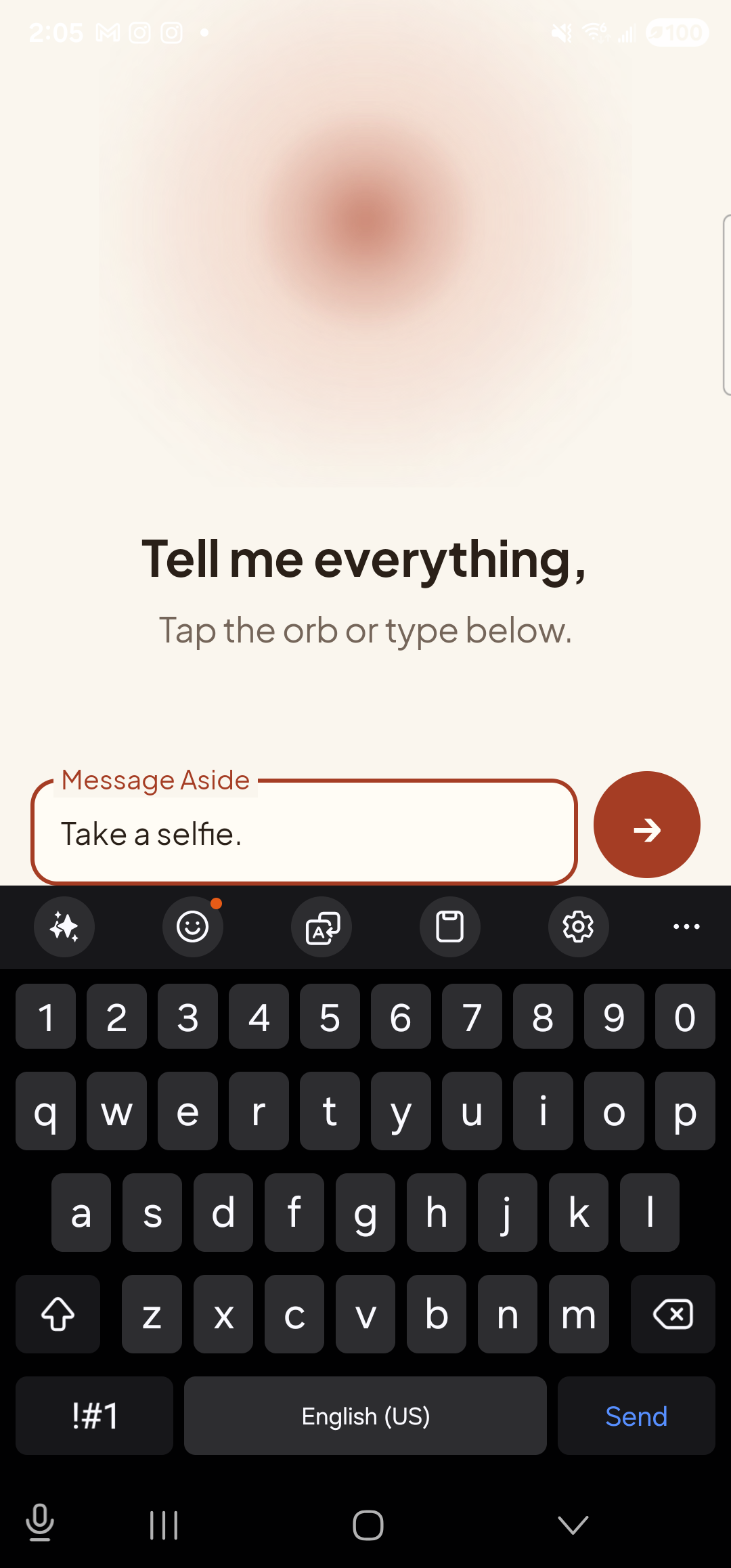
The phrase typed into the chat input, ready to send. -
See Aside confirm
Aside replies with a short spoken acknowledgement and an action note chip showing the selfie launch. The chat history sheet slides up so you can read the confirmation; behind it the camera app is already coming up on the front lens.
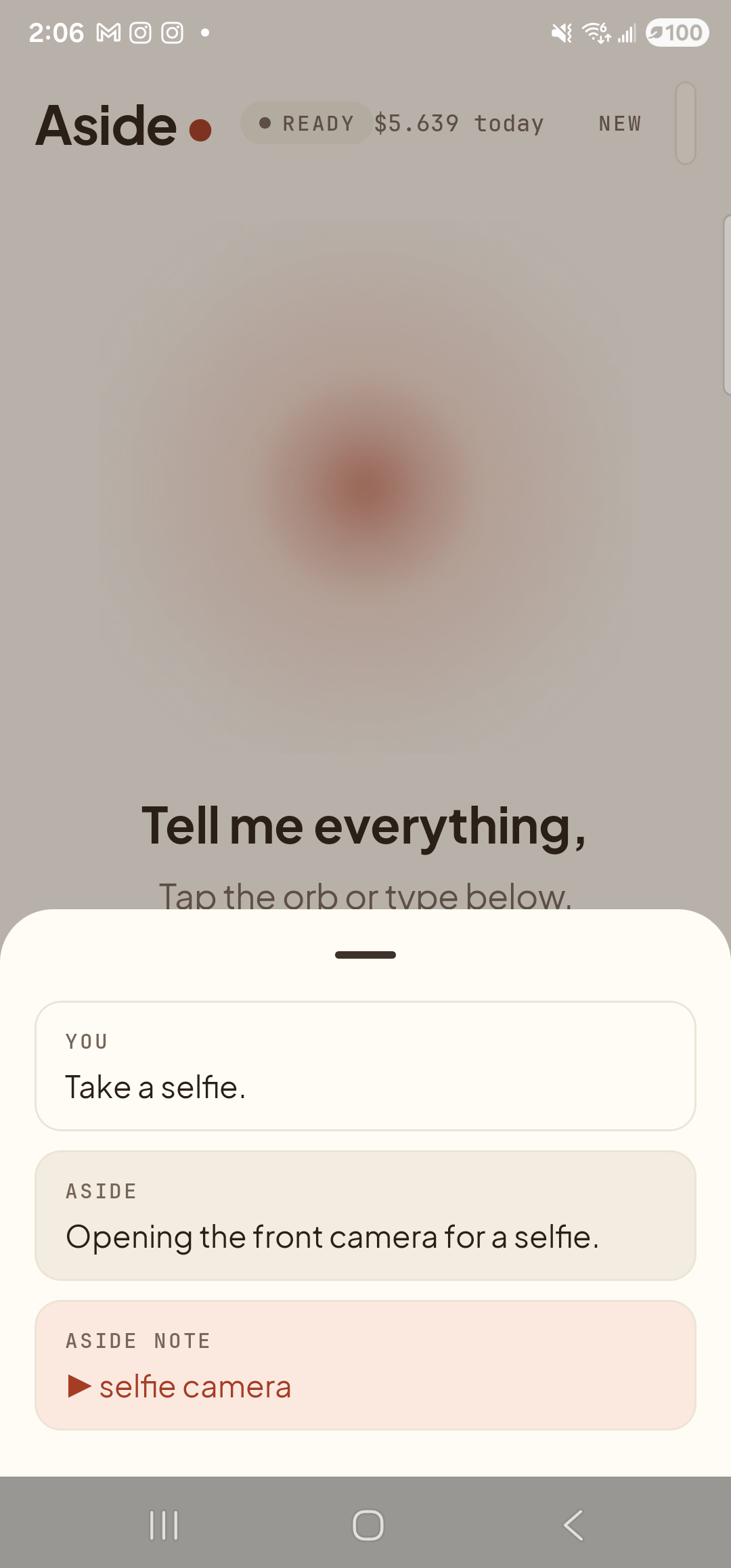
Aside confirms on screen and aloud. The action chip names the launch. -
Camera opens on the front lens
Your phone’s camera app comes to the foreground with the front-facing lens already active — the viewfinder fills the screen and you see yourself, mirrored, ready to frame the shot. Tap the shutter when you like the framing. Aside doesn’t take the photo for you — that decision stays with you.
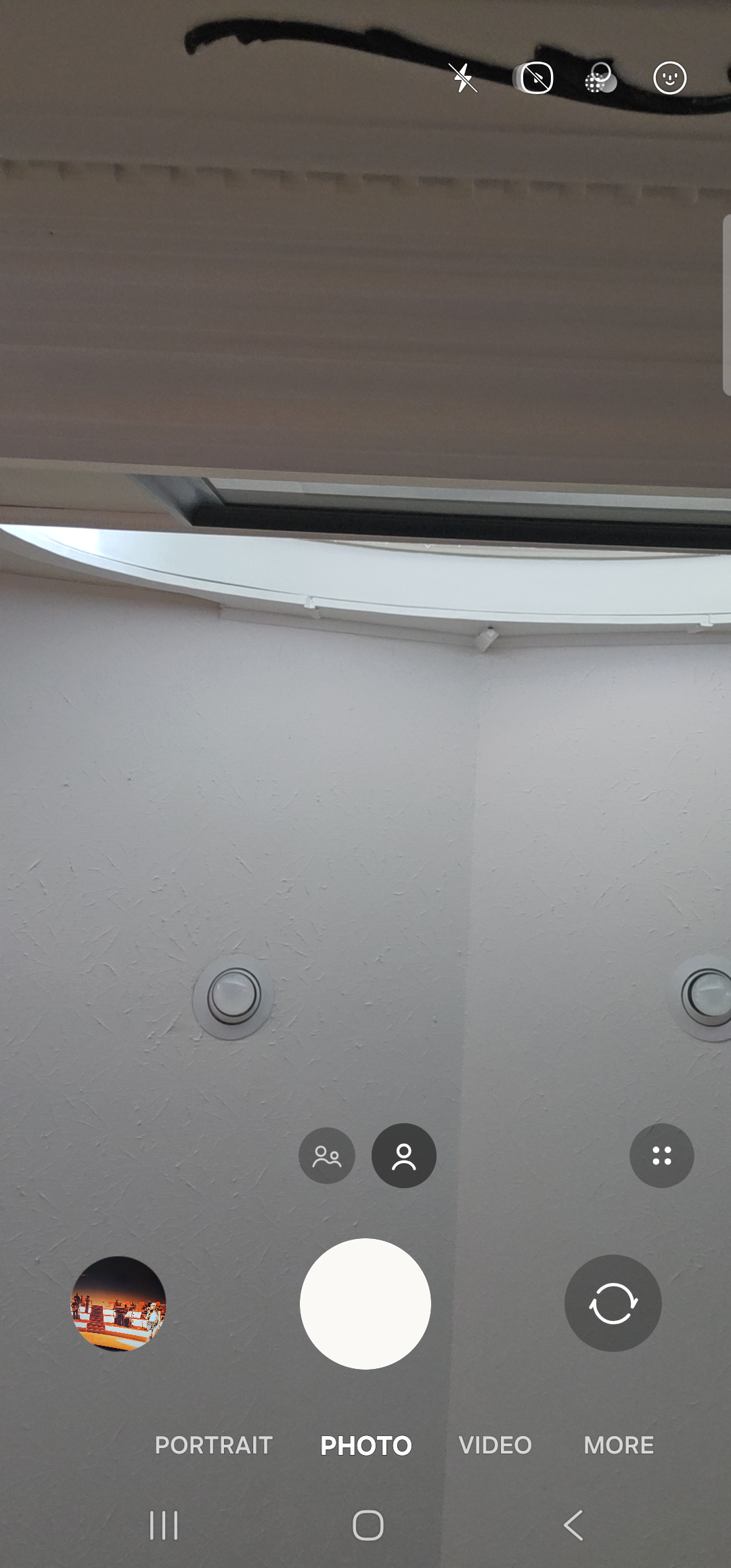
Camera open on the front lens. You frame and tap the shutter.