How-to guide · Media & capture Record a voice memo

Actionrecord_voice_memo
Audience Motor Cognitive
Time Under 5 seconds
Permissions None for the launch — the recorder app handles its own microphone permission
What this is: A spoken or typed request that opens your phone’s system voice recorder, ready for you to tap record. Useful when you have a thought to capture and don’t want to lose it while finding the recorder’s icon. You start the recording yourself — Aside doesn’t silently begin recording for you.
Try it now

Open Aside on your phone, then say or type:

“Record a voice memo.”

Aside confirms in the chat history and the voice recorder app comes up. Tap its red record button when you’re ready to start.

Step by step

  1. Open Aside

    Tap the Aside icon, or trigger your assist gesture if you’ve set Aside as your default assistant. Aside opens to the orb in its idle state — calm, slowly breathing — with the prompt “Tell me everything,” beneath it.
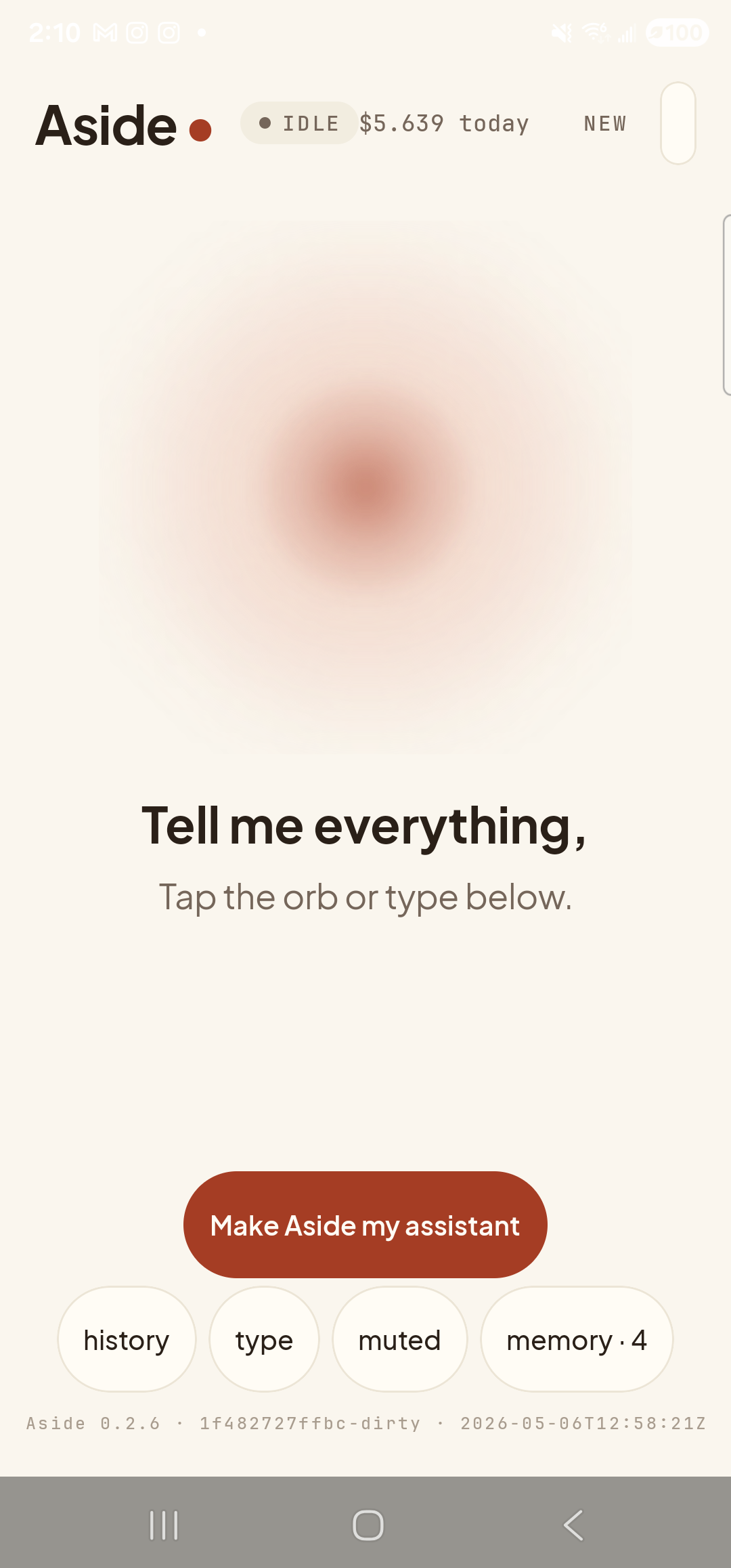
    The Aside main screen at idle on a Samsung Galaxy S23 Ultra. Across the top: the word ‘Aside’ with a red dot, a small mono status pill reading ‘● IDLE’, the cost counter ‘$5.639 today’, and a ‘NEW’ link top-right. Centered in the screen is a large warm-paper-colored orb with a soft brown core, slowly breathing. Below the orb, in large bold type: ‘Tell me everything,’. Below that, in lighter type: ‘Tap the orb or type below.’. Near the bottom is a clay-colored pill button reading ‘Make Aside my assistant’ and a row of four mono pills: ‘history’, ‘type’, ‘muted’, ‘memory · 4’. The build-stamp footer reads ‘Aside 0.2.6 · 1f482727ffbc-dirty · 2026-05-06T12:58:21Z’.
    Aside open at idle. The orb breathes; nothing else is happening.
  2. Say or type the request

    Hold the orb and say “Record a voice memo,” or tap the type pill at the bottom and key the same phrase in. Phrasing is forgiving — “open the voice recorder,” “start a voice memo,” and “voice recorder please” all map to the same action.

    Record a voice memo.
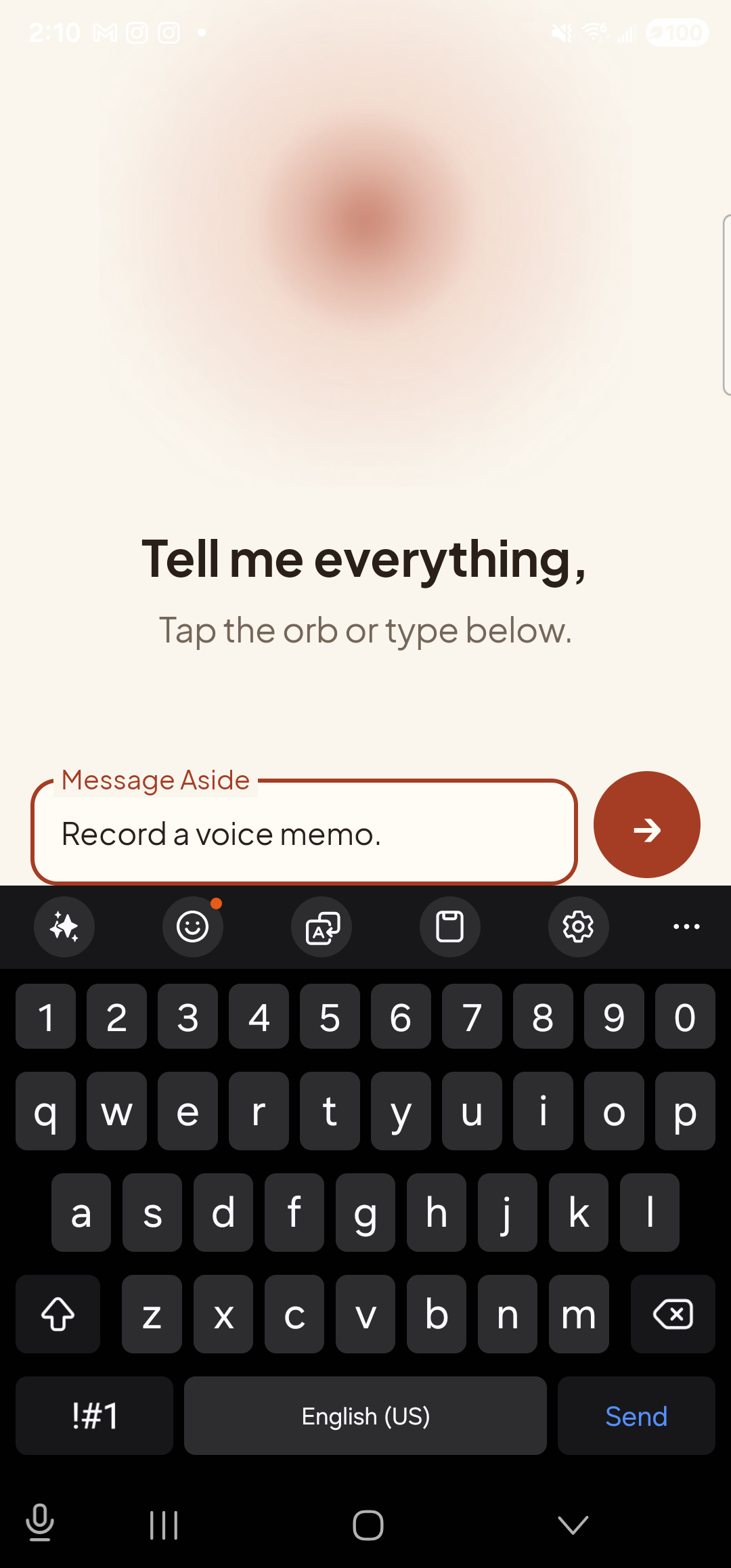
    The Aside main screen with text-input mode active. The bottom of the screen now shows an outlined text field labeled ‘Message Aside’ with the typed sentence ‘Record a voice memo.’ inside it. To the right of the text field is a clay-red circular Send button with a paper-plane glyph. The orb is still visible in the upper portion of the screen, in its idle state.
    The phrase typed into the chat input, ready to send.
  3. See Aside confirm

    Aside replies with a short spoken acknowledgement and an action note chip showing the recorder launch. The chat history sheet slides up so you can read the confirmation; behind it the voice recorder app is already loading.
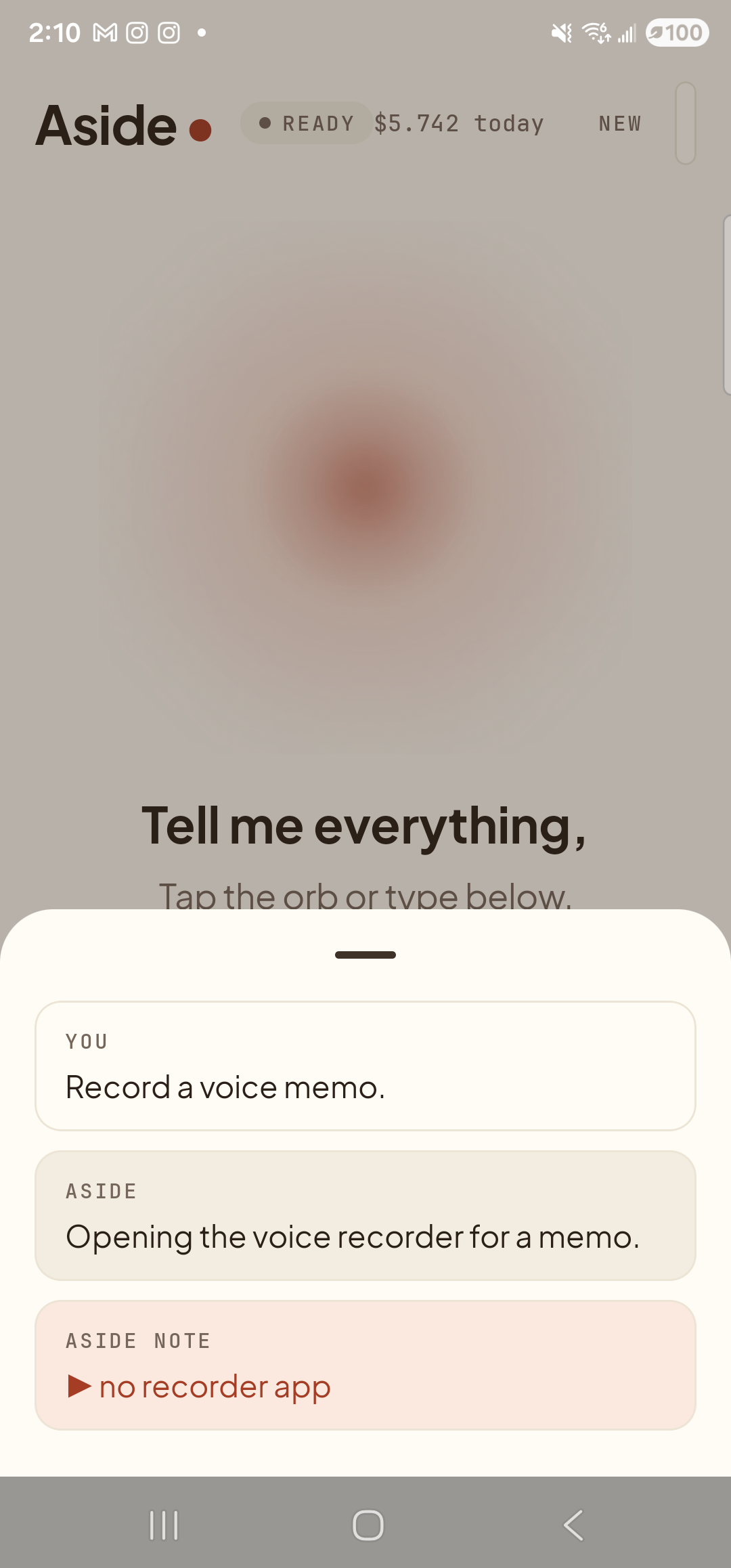
    The Aside main screen with the chat history bottom sheet covering the lower half of the screen. The status pill at the top reads ‘● READY’ and the cost counter shows ‘$5.742 today’. Behind a slight scrim the dimmed orb and the words ‘Tell me everything,’ are still partly visible. Inside the bottom sheet are three stacked entries: a small mono label ‘YOU’ above the line ‘Record a voice memo.’; a label ‘ASIDE’ above the line ‘Opening the voice recorder for a memo.’; and a clay-tinted ‘ASIDE NOTE’ chip showing ‘▶ no recorder app’ — Aside reporting honestly that this particular device has no voice-recorder app installed and the action couldn’t be completed.
    Aside confirms on screen and aloud. The action chip names the launch.
  4. Voice recorder opens, ready to record

    The system voice recorder app comes to the foreground, on its main record screen with a large red record button waiting for you. Tap the record button when you’re ready — Aside doesn’t start the recording for you. When you’re done, save the file as you would normally; the recorder handles naming and storage.
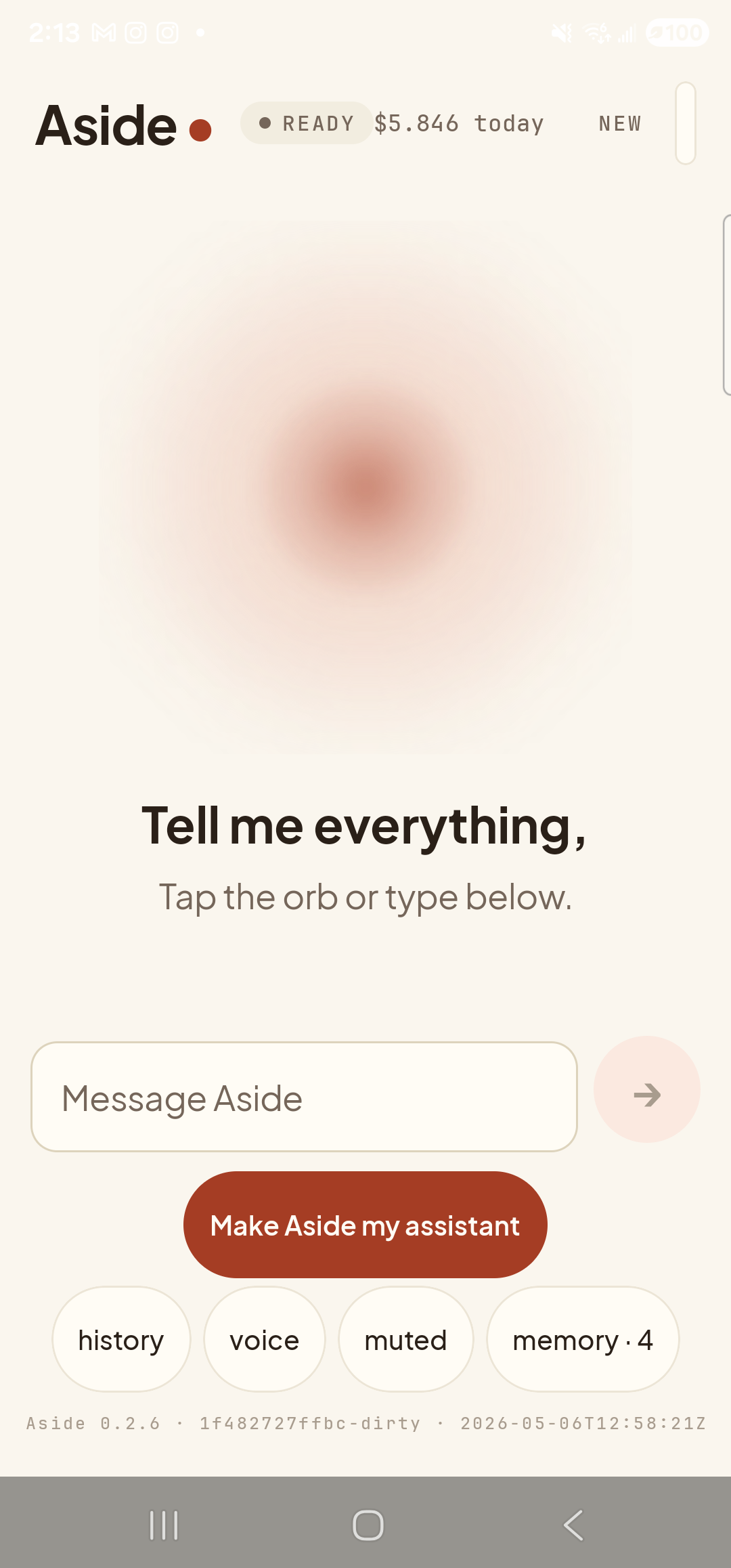
    The Aside main screen returned to its ready/idle state after the action turn settled. The status pill reads ‘● READY’ and the cost counter shows ‘$5.846 today’. The orb breathes in the center with the prompt ‘Tell me everything,’ and the helper text ‘Tap the orb or type below.’ beneath it. The text-input field is visible at the bottom (the previous turn left it active), with the placeholder ‘Message Aside’ and the clay-red Send button to its right (faded because the field is empty). Below that the ‘Make Aside my assistant’ pill and the row of bottom-nav pills: ‘history’, ‘voice’, ‘muted’, ‘memory · 4’. Because no voice-recorder app is installed on this S23, no other app launched — Aside has flagged the failure in the previous turn’s action chip and stays open, ready for the next request.
    The voice recorder open and ready. You tap the red button to start recording.
Want to capture a thought as text instead? Use Capture a thought in your notes app — same idea, but the result is typed text in your notes app rather than an audio file.
Note: Aside doesn’t silently start recording. The microphone is only opened when you tap the recorder’s record button — that decision stays with you.