How-to guide · System controls Turn the flashlight on or off with your voice

Actionflashlight
Audience Vision Situational
Time Under 10 seconds
Permissions Camera (already granted at first launch)
What this is: A spoken or typed request to toggle the rear-camera LED on or off — without finding the Quick Settings tile, without unlocking your phone to find a flashlight button, and without aiming a tap at any small target. Useful when you need light before you can comfortably look at the screen.
Try it now

Open Aside on your phone, then say or type:

“Turn on the flashlight.”

Aside confirms in the chat history and the rear-camera LED turns on. To turn it back off, just say “turn off the flashlight.”

Step by step

  1. Open Aside

    Tap the Aside icon, or trigger your assist gesture if you’ve set Aside as your default assistant. Aside opens to the orb in its idle state — calm, slowly breathing — with the prompt “Tell me everything,” beneath it.
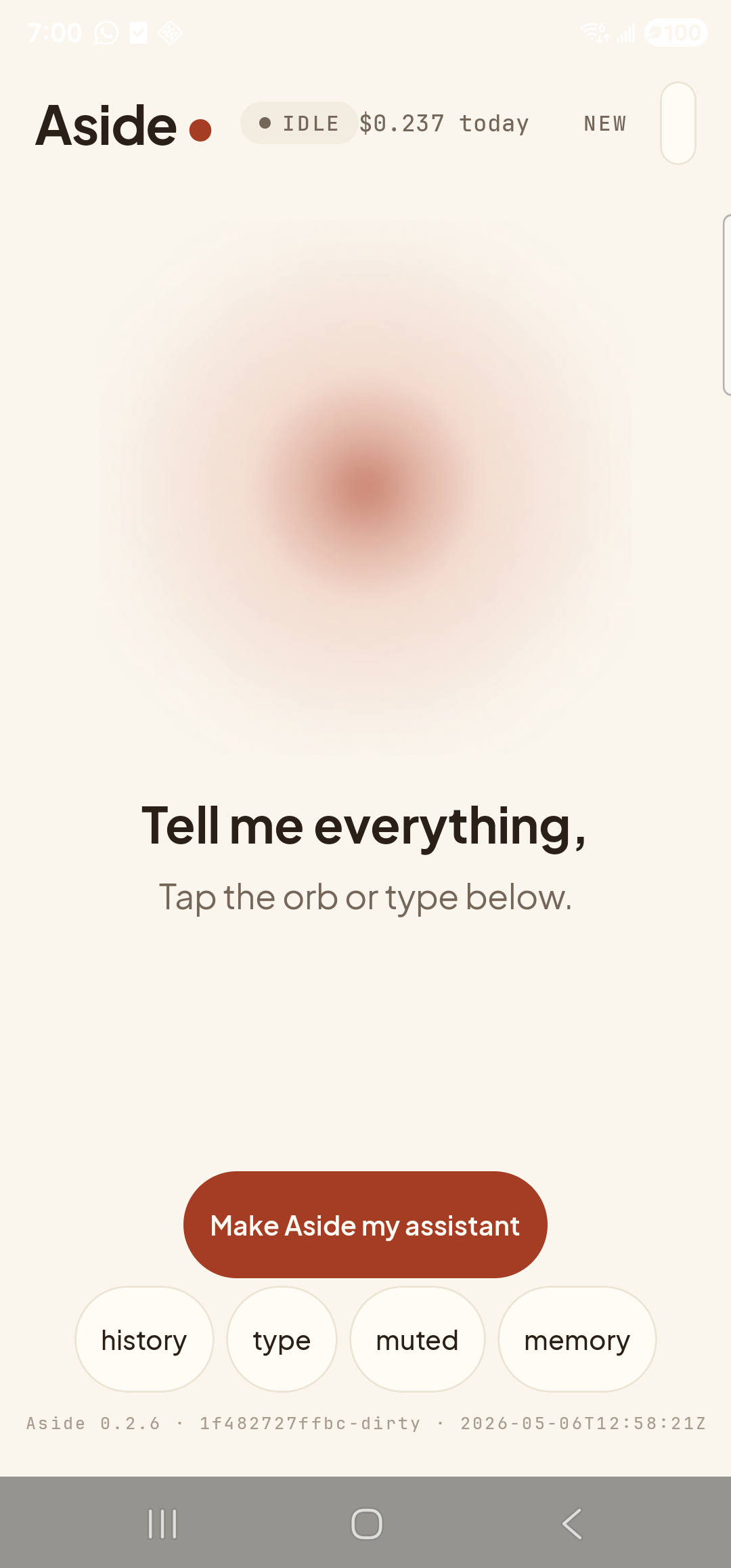
    The Aside main screen at idle on a Samsung Galaxy S23 Ultra. Across the top: the word ‘Aside’ with a red dot, a small mono status pill reading ‘● IDLE’, the cost counter ‘$0.237 today’, and a ‘NEW’ link top-right. Centered in the screen is a large warm-paper-colored orb with a soft brown core, slowly breathing. Below the orb, in large bold type: ‘Tell me everything,’. Below that, in lighter type: ‘Tap the orb or type below.’. Near the bottom is a clay-colored pill button reading ‘Make Aside my assistant’. Below that is a row of four mono pills: ‘history’, ‘type’, ‘muted’, ‘memory’. The very bottom shows a build-identity line: ‘Aside 0.2.6 · 1f482727ffbc-dirty · 2026-05-06T12:58:21Z’.
    Aside open at idle. The orb breathes; nothing else is happening.
  2. Speak (or type) the command

    Hold the orb to talk and say “Turn on the flashlight,” or tap the type pill at the bottom and type the same phrase, then send. As soon as the microphone activates, the orb shifts to its listening state — clear visual confirmation that the mic is live.

    Turn on the flashlight.
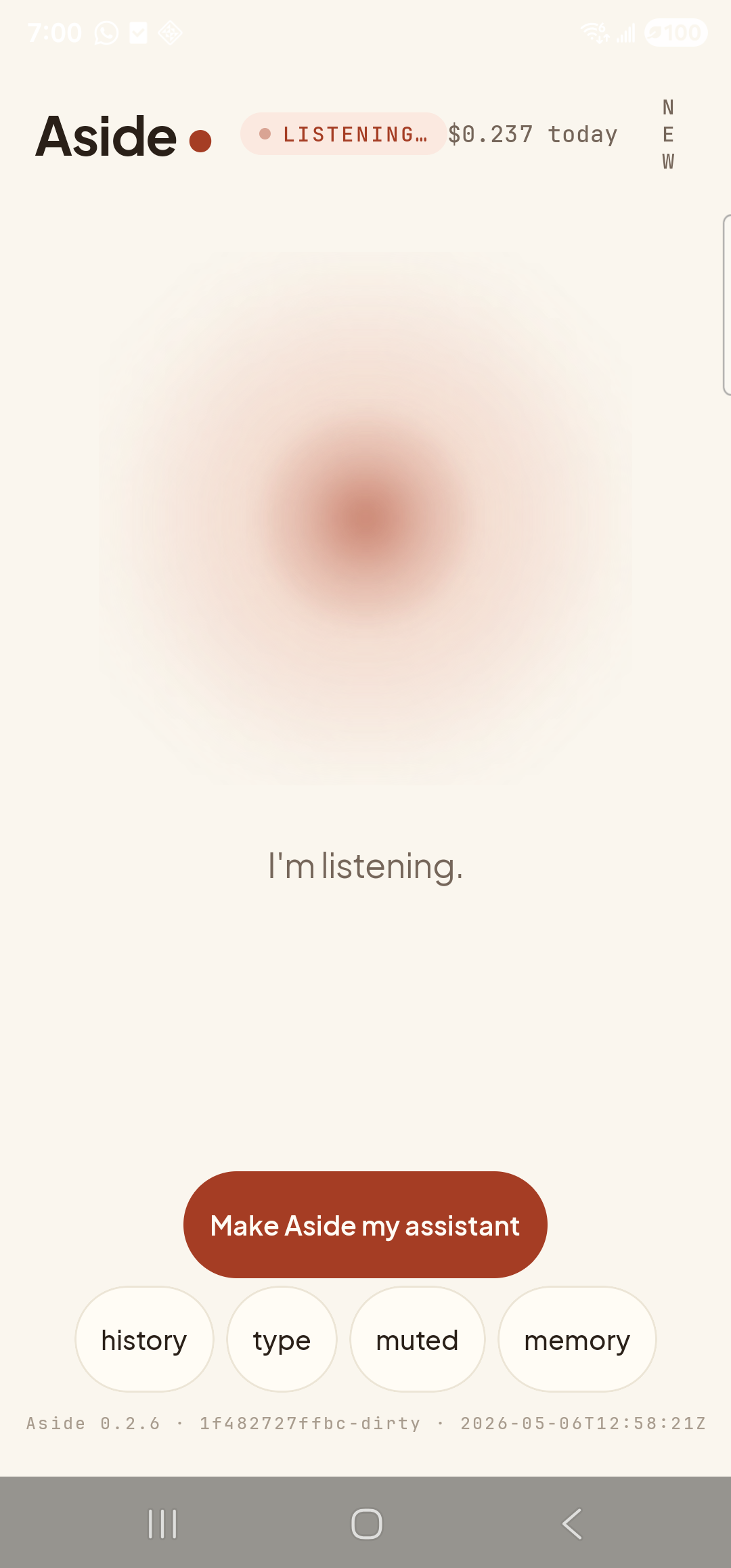
    The Aside main screen now in the listening state. The status pill at the top has changed to ‘● LISTENING…’. The orb is the same warm shape, slightly larger and animated with a soft outline. Beneath the orb, replacing the earlier two-line prompt, a single sentence reads ‘I’m listening.’. The ‘Make Aside my assistant’ button is still visible below; the bottom pill row and build stamp are unchanged.
    Orb shifts to listening state once the mic activates. The caption beneath the orb says ‘I’m listening.’
  3. See Aside confirm

    Aside replies in both audio (out of the speaker) and text. A bottom sheet slides up showing the chat history: your transcribed request, Aside’s spoken reply, and an Aside note chip showing the action that was performed. The rear LED on the back of the phone is now on; the cost counter at the top has incremented slightly.
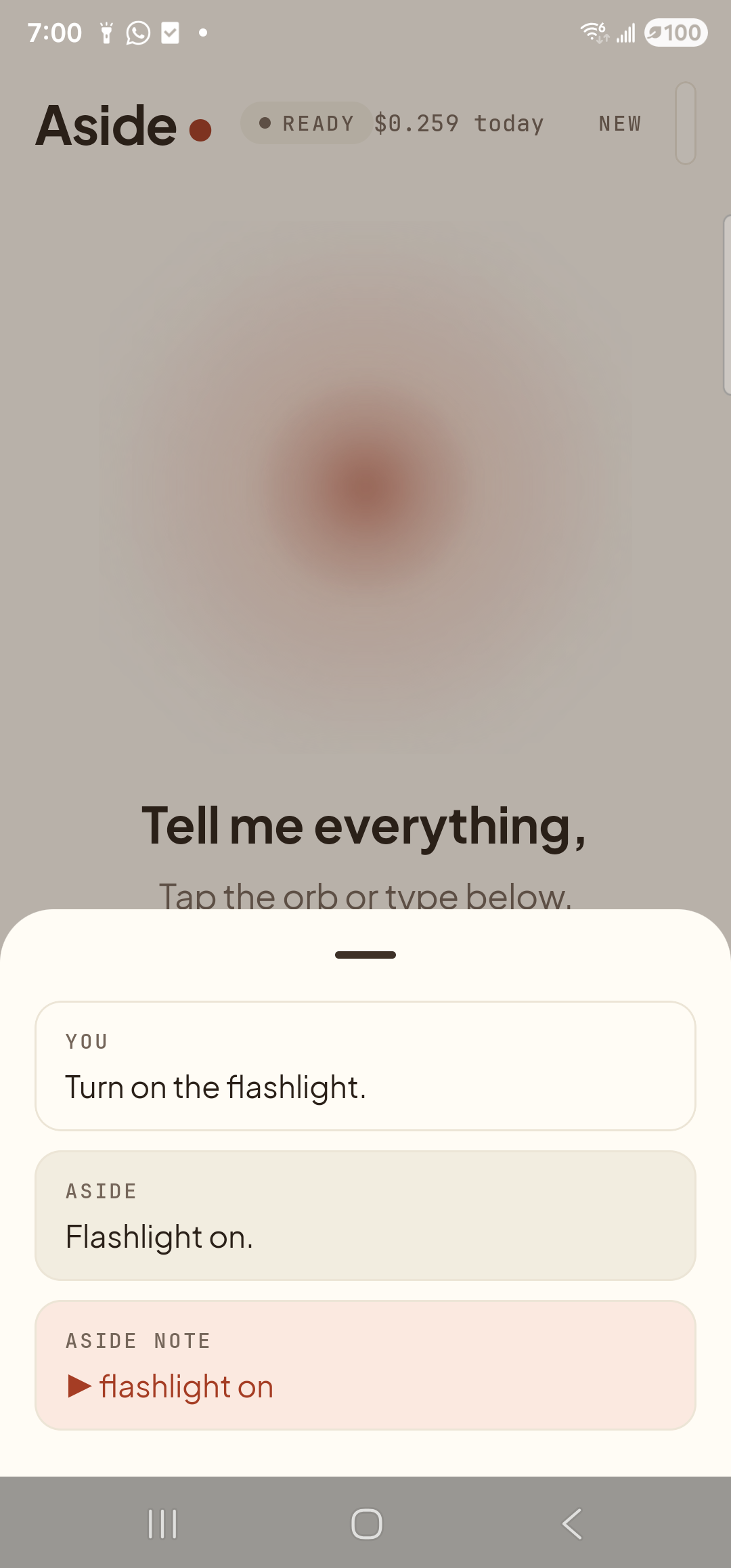
    The Aside main screen with the chat history modal sheet covering the lower half of the screen. The status pill at the top has changed to ‘● READY’ and the cost counter now reads ‘$0.259 today’. Behind a slight scrim, the orb is dimmed; the words ‘Tell me everything,’ and ‘Tap the orb or type below.’ are still partially visible. Inside the bottom sheet are three stacked entries: a small mono label ‘YOU’ above the line ‘Turn on the flashlight.’; a label ‘ASIDE’ above the line ‘Flashlight on.’; and a clay-tinted ‘ASIDE NOTE’ chip showing ‘▶ flashlight on’ — the explicit action marker.
    Aside confirms on screen and aloud. The action chip ‘flashlight on’ shows the exact action that ran.
  4. Turn it off the same way

    When you’re done, just say “turn off the flashlight.” The same flow plays out in reverse and the chat history grows by one more pair of messages. The LED turns off; the cost counter ticks up again.

    Turn off the flashlight.
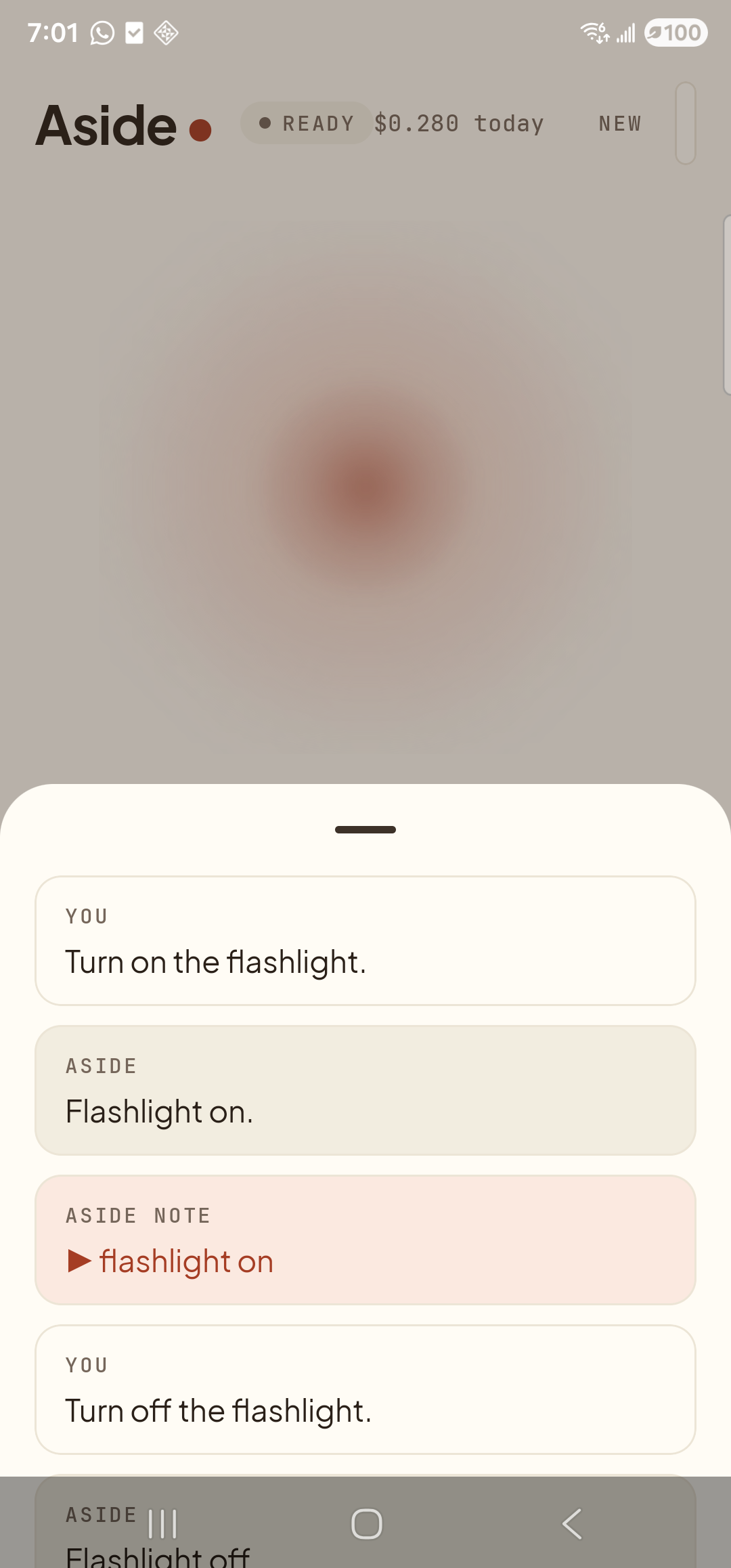
    The Aside main screen showing the chat history bottom sheet now extended with a fourth entry. The status pill reads ‘● READY’; the cost counter has climbed to ‘$0.280 today’. From top to bottom inside the sheet: ‘YOU — Turn on the flashlight.’, ‘ASIDE — Flashlight on.’, ‘ASIDE NOTE — ▶ flashlight on’, ‘YOU — Turn off the flashlight.’, and the beginning of a new ‘ASIDE — Flashlight off’ entry just visible at the bottom of the sheet.
    Flashlight off, history grows by one more pair, orb returns to idle behind the sheet.
If the LED doesn’t come on: Another app may be using the camera (the camera app itself, a video call, or a barcode scanner). Close that app and try again. Aside reports a friendly “couldn’t toggle the flashlight” message in the chat if Camera2 refuses.
Note: Some phones disable the LED when the battery is below ~5% to protect runtime. If turn on the flashlight reports success but you don’t see light, check your battery level.