How-to guide · Navigation & wayfinding Start turn-by-turn navigation by voice

Actionnavigate_to
Audience Vision Motor Cognitive
Time Under 10 seconds
Permissions None — Aside hands off to Google Maps, which uses its own location permission
What this is: A spoken or typed request that opens Google Maps directly into turn-by-turn navigation — no tapping into the destination box, no choosing the travel mode in a menu. Say where you want to go and how (walk, drive, transit, bike) in one sentence; Maps takes you straight to the navigation screen.
Try it now

Open Aside on your phone, then say or type:

“Navigate to Stanley Park, walking.”

Aside confirms in the chat history and Google Maps opens directly into turn-by-turn walking directions to Stanley Park. The first instruction reads aloud through the speaker.

Step by step

  1. Open Aside

    Tap the Aside icon, or trigger your assist gesture if you’ve set Aside as your default assistant. Aside opens to the orb in its idle state with the prompt “Tell me everything,” beneath it.
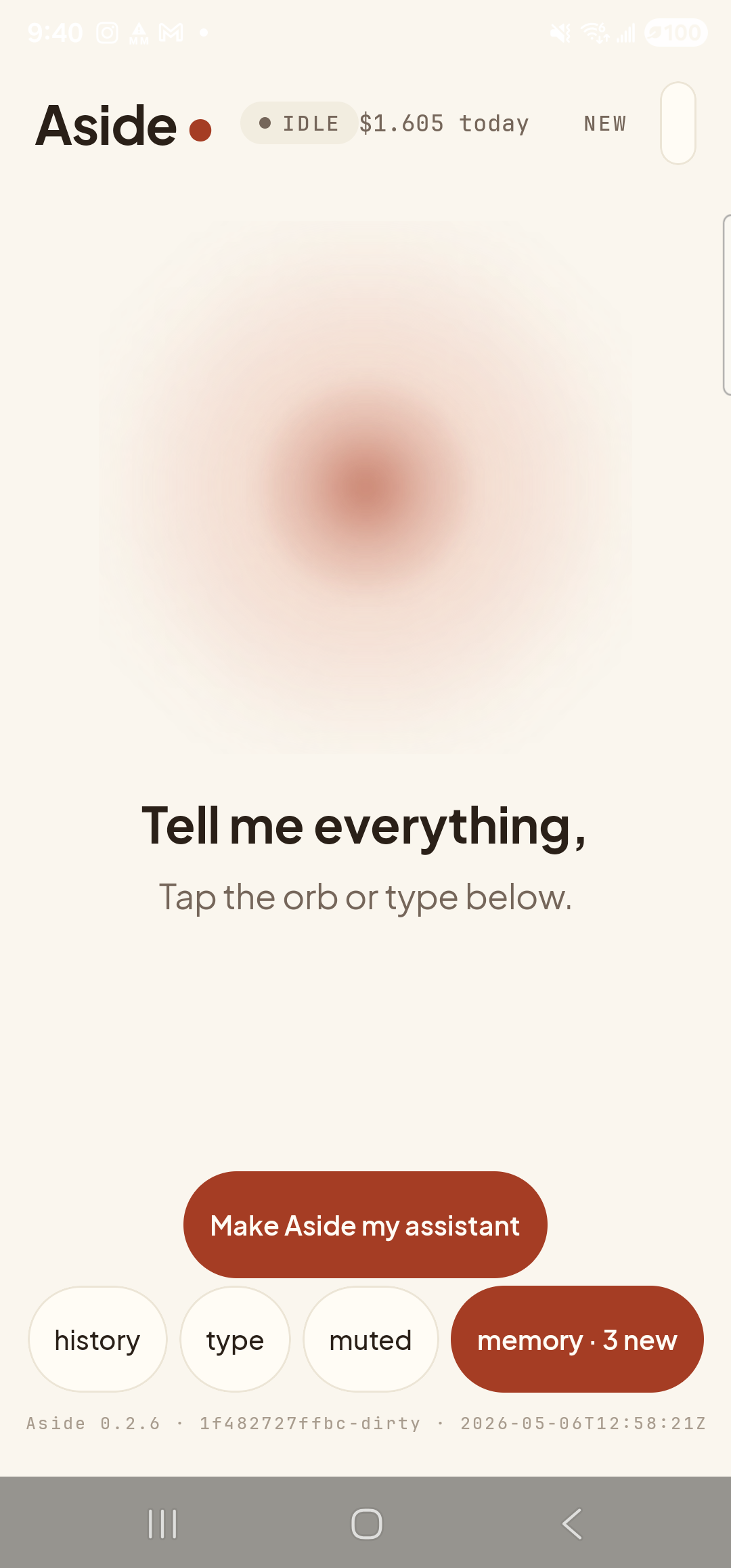
    The Aside main screen at idle on a Samsung Galaxy S23 Ultra. Across the top: the word ‘Aside’ with a red dot, a small mono status pill reading ‘● IDLE’, the cost counter showing today’s running total, and a ‘NEW’ link top-right. Centered in the screen is a large warm-paper-colored orb with a soft brown core, slowly breathing. Below the orb, in large bold type: ‘Tell me everything,’. Below that, in lighter type: ‘Tap the orb or type below.’ Near the bottom is a clay-colored ‘Make Aside my assistant’ button and a row of mono pills: ‘history’, ‘type’, ‘muted’, ‘memory · 3 new’.
    Aside open at idle. The orb breathes; nothing else is happening.
  2. Say the destination and how you’re getting there

    Hold the orb to talk and say “Navigate to Stanley Park, walking,” or tap the type pill at the bottom and type the same phrase, then send. The travel mode goes in the same sentence in plain language — Aside understands all four:

    • walking“walk to…” / “…on foot”
    • driving“drive to…” / default if you don’t say
    • transit“by bus” / “by transit” / “by skytrain”
    • cycling“by bike” / “cycling”
    Navigate to Stanley Park, walking.
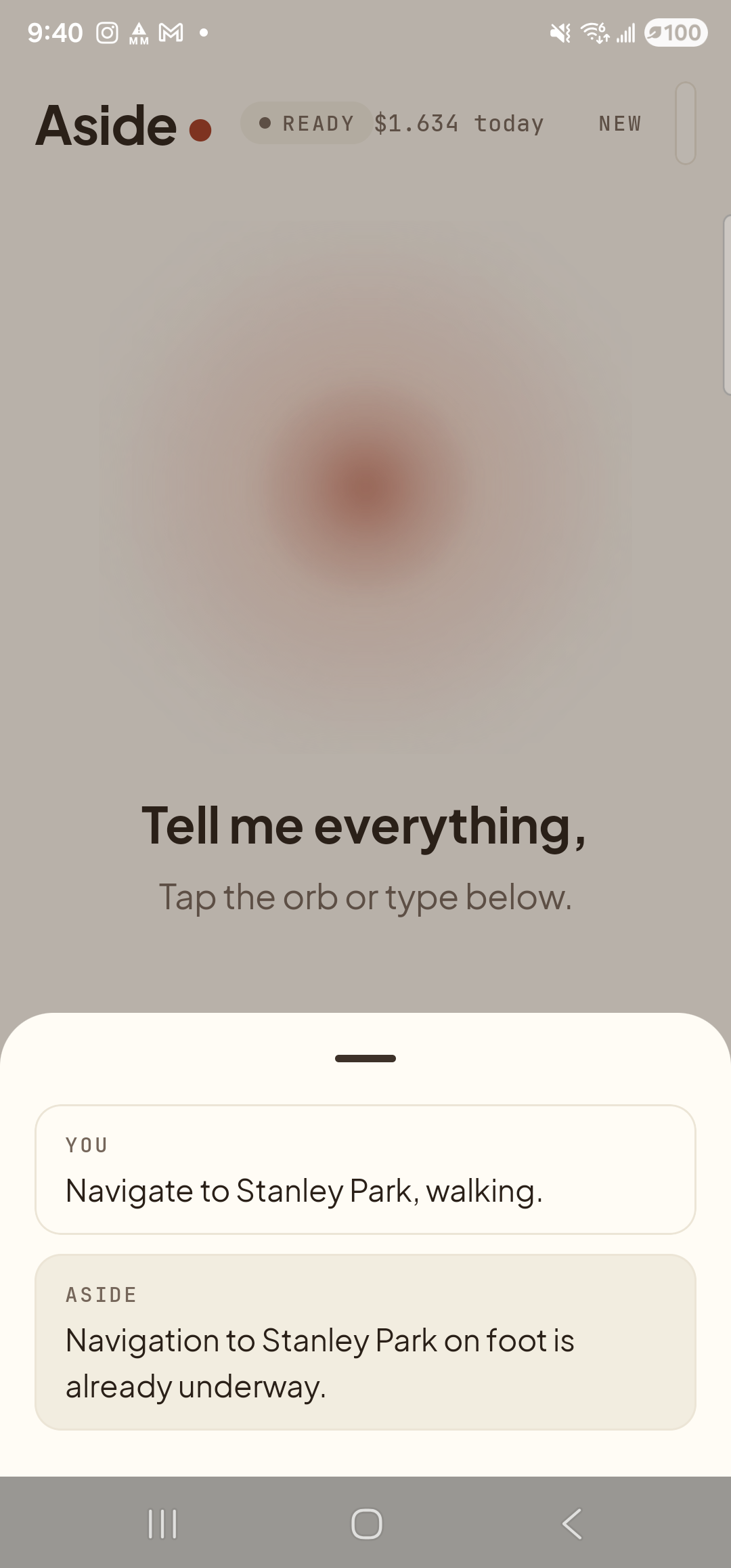
    The Aside main screen with the chat history bottom sheet covering the lower half of the screen. The status pill at the top reads ‘● READY’ and the cost counter has ticked up to ‘$1.634 today’. Inside the bottom sheet: a small mono label ‘YOU’ above the line ‘Navigate to Stanley Park, walking.’; and a label ‘ASIDE’ above the reply ‘Navigation to Stanley Park on foot is already underway.’
    Aside confirms the destination and the mode. The action chip ‘navigate_to — Stanley Park · walk’ shows exactly what was handed off.
  3. Maps opens straight into navigation

    A moment later the screen switches to Google Maps’ turn-by-turn navigation view. The first instruction reads aloud and is shown at the top in big type. The map fills the screen, the route is drawn in blue, and the bottom card shows total time, distance, and ETA.
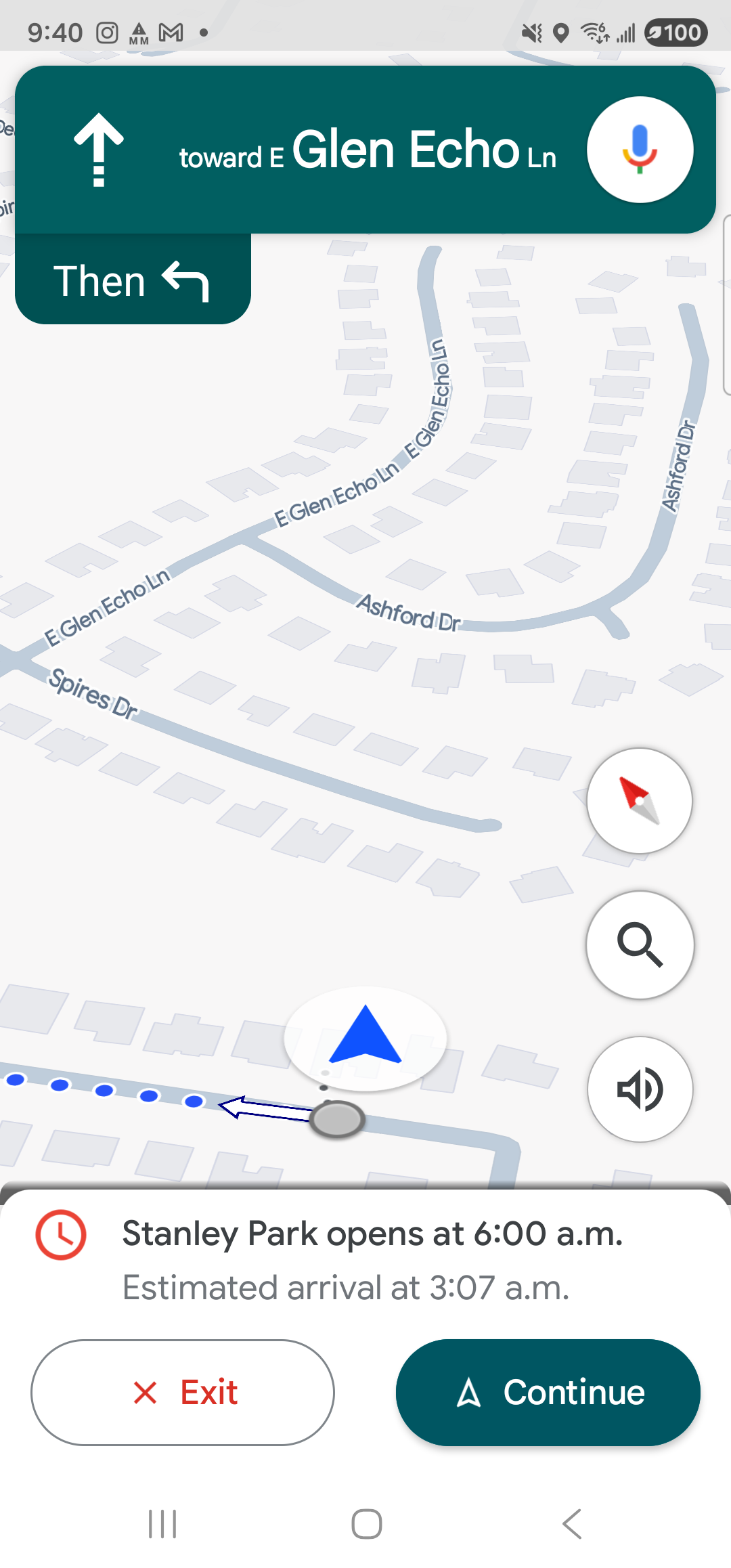
    Google Maps full-screen turn-by-turn walking navigation on the Samsung Galaxy S23 Ultra. A green banner at the top shows the first walking instruction ‘↑ toward E Glen Echo Ln’ with a microphone control on the right. Beneath it a smaller chip reads ‘Then ↰’. The map fills most of the screen with the user’s blue location arrow, a dotted blue walking-route line heading off-screen, and surrounding street labels (E Glen Echo Ln, Ashford Dr, Spires Dr). A bottom card warns ‘Stanley Park opens at 6:00 a.m.’ with the estimated arrival time, alongside a white ‘× Exit’ button and a green ‘△ Continue’ button.
    Google Maps opens directly into turn-by-turn walking navigation — first instruction at the top, route drawn in blue, ETA on the bottom card.
  4. Switch modes or end navigation in Maps

    If you started in the wrong mode, tap the mode icons at the top of the Maps directions screen to switch. To stop navigating, tap the red Exit button on the bottom card. Aside doesn’t control Maps once it’s handed off — you stay in charge of the navigation session.

If Maps opens to a search instead of navigation: Google Maps occasionally needs to disambiguate destinations with the same name. If two places match, Maps shows the search result list instead of starting directions — tap the right one and tap Directions to continue. To narrow it down up front, include a city or street: “navigate to Stanley Park in Vancouver, walking.”
Note: Walking directions are an estimate — Maps doesn’t always know about closed paths, stairs, or construction. Trust your eyes and ears as well as the screen, especially at intersections.