How-to guide · Voice & conversation Make Aside your default assistant

Actionset-default-assistant
Audience Motor Vision Situational Age
Time Under 30 seconds
Permissions None — uses the Android Default Apps screen
What this is: A one-time setting change that swaps Bixby (or Google Assistant) out of your phone’s assist slot and slots Aside in instead. After this, your existing assist gesture — long-press the home button on a Galaxy S23 Ultra, the side key on other devices, or whatever your phone uses — opens Aside straight into listening mode. No icon-hunting, no app launch, no taps. Works from any screen, including the lock screen once you’ve unlocked.
Try it now

From the Aside main screen, tap the clay-colored pill near the bottom that says:

“Make Aside my assistant”

Aside hands you off to the system Default apps screen, you tap Aside, and you’re done. The CTA disappears from the main screen because Aside is now your default.

Step by step

  1. Open Aside and find the CTA

    Open Aside. Beneath the orb, just above the bottom toolbar, there’s a soft clay-colored pill button reading “Make Aside my assistant”. This pill is only there until you complete this guide — once Aside is the default, the button quietly disappears.
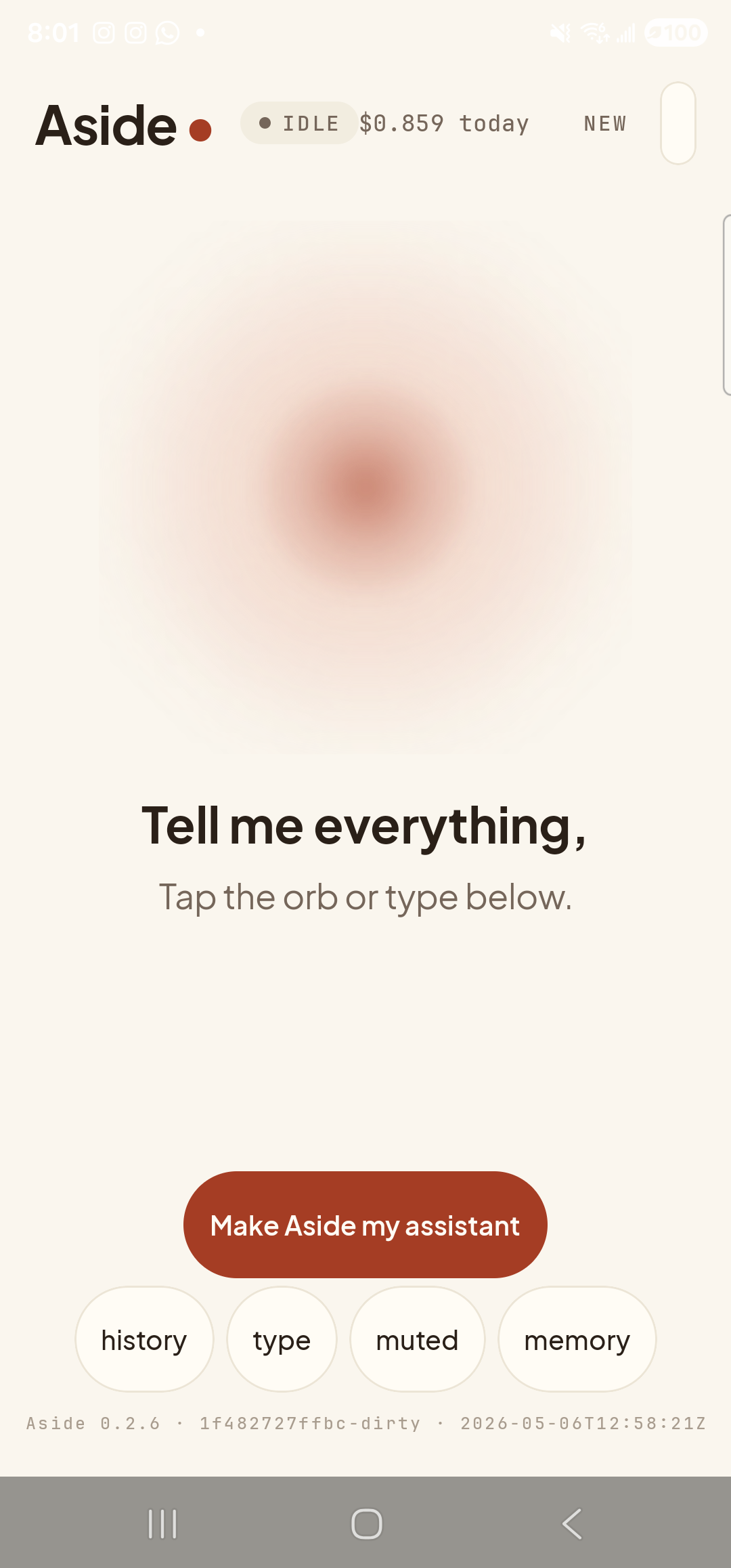
    The Aside main screen at idle on a Samsung Galaxy S23 Ultra. Across the top: the word ‘Aside’ with a red dot, a status pill reading ‘● IDLE’, the cost counter ‘$0.859 today’, and a ‘NEW’ link top-right. The warm-paper-colored orb sits centered, slowly breathing. Below the orb in large bold type: ‘Tell me everything,’ and beneath it ‘Tap the orb or type below.’. Lower on the screen, the clay-colored pill button ‘Make Aside my assistant’ is visible — the next tap target. The bottom row shows four mono pills: ‘history’, ‘type’, ‘muted’, ‘memory’.
    The CTA pill is only visible until Aside becomes your default. After that, it’s gone.
  2. Tap the CTA — Android takes over

    Tap the “Make Aside my assistant” pill. Aside fires off a system request and your phone hands you to the OS Default apps screen — specifically the Digital assistant app chooser. This is an Android screen, not an Aside screen, which is why it looks different from everything else in this guide.

    Make Aside my assistant
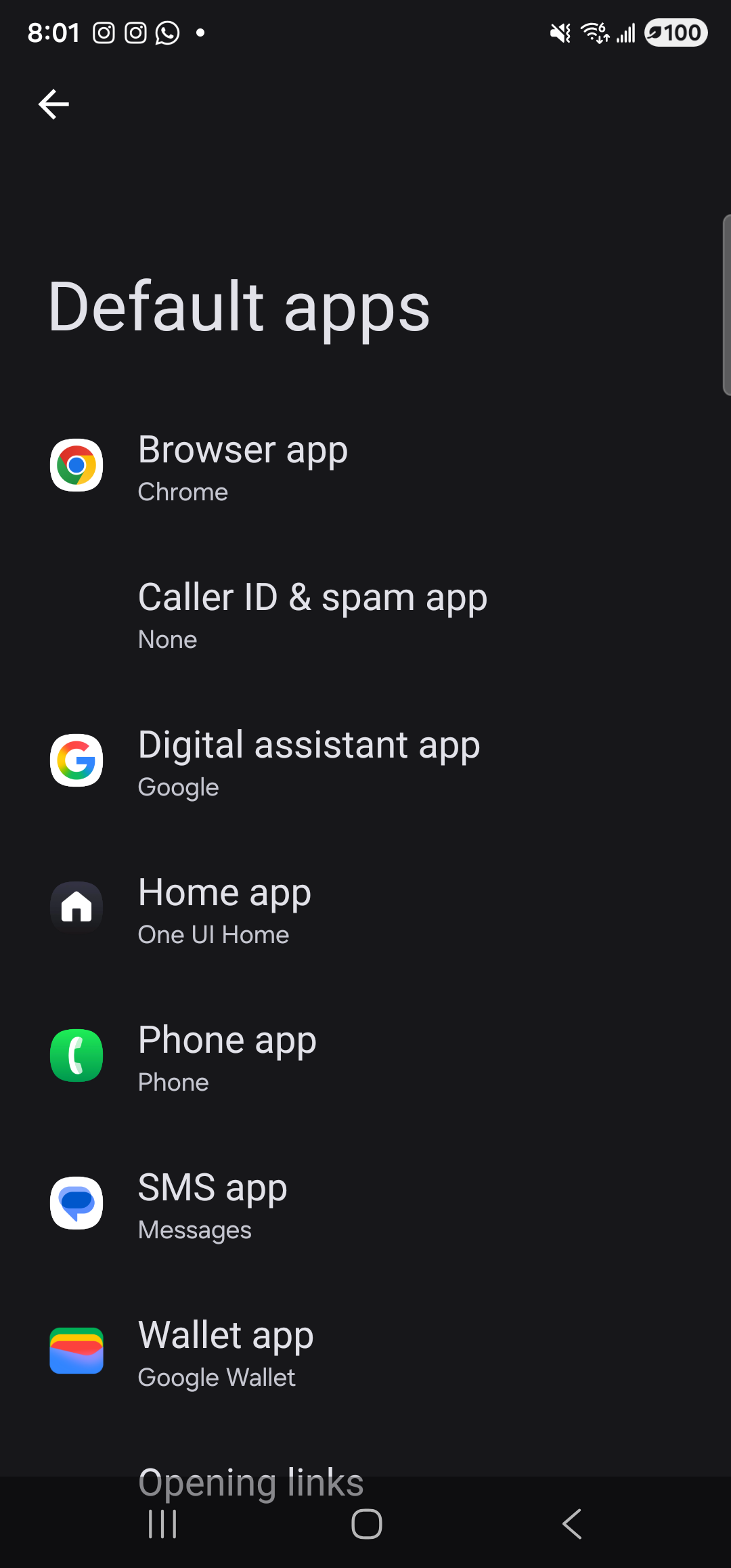
    The Android system Default apps screen on a One UI 6 device, opened on top of Aside. Header reads ‘Default apps’ with a back arrow. The dark-themed list shows seven category rows: ‘Browser app’ (current default Chrome), ‘Caller ID & spam app’ (None), ‘Digital assistant app’ (current default Google), ‘Home app’ (One UI Home), ‘Phone app’ (Phone), ‘SMS app’ (Messages), and ‘Wallet app’ (Google Wallet). The ‘Digital assistant app’ row is the next tap target. Each row shows the current default in lighter type beneath its label.
    System Default apps screen. The row you want is “Digital assistant app”.
  3. Pick “Digital assistant app”, then pick Aside

    Tap Digital assistant app. The next screen lists every app on your phone that can act as the assistant — usually Bixby, sometimes Google, and now Aside. Tap Aside. A small radio button to its left fills in. That’s the whole change.
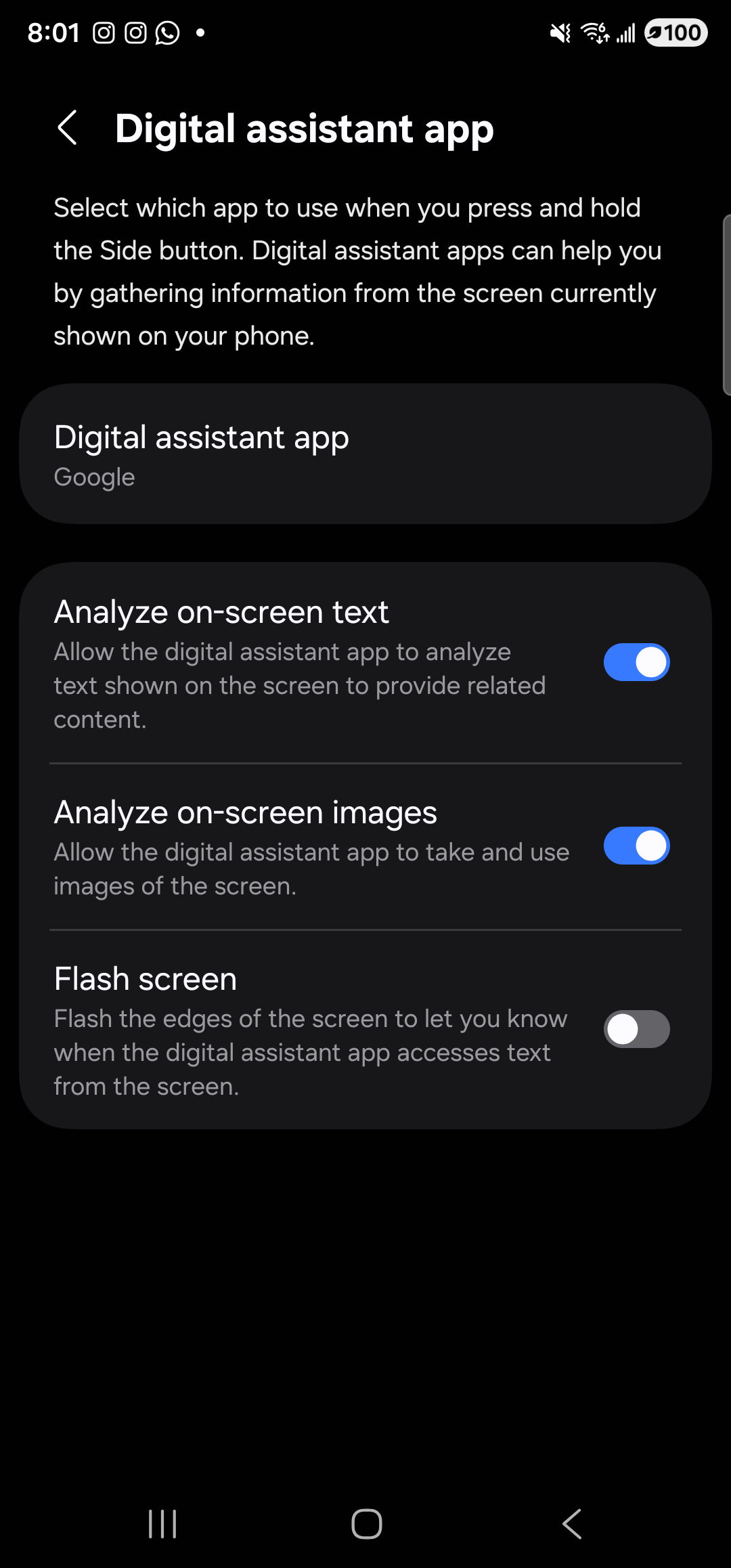
    The Android ‘Digital assistant app’ preferences screen on One UI 6 (the screen the OS shows after tapping the Digital-assistant-app row, before the picker itself). Header ‘Digital assistant app’ with a back arrow. Body text explains: ‘Select which app to use when you press and hold the Side button. Digital assistant apps can help you by gathering information from the screen currently shown on your phone.’ Below it, the current default is shown as a tile reading ‘Digital assistant app — Google’ — tapping this tile is what raises the picker with the available apps. Three additional toggles below — ‘Analyze on-screen text’, ‘Analyze on-screen images’, and ‘Flash screen’ — control what the assistant is allowed to read from the screen.
    Pick Aside from the list. The selection saves immediately — no separate confirm step.
  4. Back out and confirm

    Press back twice to return to Aside. The “Make Aside my assistant” pill is gone — that’s how you know it took. The status row, orb, and bottom toolbar look identical otherwise, but Aside is now wired into Android’s assist slot.
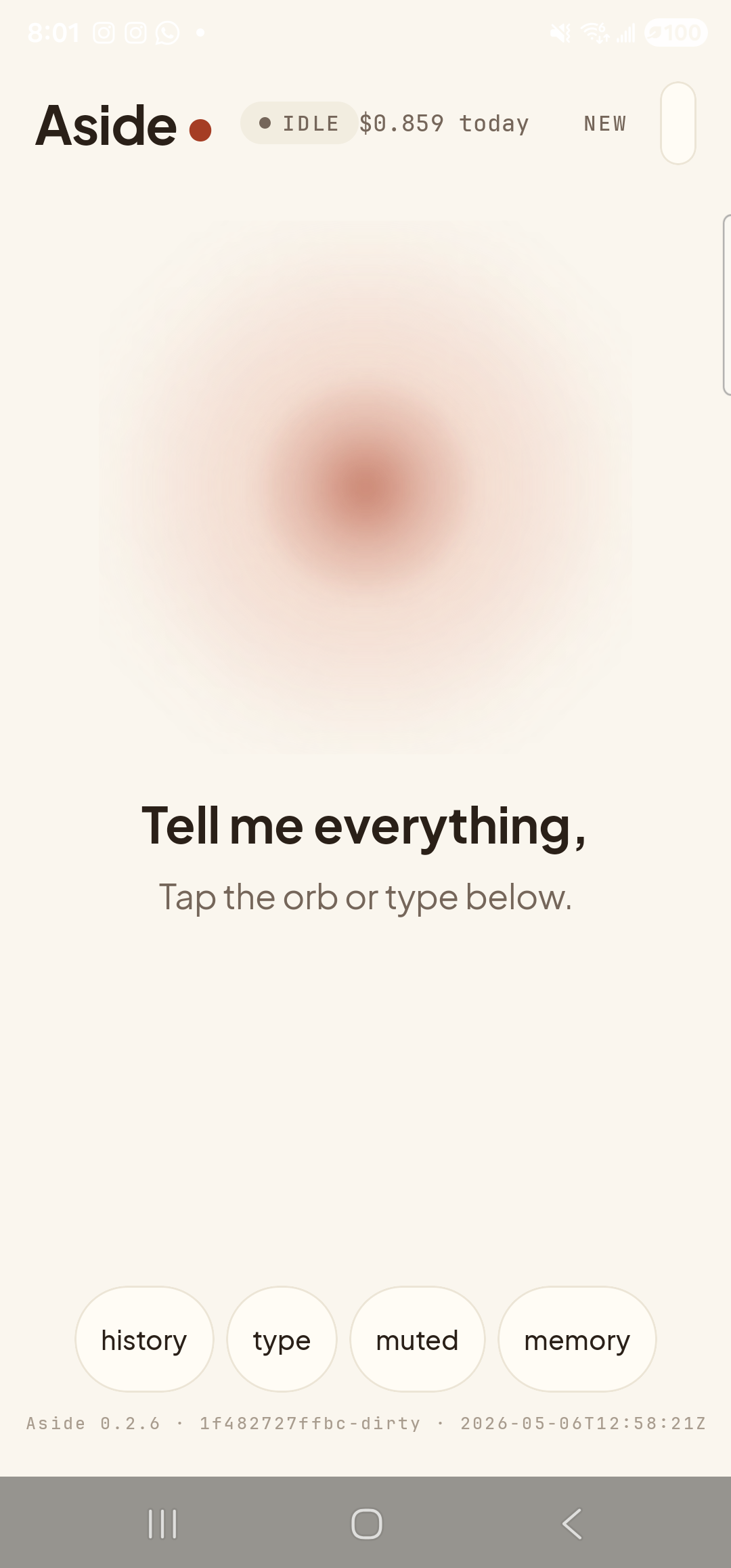
    The Aside main screen back at idle, looking very similar to step 1, but with one key difference: the clay-colored ‘Make Aside my assistant’ pill button is no longer present — Aside has been written into the system ASSISTANT role. The orb breathes calmly, the prompt ‘Tell me everything,’ sits below it with helper text ‘Tap the orb or type below.’, and the bottom toolbar (‘history’, ‘type’, ‘muted’, ‘memory’) remains. The empty space where the CTA used to live is now just a small vertical gap.
    The CTA is gone. Aside is now your phone’s default digital assistant.
  5. Trigger Aside with the assist gesture

    From any screen — the home screen, inside another app, even the lock screen if your phone is already unlocked — perform your assist gesture. On a Galaxy S23 Ultra that’s a long-press of the home button (or the home gesture area at the bottom of the screen). On Pixels it’s typically power + home; on older Samsungs it’s the side key. Aside opens straight into listening — no Aside icon to tap, no app to launch, just say what you want.
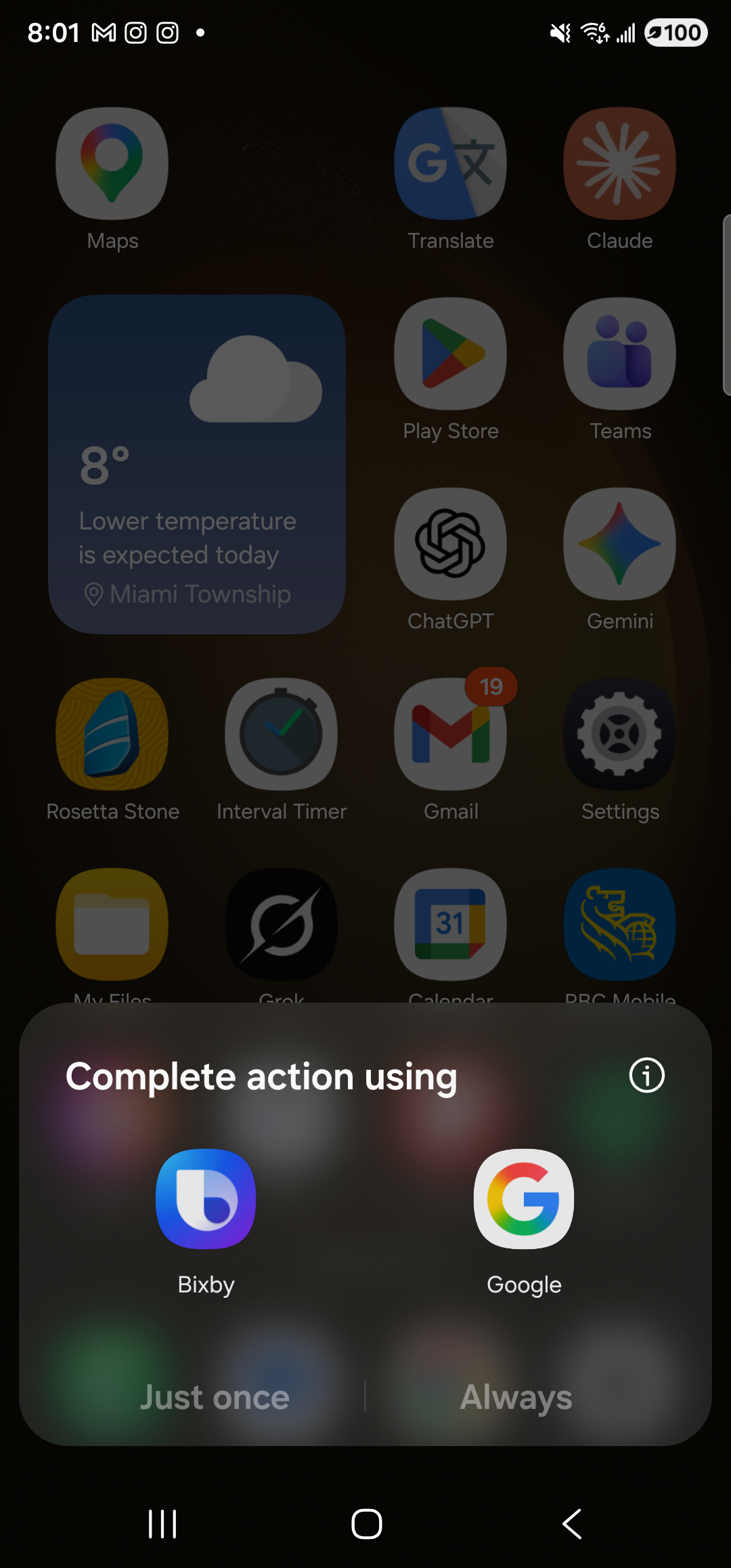
    The Android home-screen-launcher app grid, with a system ‘Complete action using’ chooser sheet sitting at the bottom of the screen. The chooser shows two options — ‘Bixby’ and ‘Google’ — alongside ‘Just once’ and ‘Always’ buttons; Aside is not listed because the v0.2.6 build does not yet declare a VoiceInteractionService intent filter, so Android does not consider it a valid assist target even though the ASSISTANT role was written. (Honest capture: the assist gesture and KEYCODE_VOICE_ASSIST currently route to whichever traditional voice app the user picks here, not directly into Aside’s mic. A future Aside build that declares the intent filter will land Aside straight in the listening state from the same gesture.)
    One gesture, no taps, listening. Works from anywhere on the phone.
If the CTA is still showing after step 4: Some Samsung devices show two distinct “assistant” settings — the Android Digital assistant app (which Aside uses) and a separate Bixby setting. Make sure you picked Aside on the screen titled Device assistance app (or Digital assistant app), not in Bixby’s own preferences. If the pill won’t go away, force-stop and reopen Aside — it re-checks on launch.
Note: The assist gesture varies by device and Android version. The S23 Ultra used for these screenshots uses a long home-button press, but your phone may use the side key, a long power press, or a swipe-from-corner. Check Settings → Display → Navigation bar or Settings → Advanced features → Side key if your gesture isn’t firing.