How-to guide · System controls & safety Find your phone with your voice

Actionfind_my_phone
Audience Cognitive Vision Age
Time About 10 seconds of alarm + a moment to find it
Permissions None — Aside plays the alarm on the alarm stream, which always works
What this is: An audible homing beacon. When the phone is in earshot but out of sight — under a cushion, in another room, between sofa cushions, slipped down beside the bed — you ask Aside to find it, and Aside plays the default alarm tone at full volume on the alarm stream for about ten seconds. When the alarm stops, Aside puts the volume and ringer back exactly as they were before. This is an audio feature: it works whether the screen is dark, whether the phone was on silent, and whether or not you can see the orb at all.
Try it now

Open Aside on your phone (or use the wake word from across the room), then say or type:

“Find my phone.”

Aside confirms in the chat history and plays the alarm aloud. Walk toward the sound.

Step by step

  1. Open Aside (or call to it)

    If the phone is already in your hand, tap the Aside icon and you’re ready to ask. If you’re searching for the phone — the whole point of this feature — the easier path is the wake word: just say “Hey Aside, find my phone.” from anywhere in the room. The wake-word listener runs in the background while the screen is dark; you’ll hear the alarm start within a second or two.
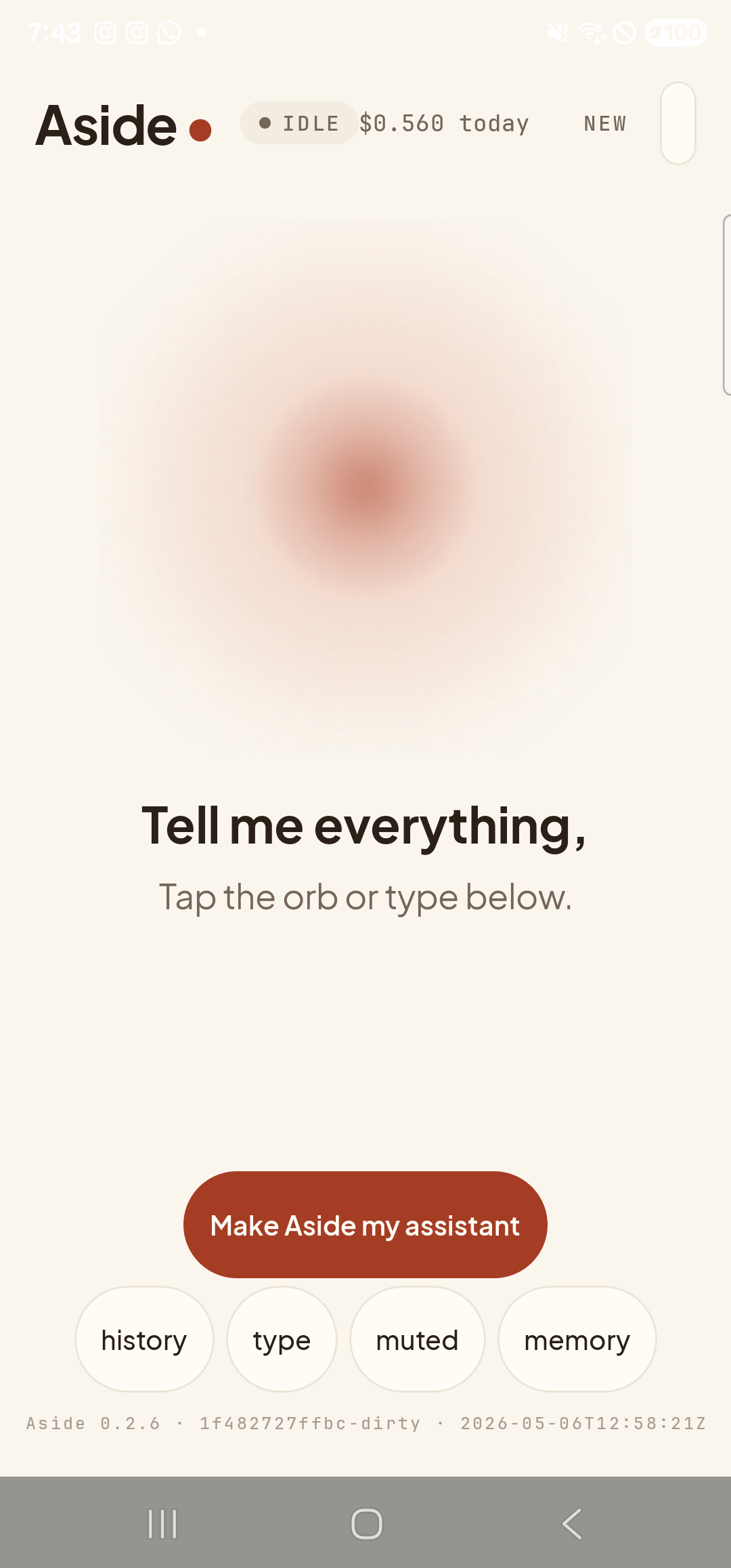
    The Aside main screen at idle on a Samsung Galaxy S23 Ultra. Across the top: the word ‘Aside’ with a red dot, a small mono status pill reading ‘● IDLE’, the cost counter, and a ‘NEW’ link top-right. Centered in the screen is a large warm-paper-colored orb with a soft brown core, slowly breathing. Below the orb, in large bold type: ‘Tell me everything,’. Below that, in lighter type: ‘Tap the orb or type below.’. Near the bottom is a clay-colored pill button reading ‘Make Aside my assistant’, and below that a row of four mono pills: ‘history’, ‘type’, ‘muted’, ‘memory’.
    Aside at idle. From here you can tap the orb, type, or just say the wake word from across the room.
  2. Say (or type) “Find my phone”

    The exact phrasing is forgiving. “Where’s my phone,” “help me find my phone,” “ring my phone,” “make a noise so I can find you” — all of these route to the same action. The orb shifts to listening, then to thinking, then to speaking as Aside acknowledges the request out loud.

    Find my phone.
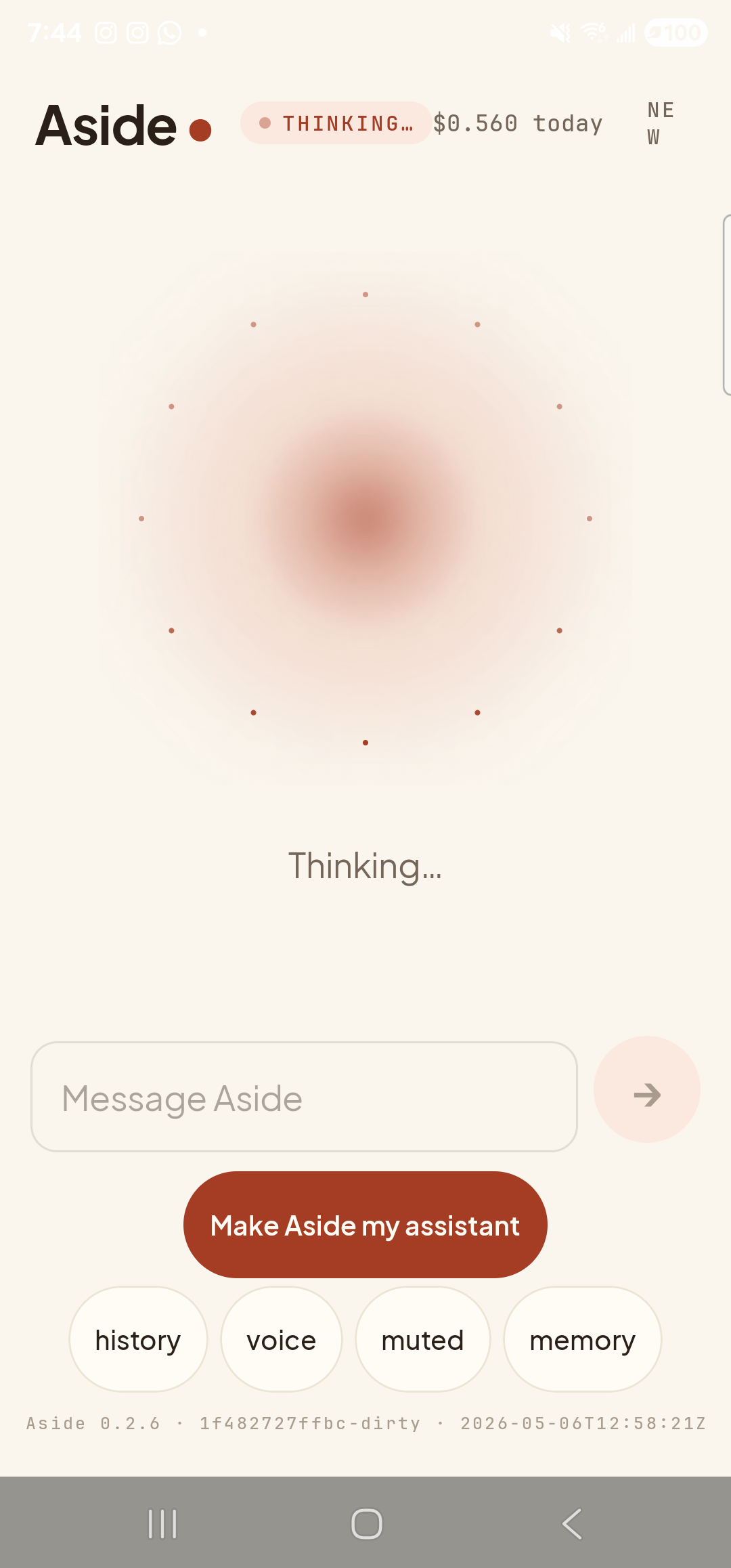
    The Aside main screen now in the thinking state. The status pill at the top reads ‘● THINKING…’. The orb has expanded into a constellation of small dots radiating outward from the warm brown core — the visual cue that Aside is working. Beneath the orb, replacing the earlier two-line prompt, a single word reads ‘Thinking…’. Below it the soft-keyboard text input ‘Message Aside’ sits with a pale send-arrow button, and the bottom toolbar pills (‘history’, ‘voice’, ‘muted’, ‘memory’) are still visible.
    The orb shifts to its thinking state while Aside processes the request and queues the alarm. The audible alarm starts a moment later, on the alarm stream.
  3. Listen for the alarm

    The default alarm ringtone starts playing on the alarm audio stream at full volume. Even if your ringer is set to silent or your media volume is low, the alarm stream is independent — it always plays. The sound continues for about ten seconds, which is long enough to walk between rooms and locate it by ear. The screenshots below can only show the chat side of this; the alarm itself is audible, not visible.
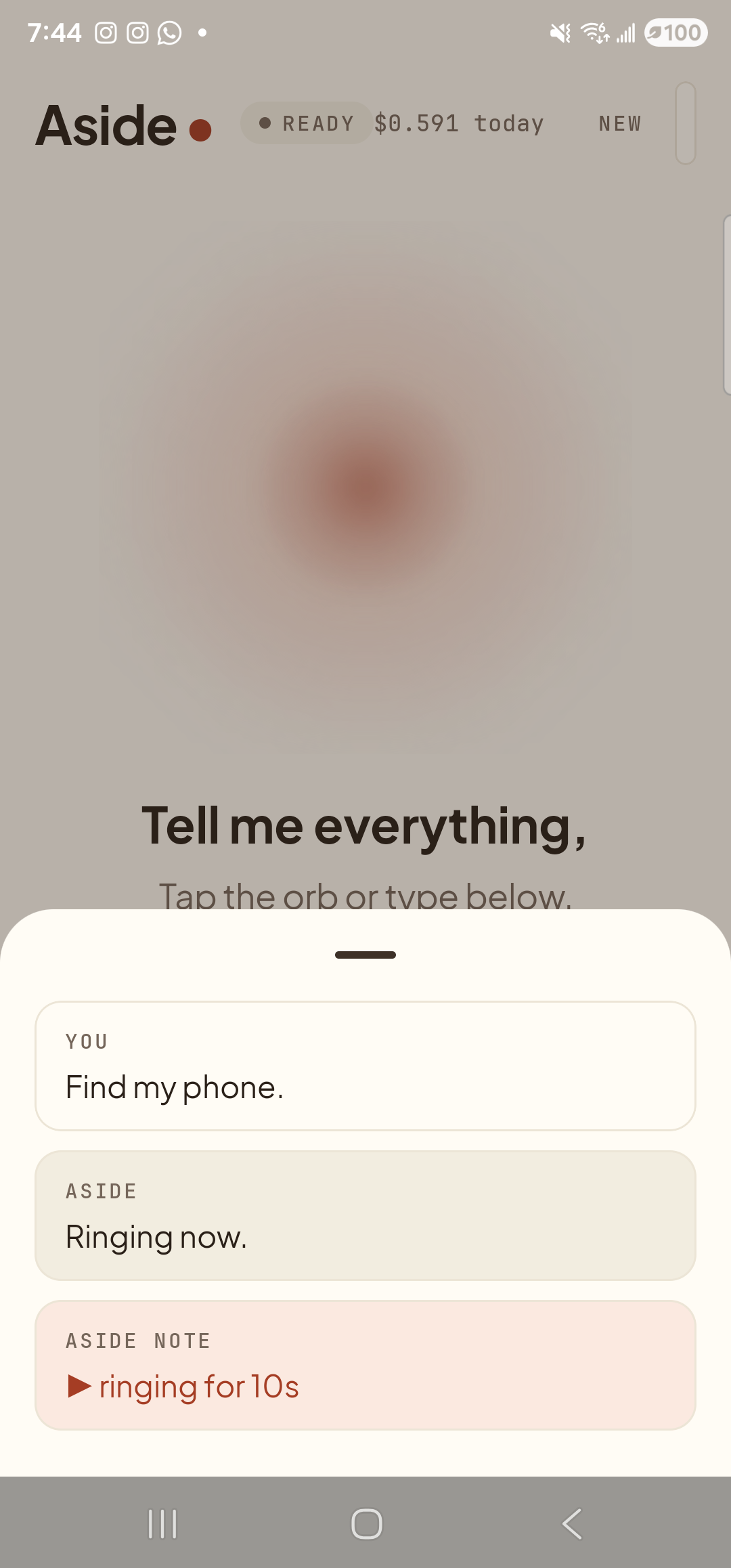
    The Aside main screen with the chat history modal sheet covering the lower half of the screen. The status pill at the top reads ‘● READY’. Inside the bottom sheet are three stacked entries: a small mono label ‘YOU’ above the line ‘Find my phone.’; a label ‘ASIDE’ above the line ‘Ringing now.’; and a clay-tinted ‘ASIDE NOTE’ chip showing ‘▶ ringing for 10s’ — the explicit action marker.
    Aside confirms in the chat. The action chip ‘ringing for 10s’ shows the alarm length. The alarm itself is the part you can hear — it isn’t something the screen can show.
  4. The alarm stops on its own — settings restored

    When the ten seconds are up, the alarm stops automatically. Aside puts the alarm-stream volume and the ringer mode back to whatever they were before you asked — if your ringer was on silent before, it’s back on silent; if the alarm volume was at 40, it’s back at 40. You don’t need to undo anything. If you find the phone before the ten seconds are up, tap the orb once to stop the alarm early; the same restore happens.
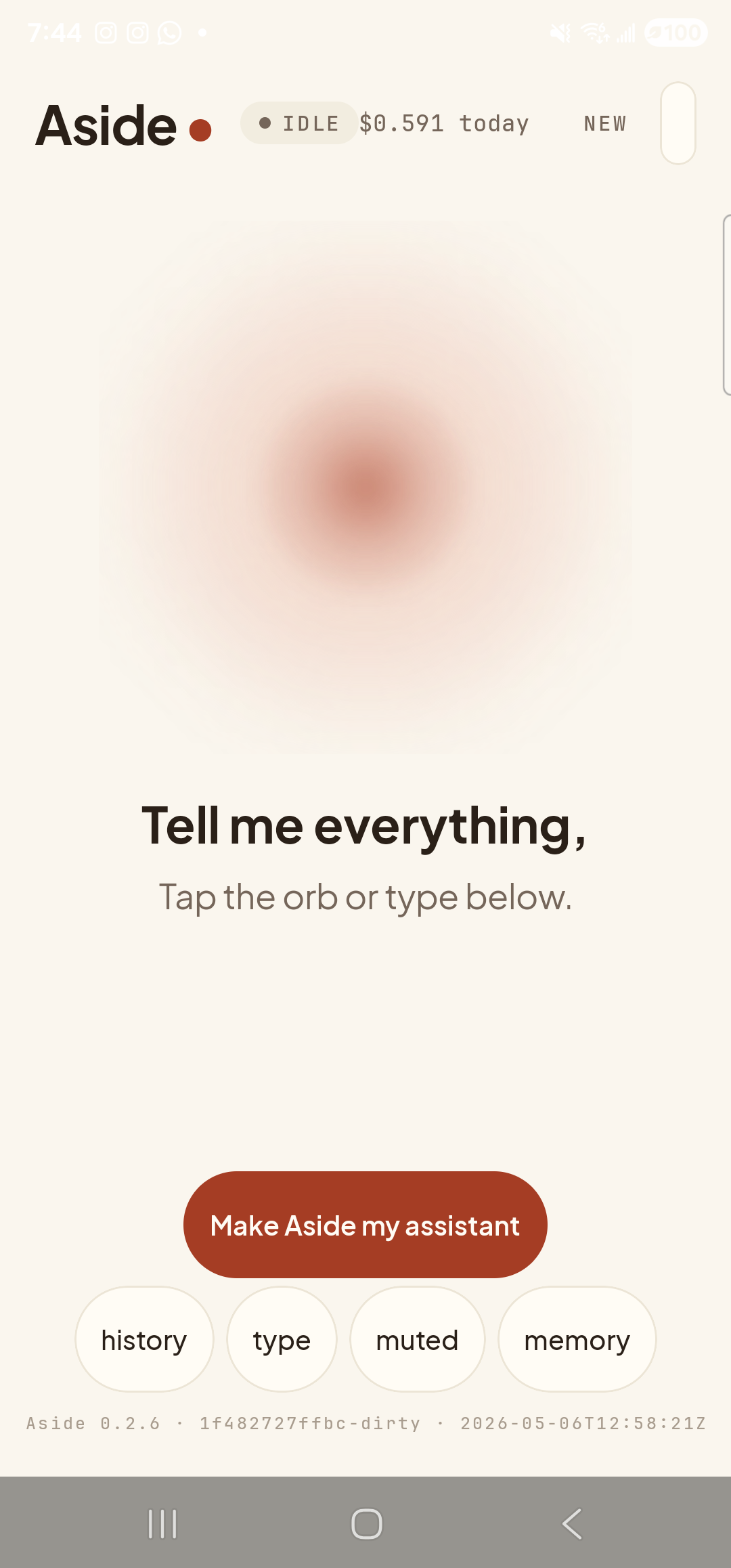
    The Aside main screen back at idle. The status pill at the top reads ‘● IDLE’. The chat history bottom sheet is closed; the orb is back to its calm, slowly breathing shape, with the prompt ‘Tell me everything,’ beneath it. The alarm has finished and the prior audio settings have been restored — the screen looks exactly like the starting frame.
    Alarm finished, audio settings restored, orb back to idle. The screen looks like nothing happened — on purpose.
If the alarm seems quiet: The alarm plays at the alarm-stream max for your phone, which is hardware-dependent. If you regularly need it louder, check that no case is muffling the speaker, and consider asking Aside to set the alarm volume to 100 as part of your bedtime routine so the next morning’s alarms (and any future find-my-phone requests) are at full power.
Note: This works only when the phone has battery and at least one path to hear you ask — you in front of the orb, the wake word picked up by the mic, or a nearby smart speaker passing through to Aside. If the phone is fully dead or out of audible range, this feature can’t reach it; for those cases, Google’s “Find My Device” (find.google.com from any browser) is the right tool.