How-to guide · Time, alarms & calendar Set a labeled timer with your voice
Open Aside on your phone, then say or type:
Aside confirms in the chat history and the system Clock app opens with a 12-minute timer already counting down. The label rice is set so you know what each timer is for if you stack two or three.
Step by step
-
Open Aside
Tap the Aside icon, or trigger your assist gesture if you’ve set Aside as your default assistant. Aside opens to the orb in its idle state — calm, slowly breathing — with the prompt “Tell me everything,” beneath it.
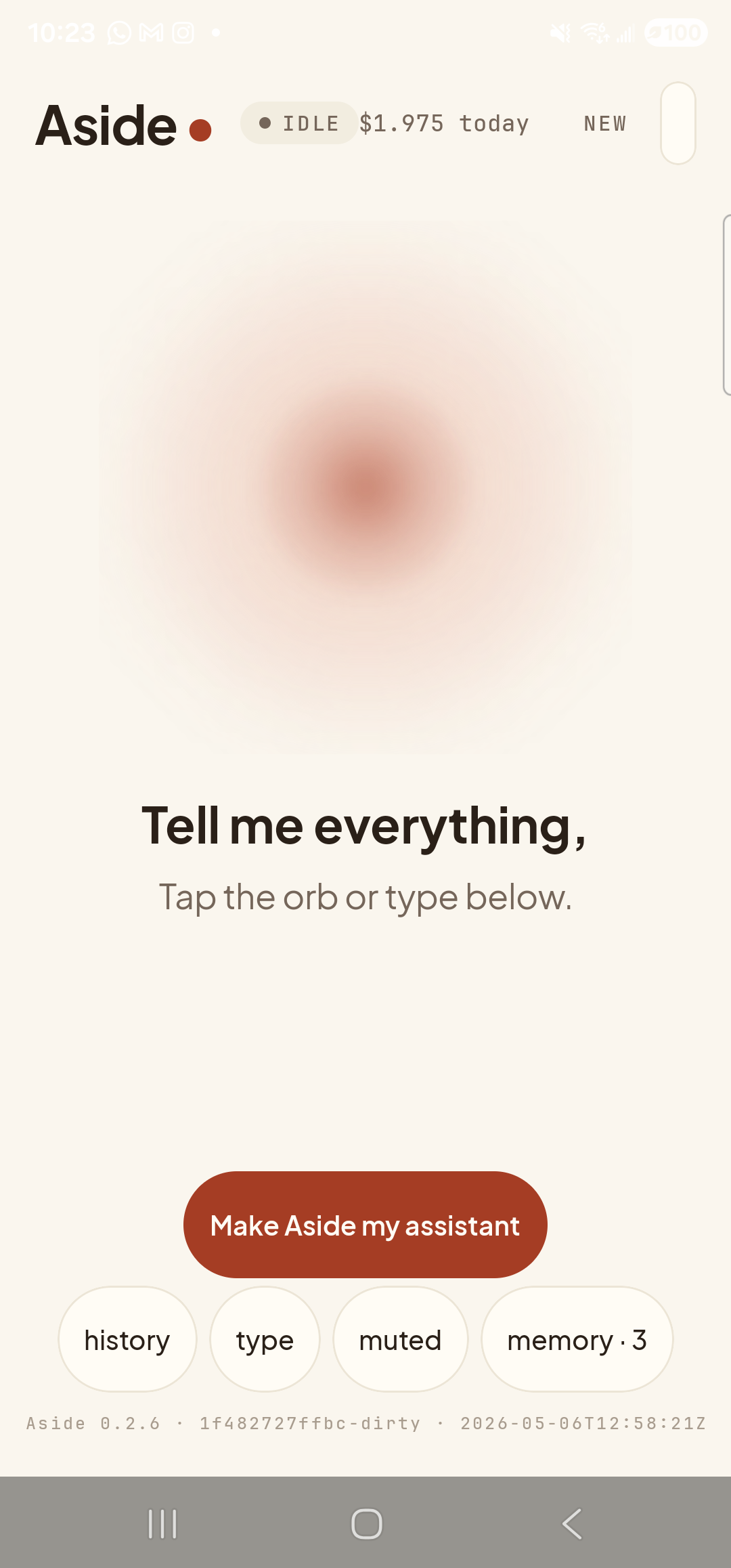
Aside open at idle. The orb is breathing; nothing is happening yet. -
Say (or type) the timer request
Hold the orb to talk and say “Timer for twelve minutes for the rice,” or tap the type pill at the bottom and type the same phrase, then send. The duration can be any natural-language span Aside understands — “ninety seconds,” “an hour and a half,” “twenty-five minutes” all work. The label is whatever follows for.
Timer for twelve minutes for the rice.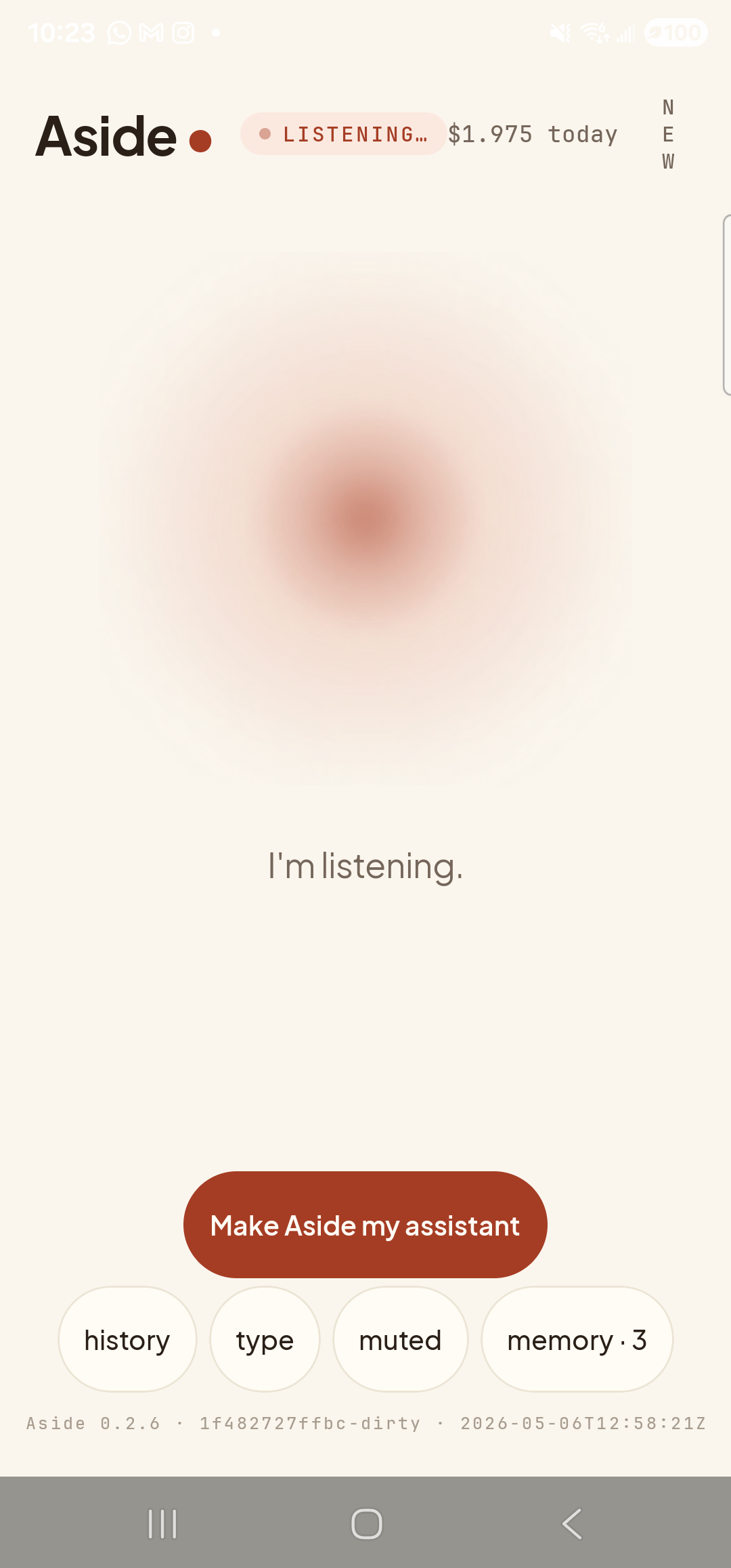
Orb shifts to listening once the mic activates. -
See Aside confirm
Aside replies in both audio and text. The chat history shows your transcribed request, Aside’s spoken reply, and an Aside note chip showing the action that was performed — in this case a 12-minute timer for “rice”. The Clock app is launching in the background.
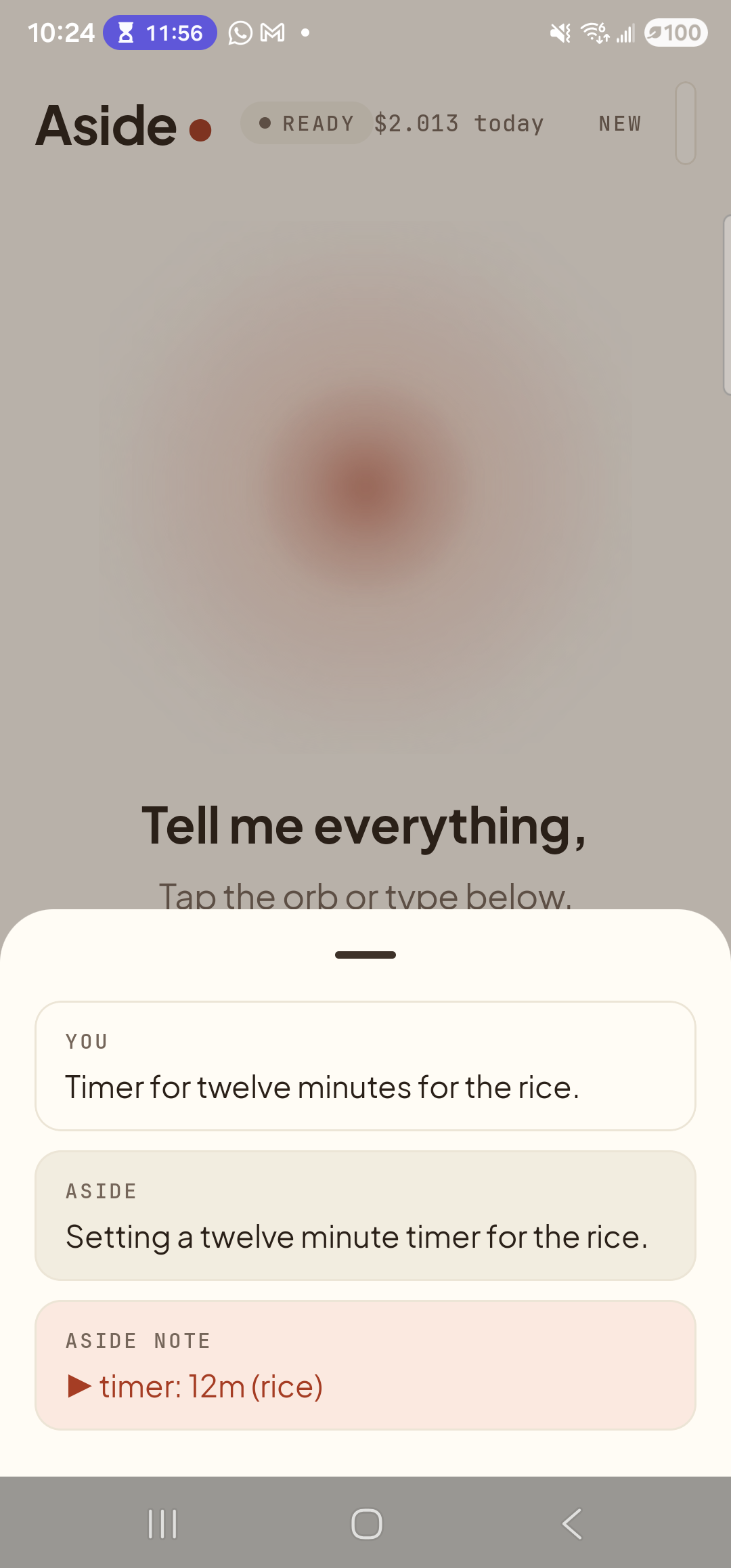
Aside confirms on screen and aloud. The action chip shows the exact duration and label that were set. -
Watch the timer counting down in Clock
The system Clock app slides in front and lands you on the Timer tab with a freshly running 12-minute timer, labeled rice. It is already counting down — you do not need to press a start button. Lock your phone and walk away; the alarm fires when the timer hits zero, even with the screen off.
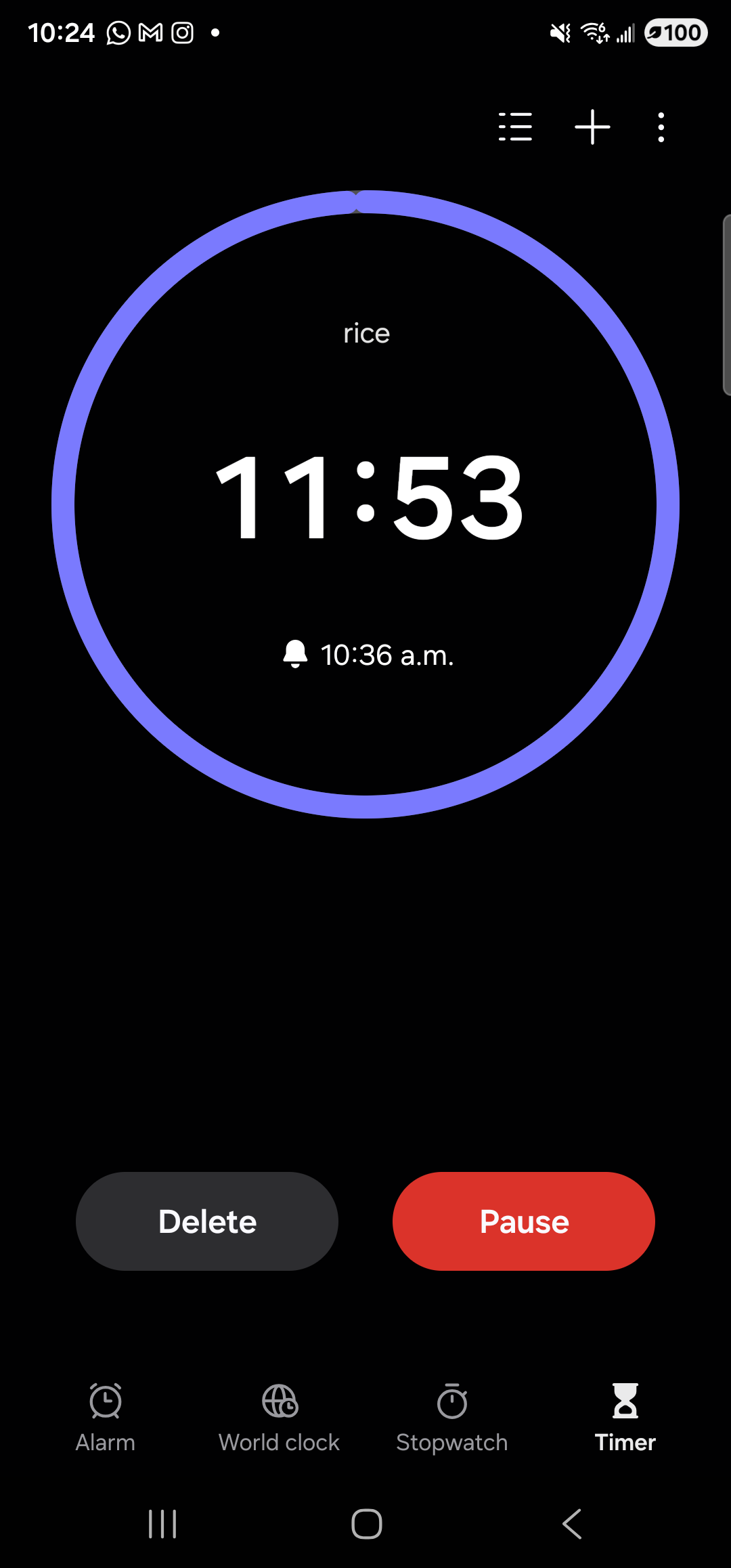
Clock app, Timer tab. The ‘rice’ timer is already counting down — no extra taps required.