How-to guide · Accessibility settings Turn off motion

Actionreduce-motion
Audience Vision Cognitive
Time Under 15 seconds
Permissions None
What this is: A single toggle on Aside’s Accessibility settings page that pauses every animation in the app — the orb’s slow breathing, the status-pill pulse, the modal-sheet slide, and the listening-state outline ripple. The orb is still visible, it just sits still and gets brighter or dimmer when its mode changes instead of animating between states. Useful for vestibular sensitivity, cognitive load reduction, and battery saving.
Try it now

From inside Aside:

Settings → Accessibility → Reduce motion (toggle)

Or, if your phone’s system-wide animation setting is already at zero (Android Settings → Accessibility → Remove animations), Aside picks that up automatically — no in-app toggle needed.

Step by step

  1. Open Settings → Accessibility

    Tap the gear icon at the top-right of Aside’s main screen, then tap Accessibility. Scroll if needed; Reduce motion is the third row, beneath text size and higher contrast.
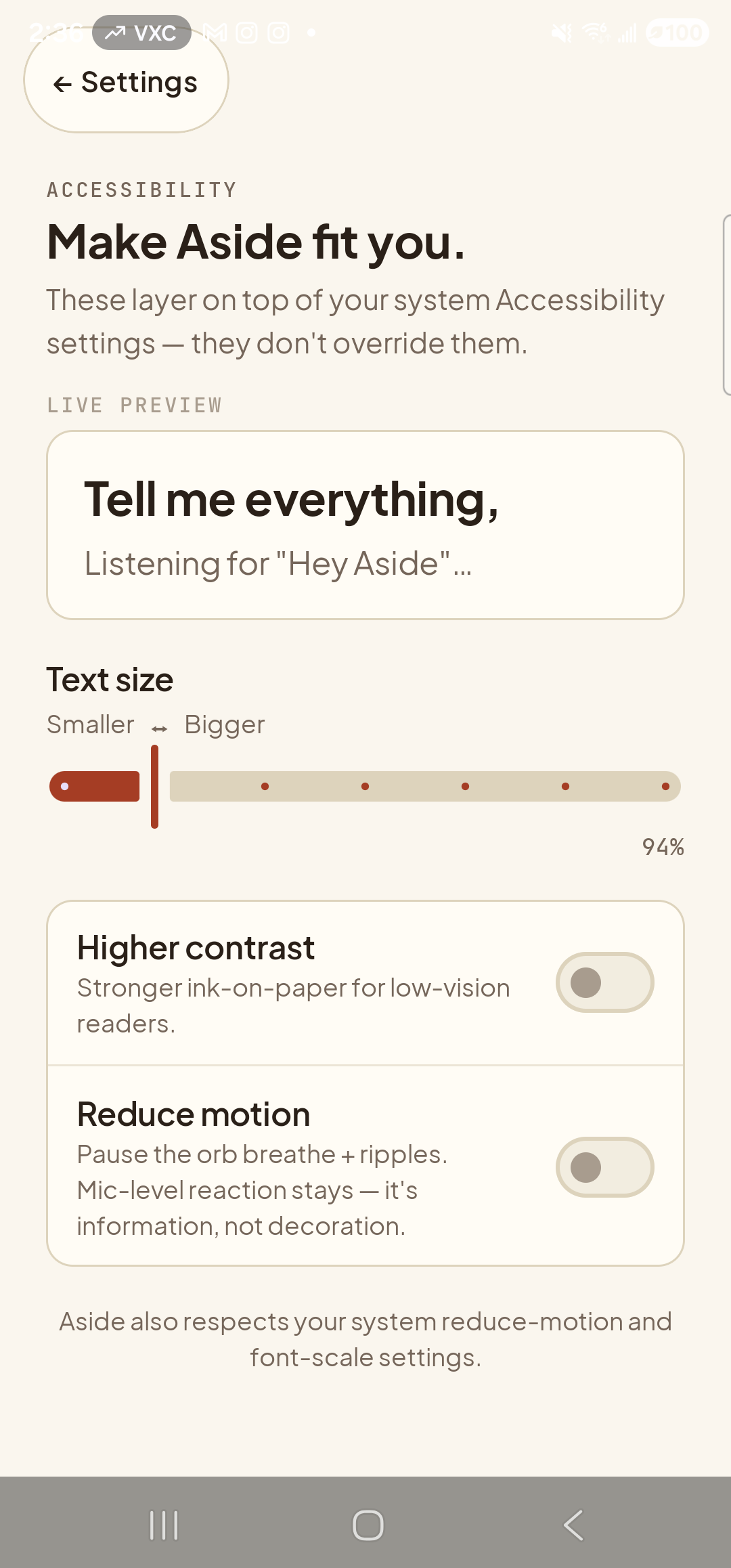
    The Aside Accessibility settings page in its default appearance. Top-left: a clay-colored ‘← Settings’ pill button. Below it, the mono eyebrow ‘ACCESSIBILITY’ and the bold title ‘Make Aside fit you.’, then the body line ‘These layer on top of your system Accessibility settings — they don’t override them.’ Below the eyebrow ‘LIVE PREVIEW’, a paper-colored card with the bold line ‘Tell me everything,’ and the caption ‘Listening for
    Accessibility page. Reduce motion is the third row.
  2. Tap the toggle

    Tap anywhere on the Reduce motion row. The toggle slides to the on position. Animations on the page itself stop — the toggle’s own slide is the last animation you’ll see for the rest of the session.
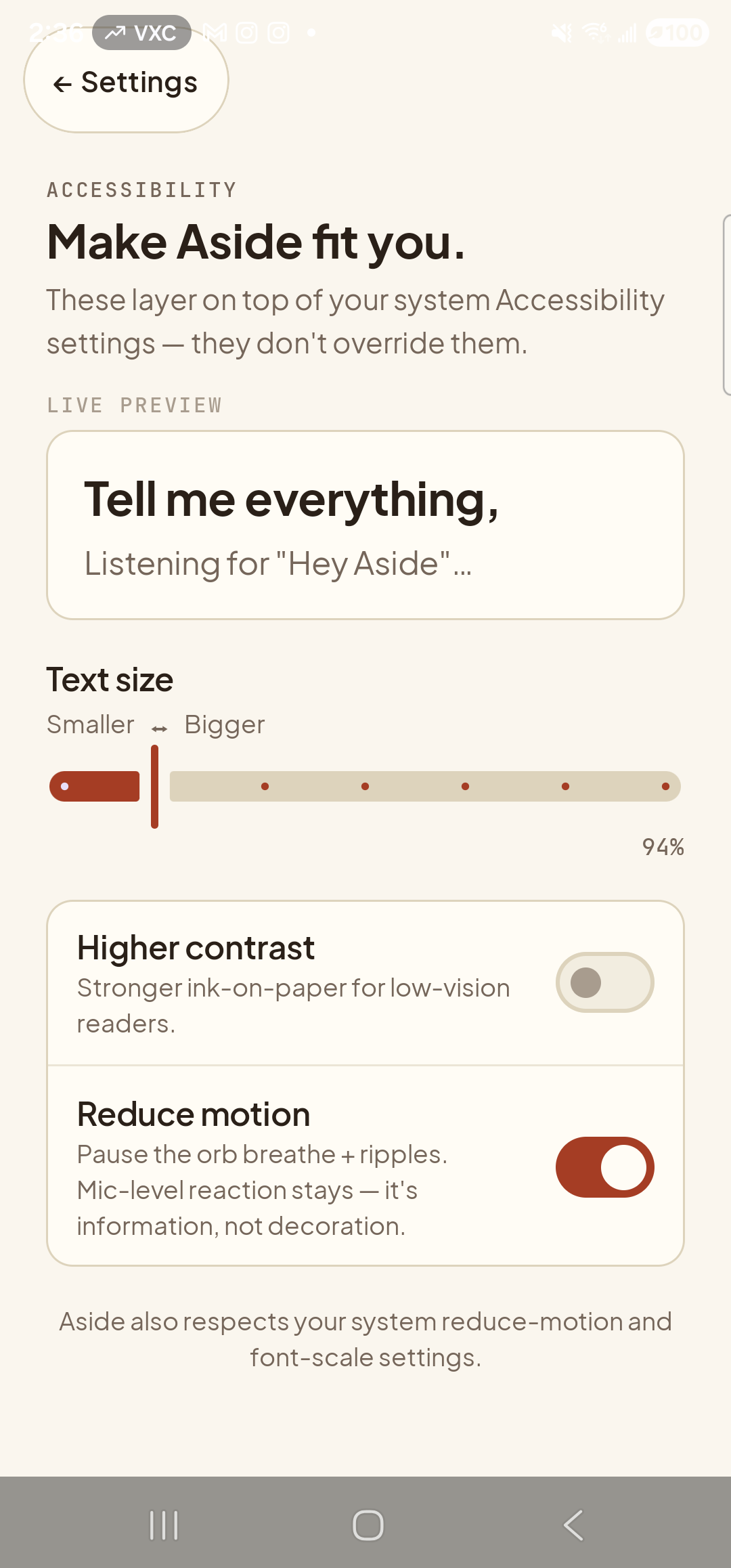
    The same Aside Accessibility settings page after tapping Reduce motion. The Reduce motion toggle on the right of its row is now in the active clay-red ON state with its small white knob slid to the right. The other rows (live preview, text-size slider at 94%, Higher contrast row with gray OFF toggle) are unchanged. The page is otherwise visually identical to the previous screenshot — the substantive difference is in what motion no longer happens, not in what’s drawn at one frame.
    Toggle in the on state. The visual difference is mostly in what isn’t happening: page transitions are now instantaneous.
  3. See the orb sit still on the main screen

    Tap back twice to return to the main screen. The orb is in the same position and the same size as before, but it’s now frozen at the still frame of its breath cycle — no rhythmic grow-and-shrink, no soft outline pulse. The status pill at the top still updates instantly when the mode changes, but the small dot beside it no longer pulses.
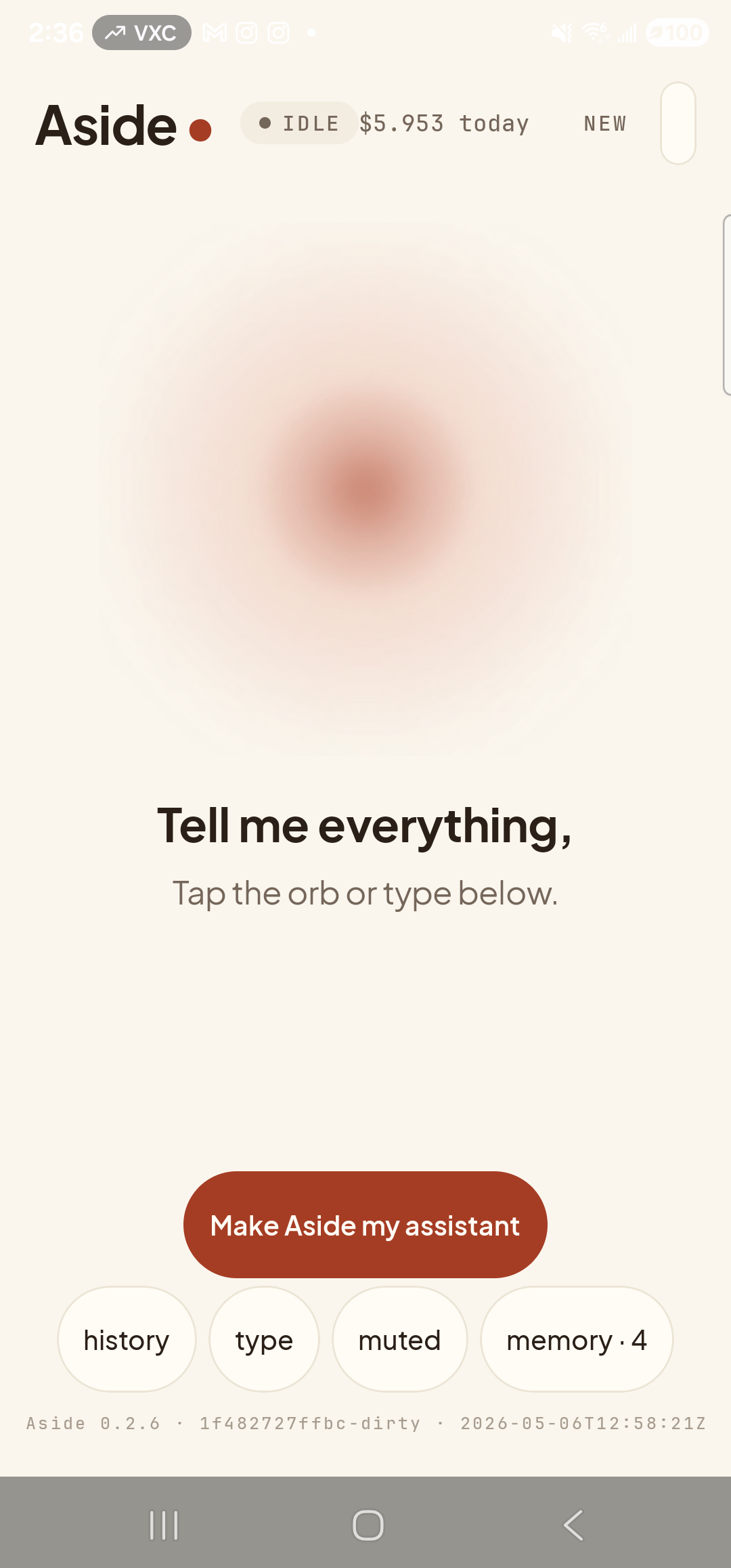
    The Aside main screen at idle, with reduce motion enabled. Across the top: the ‘Aside’ wordmark, the status pill ‘● IDLE’, the cost counter ‘$5.953 today’, and the ‘NEW’ link top-right. Centered: the warm-paper orb, completely still — no breathing, no outline pulse. Its core is the same warm brown as in the default state, sitting at one fixed size. Below the orb, the bold prompt ‘Tell me everything,’ and the caption ‘Tap the orb or type below.’ The clay-colored ‘Make Aside my assistant’ pill is centered below the captions. Bottom row of mono pills ‘history’, ‘type’, ‘muted’, ‘memory · 4’ and the build-stamp footer ‘Aside 0.2.6 · 1f482727ffbc-dirty · 2026-05-06T12:58:21Z’ are unchanged. At a single frame the screen looks identical to a default-state idle screen — the difference is purely in motion (or rather, the absence of it).
    Main screen with the orb sitting still. The screenshot shows one frame; the difference is what motion isn’t happening.
  4. Toggle it back off if you want the breathe back

    The orb is still — but if you’ve been using Aside for a while, the slow breathe is part of the calming presence. To revert: gear → Accessibility → tap Reduce motion again. The toggle moves back to off and the breathe resumes on the next idle frame.
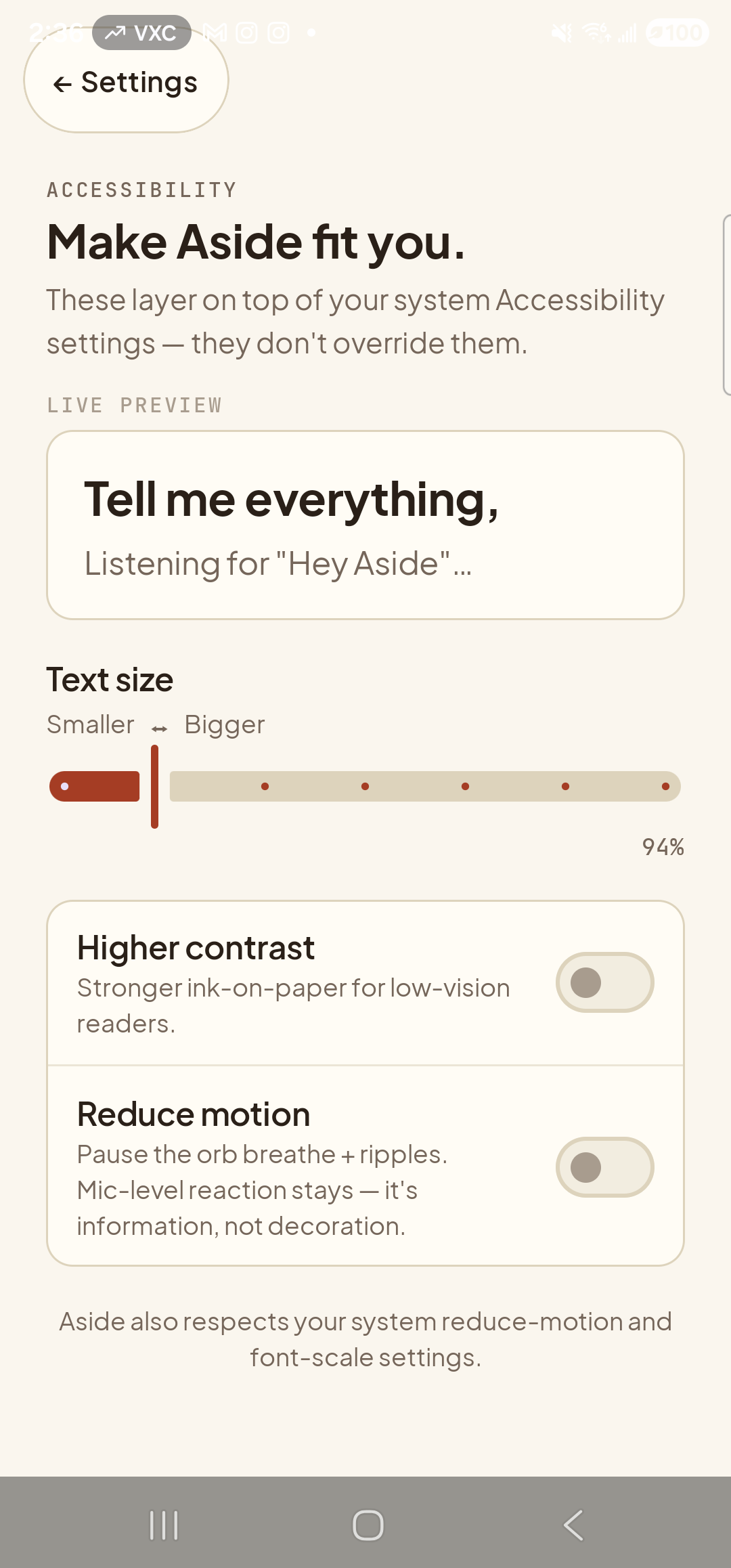
    The Aside Accessibility page back in its default state, with Reduce motion toggled off again. The Reduce motion toggle is back in the inactive gray OFF state. The text-size slider still reads ‘94%’; the Higher contrast row stays in its gray OFF state. The page is otherwise visually identical to the screenshot from step 1.
    Toggled back off. Aside’s motion preference persists across app restarts and OS updates.
System animation scale takes precedence: Aside checks Android’s Settings.Global.TRANSITION_ANIMATION_SCALE. If your phone has that at zero (set via Settings → Accessibility → Remove animations on Samsung One UI, or via Developer Options → Animator duration scale on stock Android), Aside reduces motion regardless of the in-app toggle. The two compose with OR — either one being on stops the orb breathing.
Note: Reduce motion does not turn off the live mic-level visualisation when you’re actively talking — the orb still grows in proportion to your voice during a turn. Removing that would make it harder to tell if Aside is hearing you. The breathe and pulse are decorative; the mic-level response is feedback. They’re treated differently on purpose.