How-to guide · Accessibility settings Recover from a denied mic permission

Actionmic-permission-recovery
Audience Cognitive Age
Time Under 30 seconds
Permissions Microphone — about to be re-granted
What this is: If you tapped “Don’t allow” the first time Aside asked for microphone permission — or if you revoked it later from system settings — Aside doesn’t pretend everything is fine. It shows a clay-pink card near the top of the screen labeled MICROPHONE with the line “Voice is off.” and an Open settings button. Tap the button; Aside hands you straight to the right Android page to flip the toggle back on. Come back to Aside and the card is gone — the orb is ready to listen again.
Try it now

If the banner is on screen, the recovery is four taps:

Open settings → Permissions → Microphone → Allow only while using the app

If you don’t see the banner, the permission is already granted — you’re fine.

Step by step

  1. The banner appears at the top of the main screen

    When Aside opens and detects that RECORD_AUDIO isn’t granted, it draws a clay-pink card across the top of the screen, just under the wordmark. The card reads MICROPHONE with the line “Voice is off. Aside can’t hear you without microphone access. You can still type below.”, and a clay-red “Open settings” button at the bottom of the card. The orb still renders, but trying to tap it does nothing useful — the mic is the only listening path. The button is the only fix.
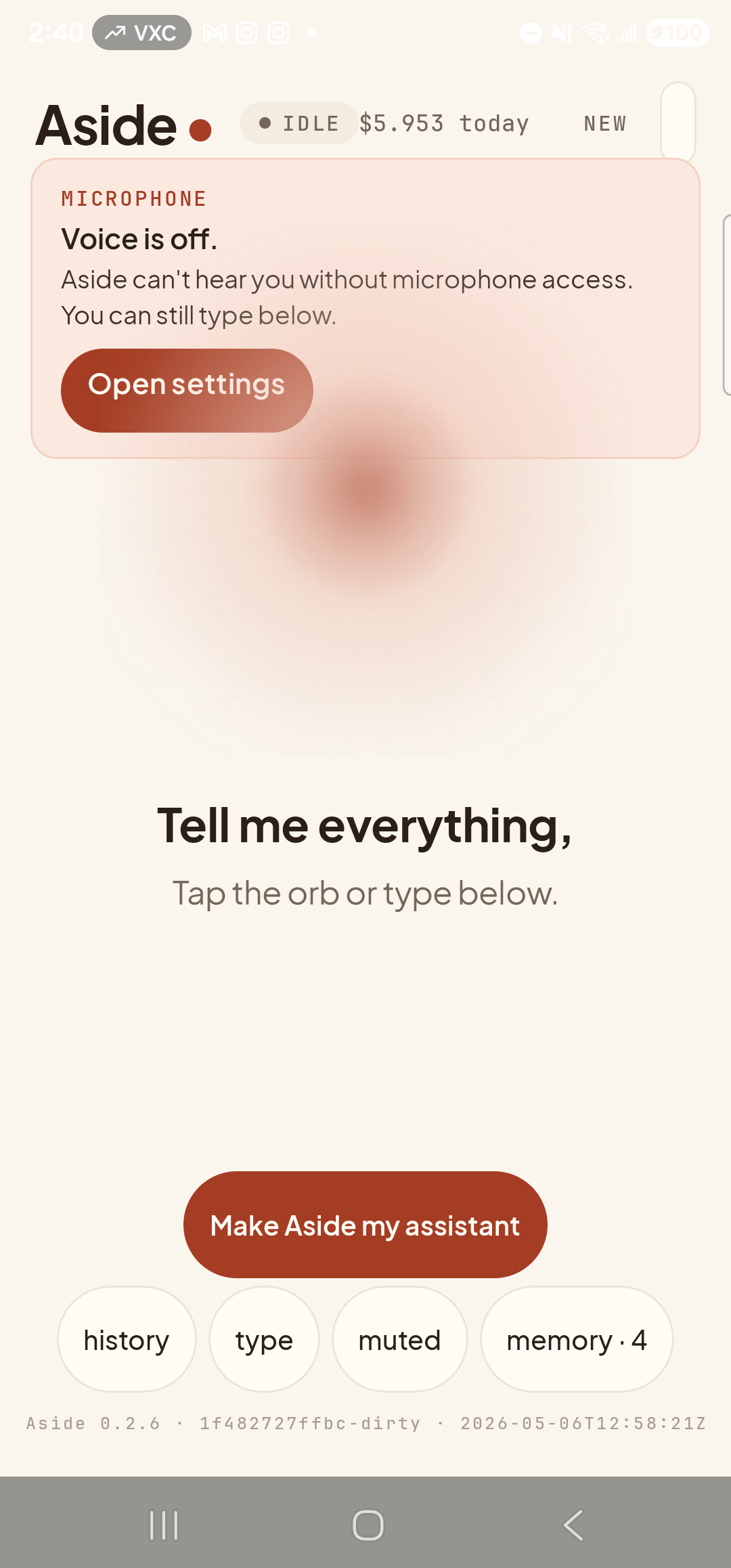
    The Aside main screen with the mic-denied banner visible. Across the top: the ‘Aside’ wordmark with the small clay dot beside it, the status pill ‘● IDLE  $5.953 today’, and the ‘NEW’ link top-right. Just beneath that row, a soft clay-pink rounded card spans the width with a mono eyebrow ‘MICROPHONE’ in deeper clay, then the bold line ‘Voice is off.’ followed by ‘Aside can’t hear you without microphone access. You can still type below.’ At the bottom of the card, a clay-red pill button labeled ‘Open settings’. The orb is centered lower on the page (its breath frame visible just below the banner). Below the orb: the bold prompt ‘Tell me everything,’ and the caption ‘Tap the orb or type below.’ The clay-colored ‘Make Aside my assistant’ pill sits below the captions, and the bottom toolbar shows the mono pills ‘history’, ‘type’, ‘muted’, ‘memory · 4’.
    The mic-denied banner. Tappable across its full width — the chevron on the right is just a hint.
  2. Tap “Open settings”

    Tap the Open settings button on the banner. Aside fires off an Android intent (Settings.ACTION_APPLICATION_DETAILS_SETTINGS) that opens the system App info page for Aside specifically. On a Samsung phone in dark mode, the page shows the Aside icon and name at the top, then a Privacy section listing Notifications, Permissions, Screen time, and Manage app if unused, then Defaults and Usage sections, with Open, Uninstall, and Force stop buttons across the bottom.
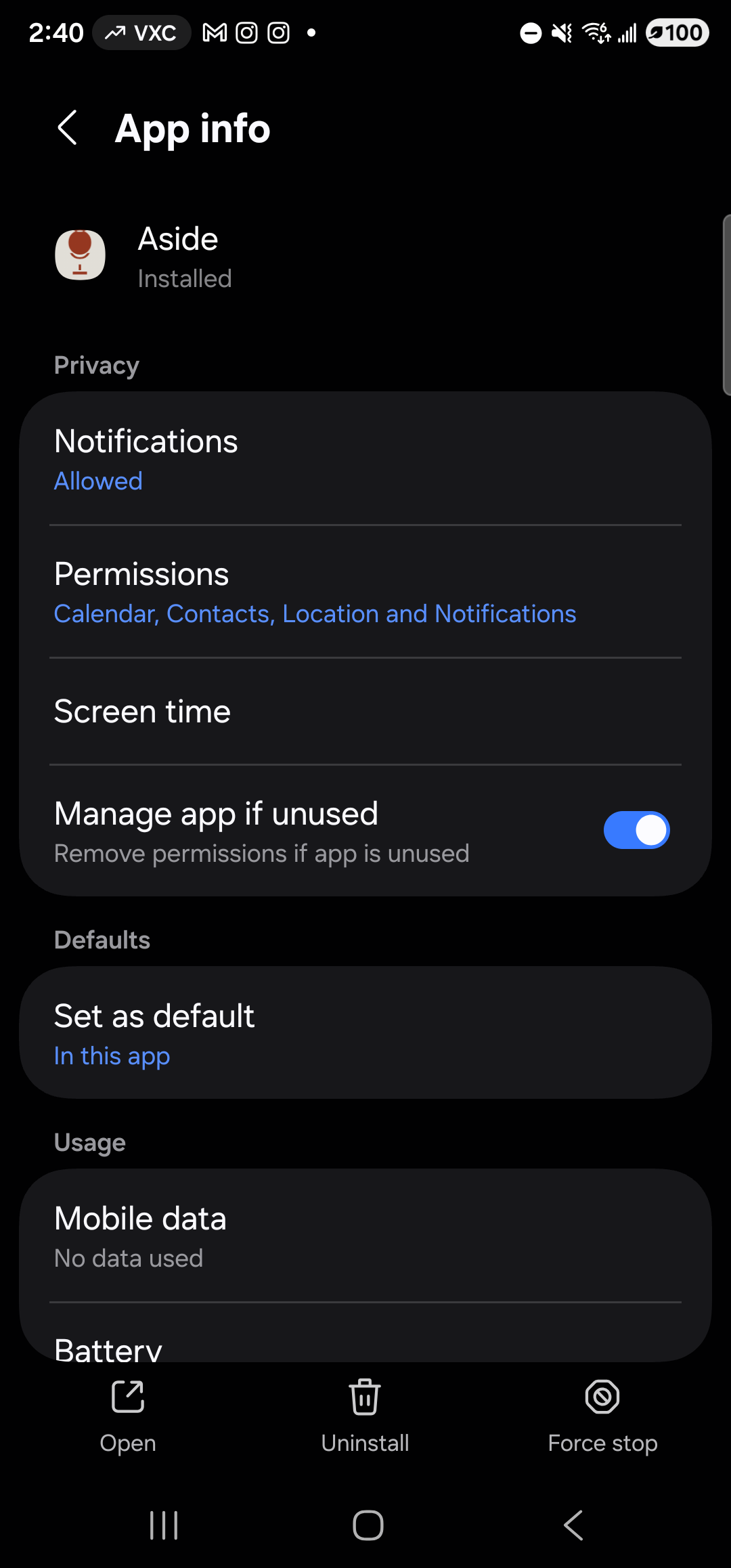
    The Samsung One UI System App info page for Aside, in dark mode (black background, white text). Header reads ‘App info’ with a back arrow on the left. Below the header, a small Aside icon (warm paper with the clay mic glyph) sits left of the app name ‘Aside’ and the line ‘Installed’. The first section eyebrow ‘Privacy’ heads a rounded card listing four rows: ‘Notifications’ with subtitle ‘Allowed’ in blue, then a divider, ‘Permissions’ with subtitle ‘Calendar, Contacts, Location and Notifications’ in blue — highlighted as the next tap target — then ‘Screen time’, then ‘Manage app if unused’ with the subtitle ‘Remove permissions if app is unused’ and a blue ON toggle on the right. Below that, the section ‘Defaults’ with one row ‘Set as default — In this app’ (in blue). Below that, the section ‘Usage’ with rows ‘Mobile data — No data used’ and a partly-cropped ‘Battery’ row. Across the bottom of the screen, three round-icon buttons sit above a label row: ‘Open’ (open arrow), ‘Uninstall’ (trash), ‘Force stop’ (no-entry sign).
    System App info page for Aside. Permissions is the next tap.
  3. Tap “Permissions”

    Tap Permissions. The next screen lists every permission Aside has asked for, separated into Allowed (Calendar, Contacts, Location, Notifications) and Not allowed. Microphone is the only entry under Not allowed. Tap Microphone.
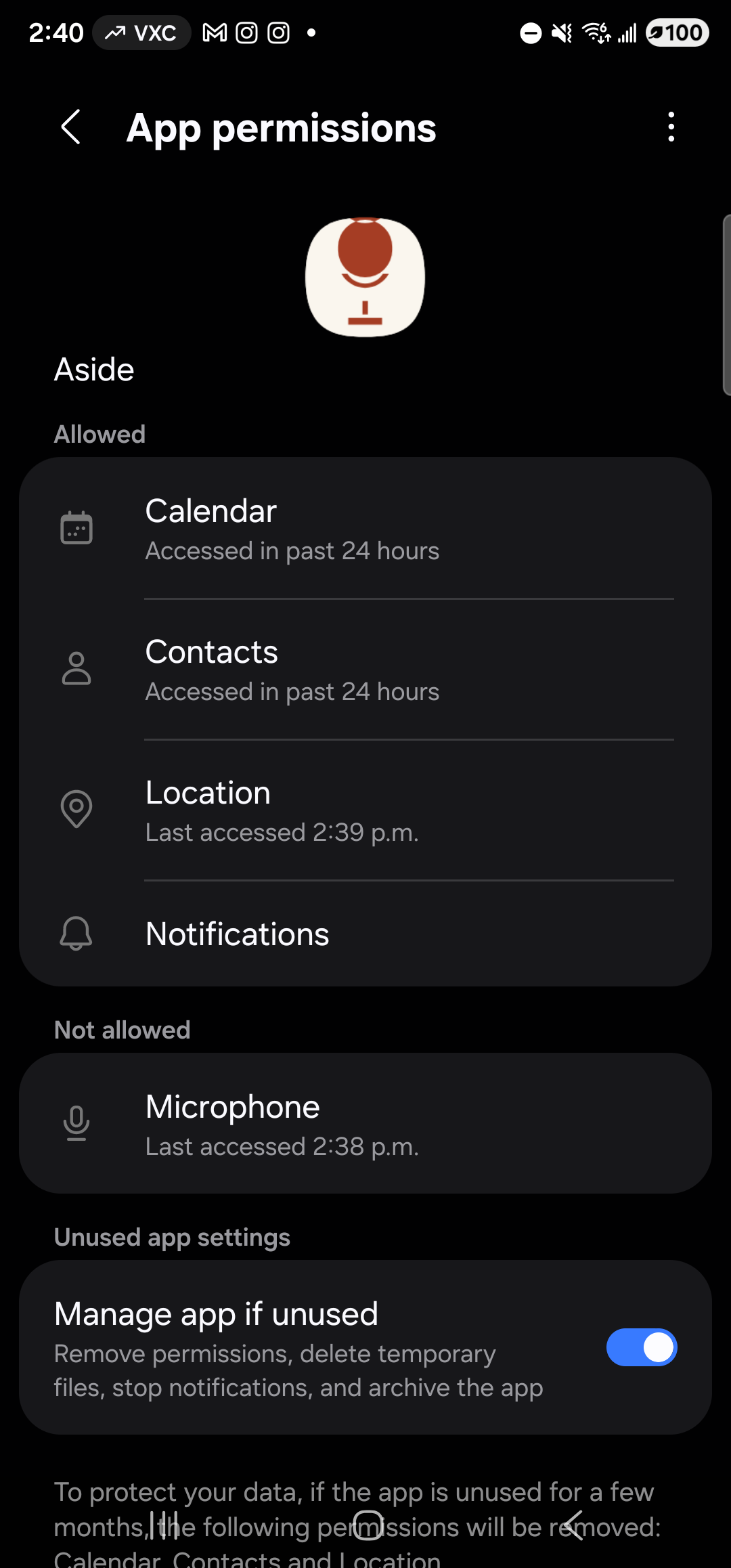
    The Samsung One UI App permissions screen for Aside, in dark mode. Header reads ‘App permissions’ with a back arrow on the left and a kebab menu on the right. Centered near the top: the warm-paper Aside icon (clay mic glyph) and the app name ‘Aside’. Below that, the section eyebrow ‘Allowed’ over a rounded card listing four rows, each with a small icon and a relative-time subtitle: ‘Calendar — Accessed in past 24 hours’, divider, ‘Contacts — Accessed in past 24 hours’, divider, ‘Location — Last accessed 2:39 p.m.’, divider, ‘Notifications’ (no subtitle). Below that, the section eyebrow ‘Not allowed’ over a card with a single row, highlighted as the next tap target: ‘Microphone — Last accessed 2:38 p.m.’ Below that, the section ‘Unused app settings’ with a row ‘Manage app if unused’, subtitle ‘Remove permissions, delete temporary files, stop notifications, and archive the app’, and a blue ON toggle. Below it the start of a small gray paragraph beginning ‘To protect your data, if the app is unused for a few months the following permissions will be re…’ (truncated at the screen edge).
    App permissions. Microphone is in the Not allowed list. Tap it.
  4. Pick “Allow only while using the app”

    The Microphone permission detail page lists three options as radio buttons: Allow only while using the app, Ask every time, and Don’t allow — the latter currently selected (filled blue radio). Tap Allow only while using the app. The radio fills in immediately and the previous selection clears. There is no separate save step. Press back to return to Aside.
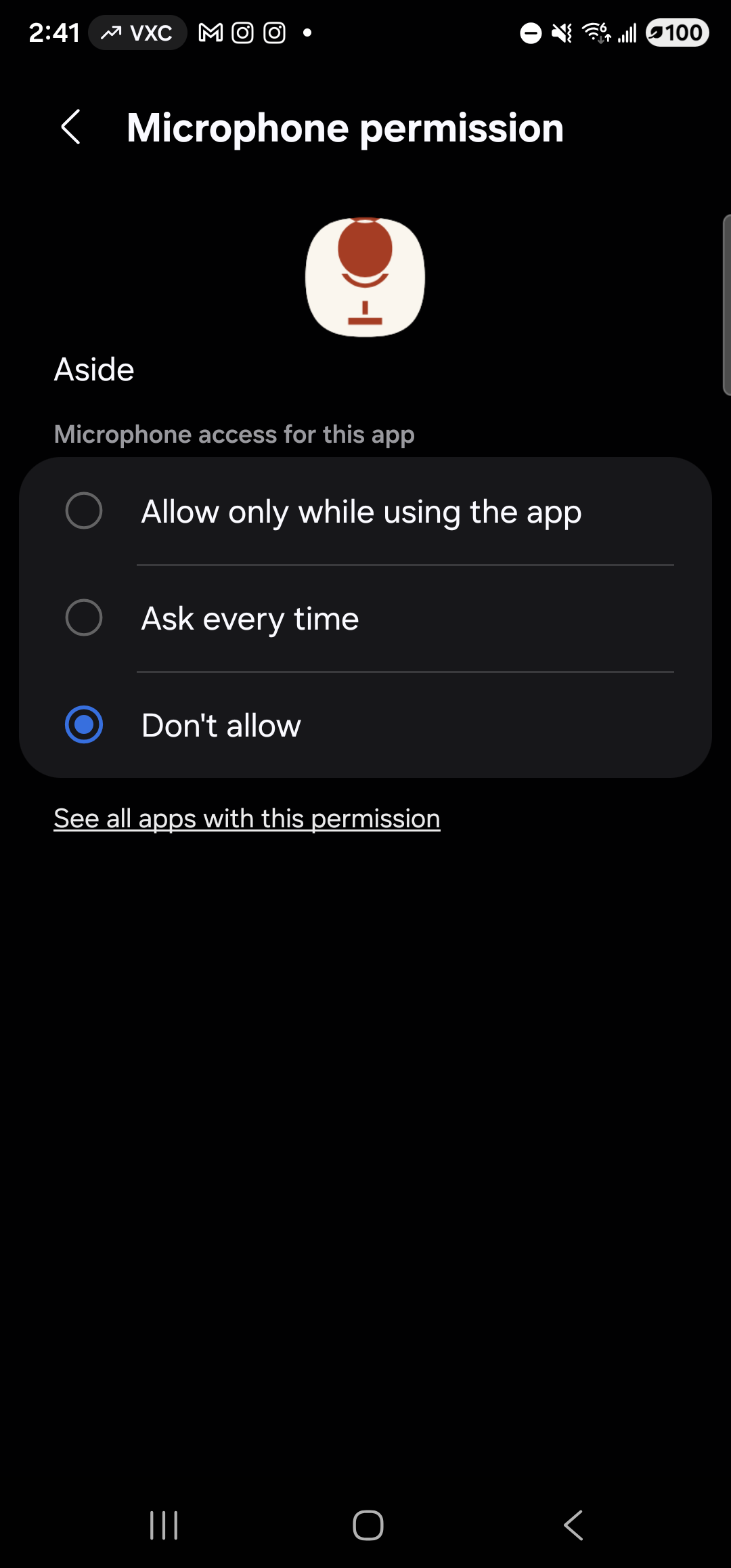
    The Samsung One UI Microphone permission detail screen for Aside, in dark mode. Header reads ‘Microphone permission’ with a back arrow on the left. Centered near the top: the warm-paper Aside icon (clay mic glyph), then the app name ‘Aside’ left-aligned beneath it. Below ‘Aside’, the small gray label ‘Microphone access for this app’. Below that, a single rounded card containing three radio-button rows separated by hairline dividers: ‘Allow only while using the app’ (empty radio) — highlighted as the next tap target — ‘Ask every time’ (empty radio), and ‘Don’t allow’ with its radio currently selected (a filled blue circle inside a blue ring). Below the card, a single underlined link reads ‘See all apps with this permission’. The rest of the screen is empty black.
    Three options. Allow only while using the app is the right choice for Aside.
  5. Back in Aside — the banner is gone

    Press back twice or use the home gesture, then re-open Aside. The clay-colored banner is gone. The orb is in its normal idle state. Tap it — the orb shifts to listening, the status pill reads LISTENING…, and the caption underneath says “I’m listening.” Recovery complete.
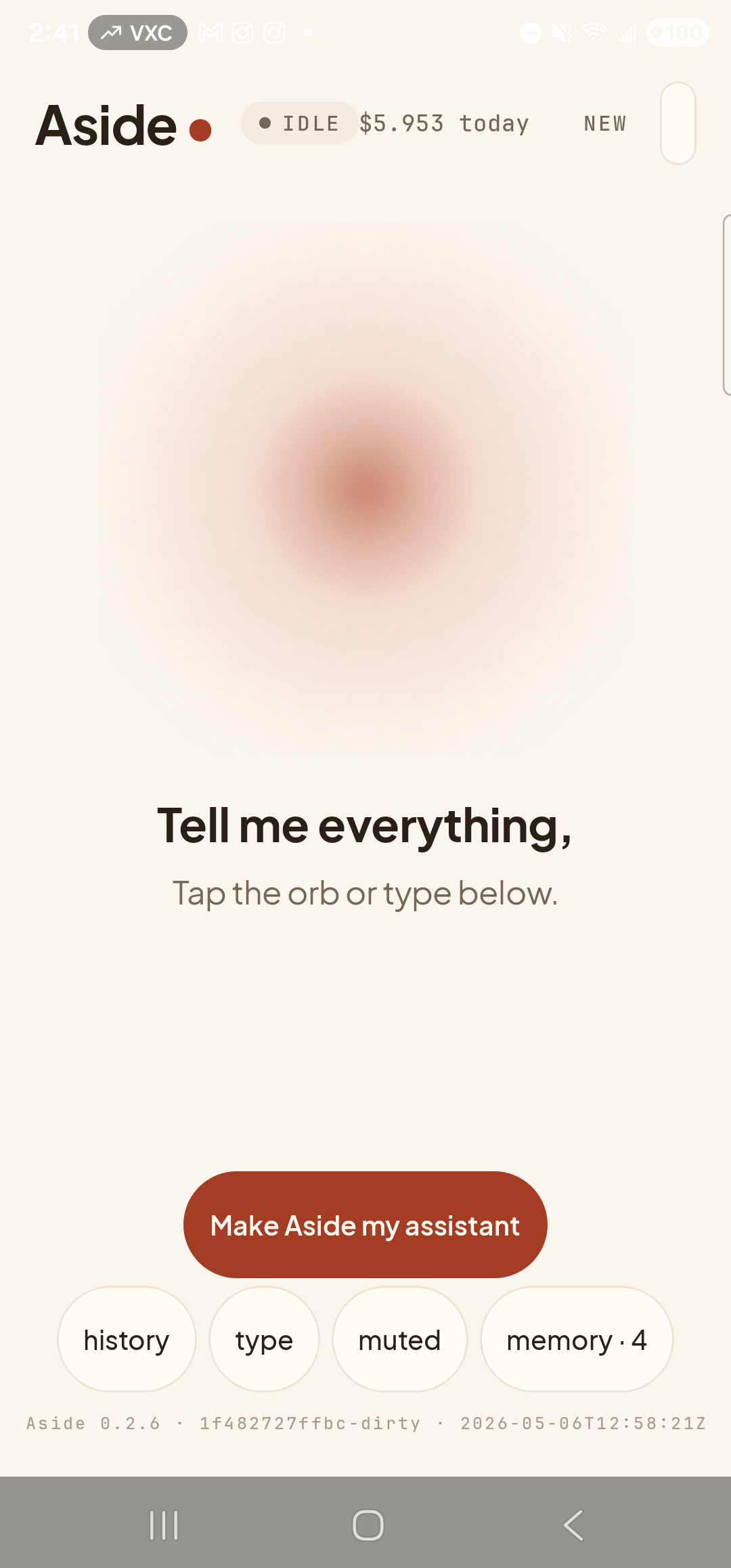
    The Aside main screen at idle, after re-granting the microphone permission. Across the top: the ‘Aside’ wordmark with the small clay dot beside it, the status pill ‘● IDLE  $5.953 today’, and the ‘NEW’ link top-right. The space where the clay-pink ‘Microphone — Voice is off.’ banner used to be is now empty — a clean stretch of warm paper background. The orb is centered in its normal idle position, breathing as a soft warm-brown bloom. Below the orb: the bold prompt ‘Tell me everything,’ and the caption ‘Tap the orb or type below.’ The clay-colored ‘Make Aside my assistant’ pill is centered below the captions. Bottom row of mono pills ‘history’, ‘type’, ‘muted’, ‘memory · 4’, then the build-stamp footer ‘Aside 0.2.6 · 1f482727ffbc-dirty · 2026-05-06T12:58:21Z’.
    Banner gone. Aside is fully functional again.
If you don’t want to grant mic at all: That’s fine. Aside still works in type mode — tap the type pill at the bottom of the main screen and you can have the same conversation by typing. The mic-denied banner stays, but everything that doesn’t need a mic still works (memory, history, all on-screen actions).
Note: On Android, after you’ve tapped Don’t allow twice for the same permission, the system stops letting apps re-prompt you in-app. The banner’s “Open settings” deep-link is the only way to re-grant from that point on — not a quirk of Aside, an Android safety mechanism. The banner exists precisely because the in-app re-prompt isn’t available.