How-to guide · Accessibility settings Make the text bigger

Actiontext-size
Audience Vision Age
Time Under 30 seconds
Permissions None
What this is: A live-preview slider on the Aside Accessibility settings page that scales the body text inside Aside. Drag the slider; the live preview card updates as you drag, and the change applies the moment you let go. No restart, no save button. Aside also respects your system-wide font scale — this slider is layered on top of it.
Try it now

Open Settings inside Aside, then:

Settings → Accessibility → Text size → drag the slider

The preview card directly above the slider shows the line “Tell me everything,” at the size you’re about to commit to. Let go and the rest of the app catches up immediately.

Step by step

  1. Open Aside’s Settings

    From the Aside main screen, tap the gear icon at the top-right of the title row, just to the right of the NEW link. The Settings index page opens, listing two cards: Memory and Accessibility, with a build-stamp footer beneath them.
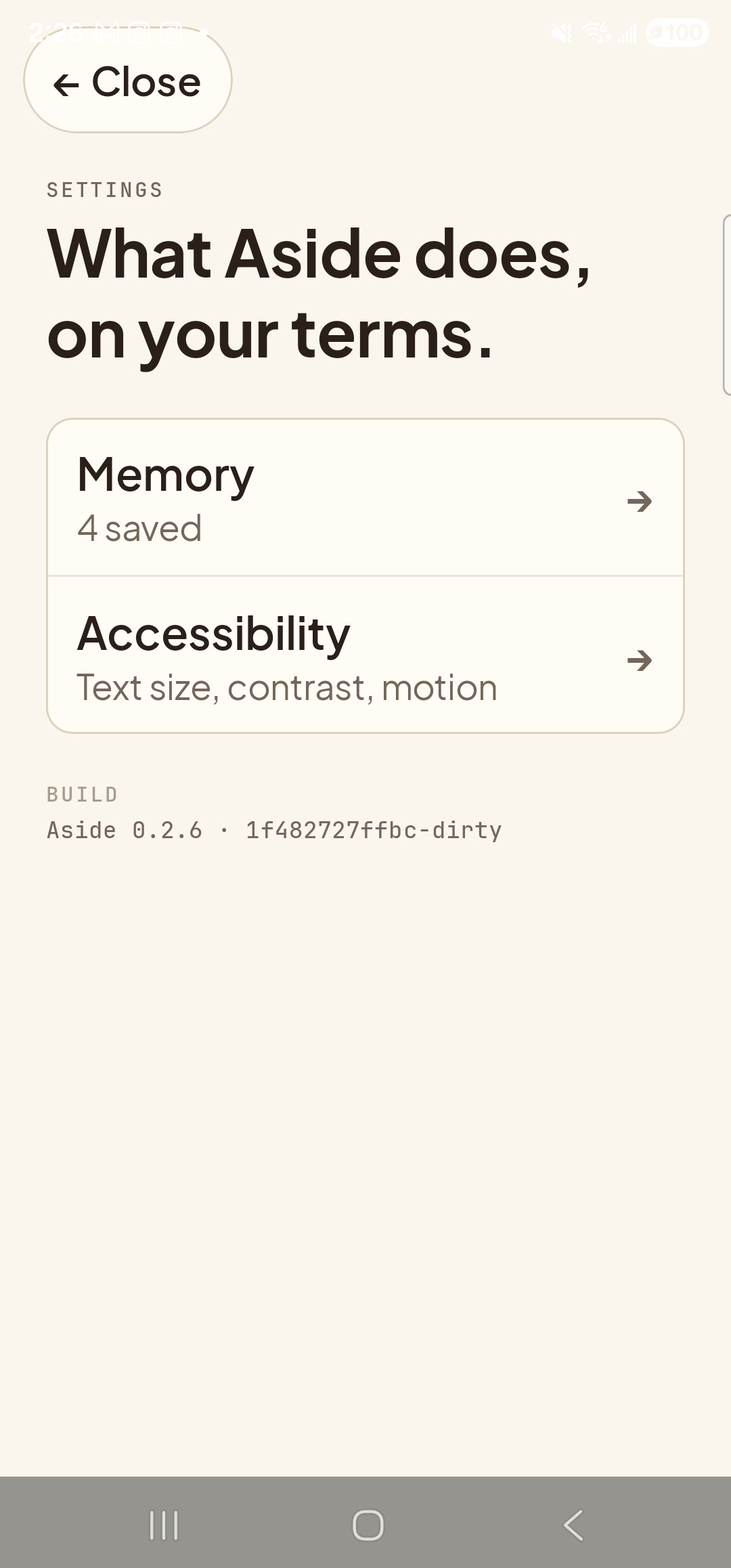
    The Aside Settings index page on a Samsung Galaxy S23 Ultra. Top-left: a clay-colored pill button labeled ‘← Close’ that dismisses the Settings sheet. Below it, the small mono eyebrow ‘SETTINGS’ and the page title ‘What Aside does, on your terms.’ in large bold type. Below the title, a single rounded card containing two stacked rows, each with a label, a one-line description, and a right-arrow chevron. First row titled ‘Memory’ with subtitle ‘4 saved’. Second row — the next tap target for this guide — titled ‘Accessibility’ with subtitle ‘Text size, contrast, motion’. Below the card, a small mono eyebrow ‘BUILD’ and the build-stamp line ‘Aside 0.2.6 · 1f482727ffbc-dirty’.
    Settings index. Two cards, plus a build-stamp footer for support.
  2. Tap “Accessibility”

    Tap the Accessibility card. The Accessibility page opens. At the top is the Text size section — a preview card and the slider beneath it. Below that are toggles for Higher contrast and Reduce motion; below those, a footnote reminds you that your system-wide font and motion settings still take precedence over what you choose here.
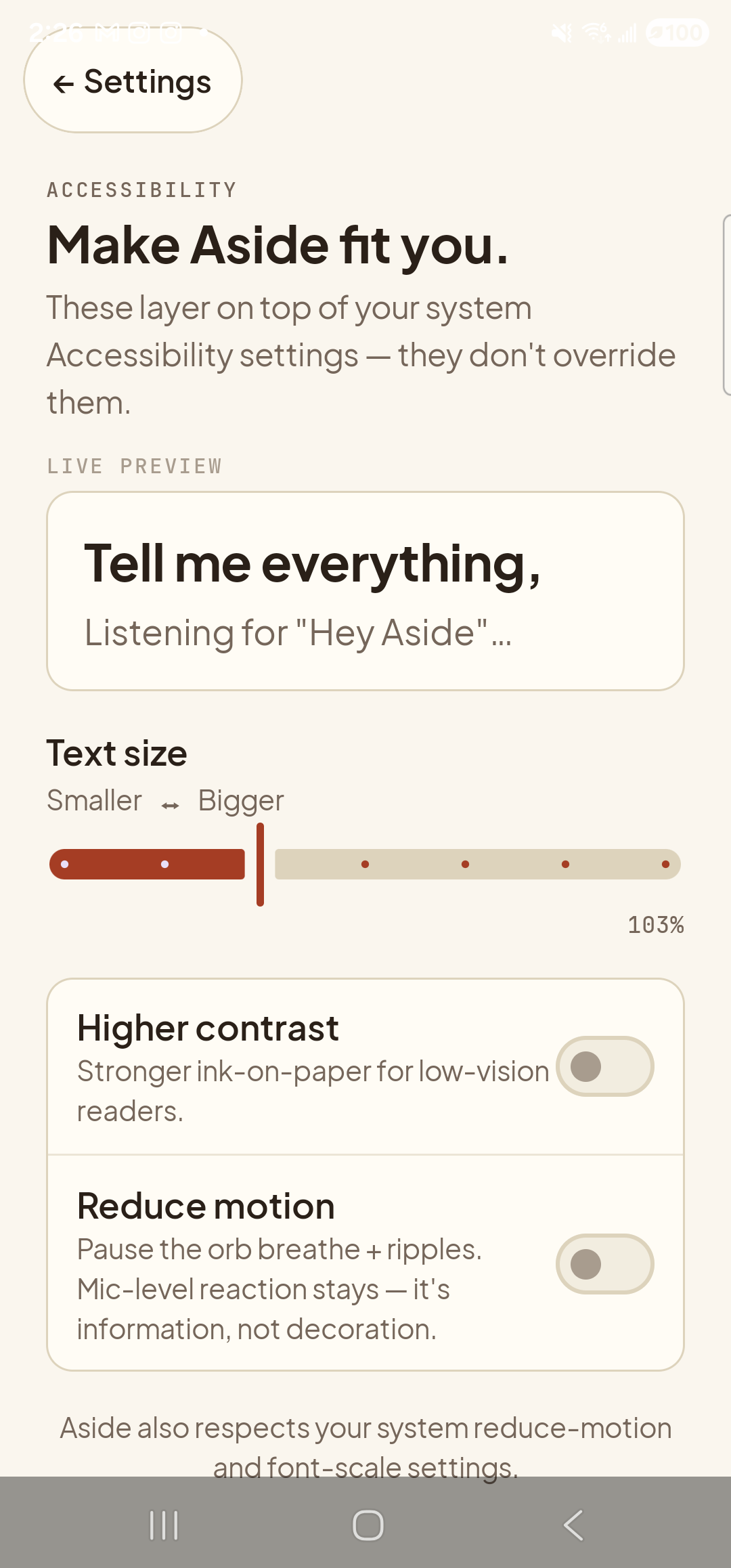
    The Aside Accessibility settings page at the default-ish text size. Top-left: a clay-colored ‘← Settings’ pill button. Below it: the mono eyebrow ‘ACCESSIBILITY’ and the bold title ‘Make Aside fit you.’, then the body line ‘These layer on top of your system Accessibility settings — they don’t override them.’ Below that, the eyebrow ‘LIVE PREVIEW’ above a paper-colored card containing the bold line ‘Tell me everything,’ and a thinner caption ‘Listening for
    Accessibility page. Text size at the top, then contrast and motion. The preview card is always visible.
  3. Drag the slider

    Place your finger on the slider thumb (the round handle) and drag right to grow the text or left to shrink it. The preview card directly above the slider updates as you drag — the words “Tell me everything,” grow or shrink in real time so you can see what the change will look like before committing. The slider has five stops; let go on the size that feels comfortable.
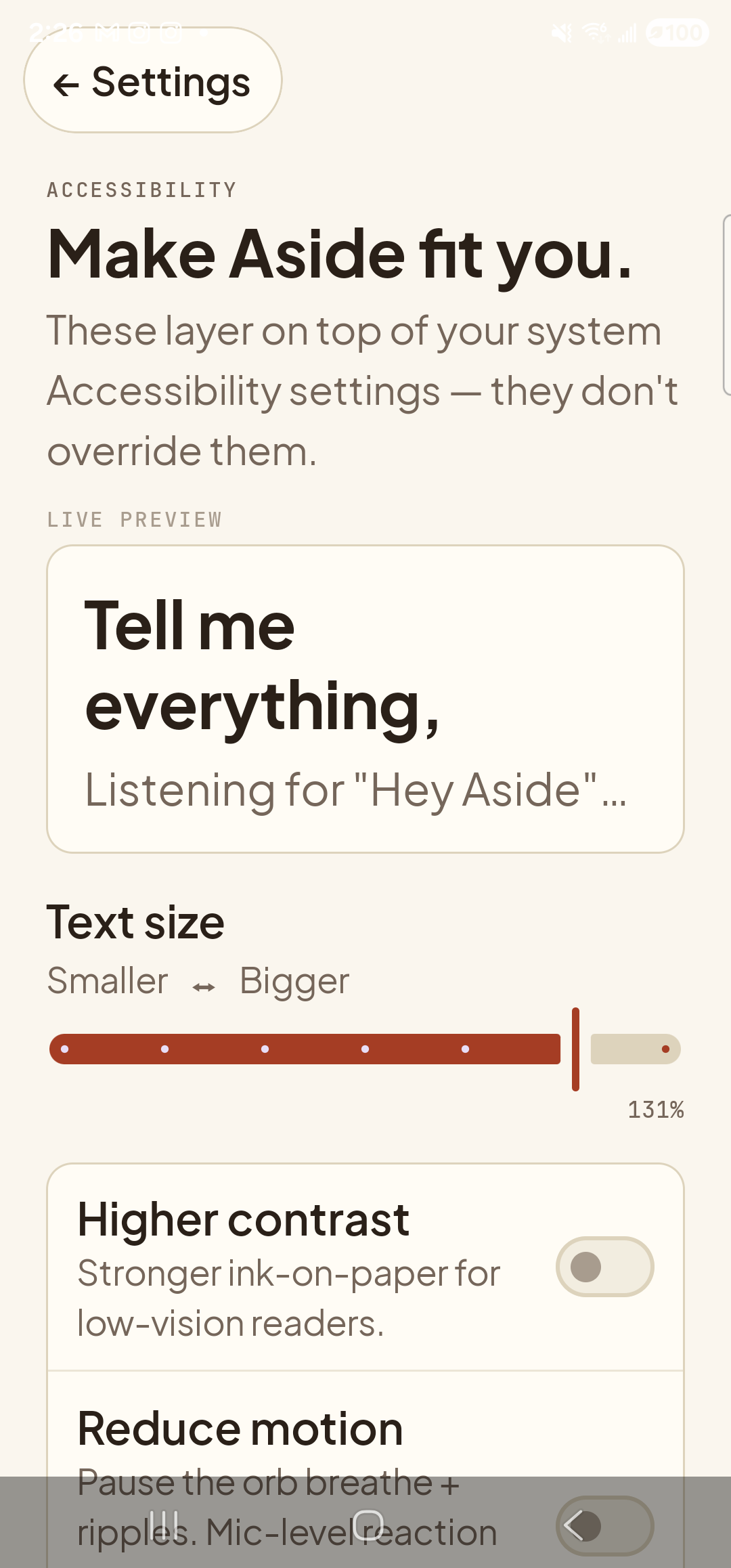
    The Aside Accessibility settings page after dragging the text-size slider towards the right. The preview card at the top now shows the line ‘Tell me everything,’ wrapping onto two lines (‘Tell me / everything,’) because the type is visibly larger. Below the preview, the caption ‘Listening for
    Live preview. The slider is at four-fifths in this shot — everything on the page has grown together.
  4. Back out and confirm on the main screen

    Tap back to leave Settings. The Aside main screen now uses the size you picked. The big “Tell me everything,” prompt under the orb, the chat history when you open it, the memory rows, and the toolbar pill labels are all scaled up.
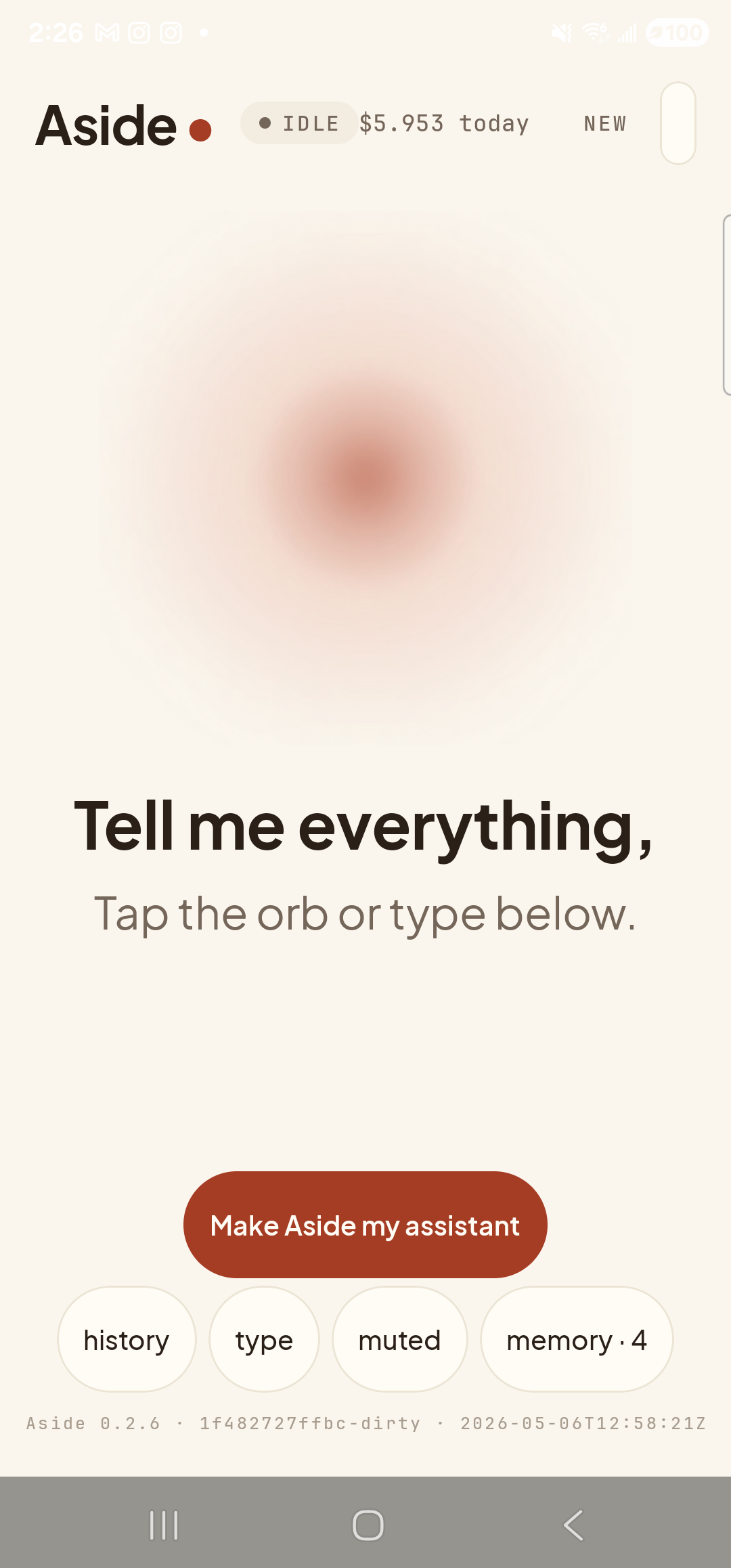
    The Aside main screen at idle with the body text scaled larger. Across the top: the ‘Aside’ wordmark, the status pill ‘● IDLE’, the cost counter ‘$5.953 today’, and the ‘NEW’ link top-right — all at their normal sizes (system bars and chrome don’t scale with the in-app slider). Centered: the warm-paper orb in its idle state. Below the orb the prompt ‘Tell me everything,’ in bold and the caption ‘Tap the orb or type below.’ — both noticeably larger than at default scale; the prompt fills more of the screen width than in earlier screenshots. The clay ‘Make Aside my assistant’ button is centered below the captions. The bottom row of mono pills (‘history’, ‘type’, ‘muted’, ‘memory · 4’) is also rendered at the larger size. The build-stamp footer at the bottom is unchanged in size, since it’s in mono type at a fixed scale.
    Main screen at the larger size. Everything inside Aside scales together.
System scale still wins: Aside’s slider is multiplicative on top of your phone’s Settings → Display → Font size and style setting. If you’ve already cranked the system font way up, you may not need much of an Aside boost — or you may want to nudge Aside’s slider down to keep things from wrapping awkwardly.
Note: The orb itself doesn’t resize with the slider — it’s a fixed-size visual element so its state (calm vs listening vs thinking) stays readable at every text size. Same for the system status bar at the top of the screen.