How-to guide · App launch & system navigation Jump to a Settings panel by voice

Actionopen_settings
Audience Cognitive Age
Time Under 10 seconds
Permissions None — uses standard system Settings intents
What this is: A spoken or typed request that takes you straight to a specific page inside the phone’s Settings — Bluetooth, Wi-Fi, Display, Sound, Accessibility, and ten others — without opening Settings, scrolling the long top-level list, or guessing which submenu the option lives under. You name the panel; Aside opens that panel.
Try it now

Open Aside on your phone, then say or type:

“Take me to Bluetooth settings.”

Aside confirms in the chat history and the Bluetooth settings page opens directly — no menu hunting. Try the same with “open Wi-Fi settings,” “take me to display settings,” “open accessibility settings.”

Step by step

  1. Open Aside

    Tap the Aside icon, or trigger your assist gesture if you’ve set Aside as your default assistant. Aside opens to the orb in its idle state with the prompt “Tell me everything,” beneath it.
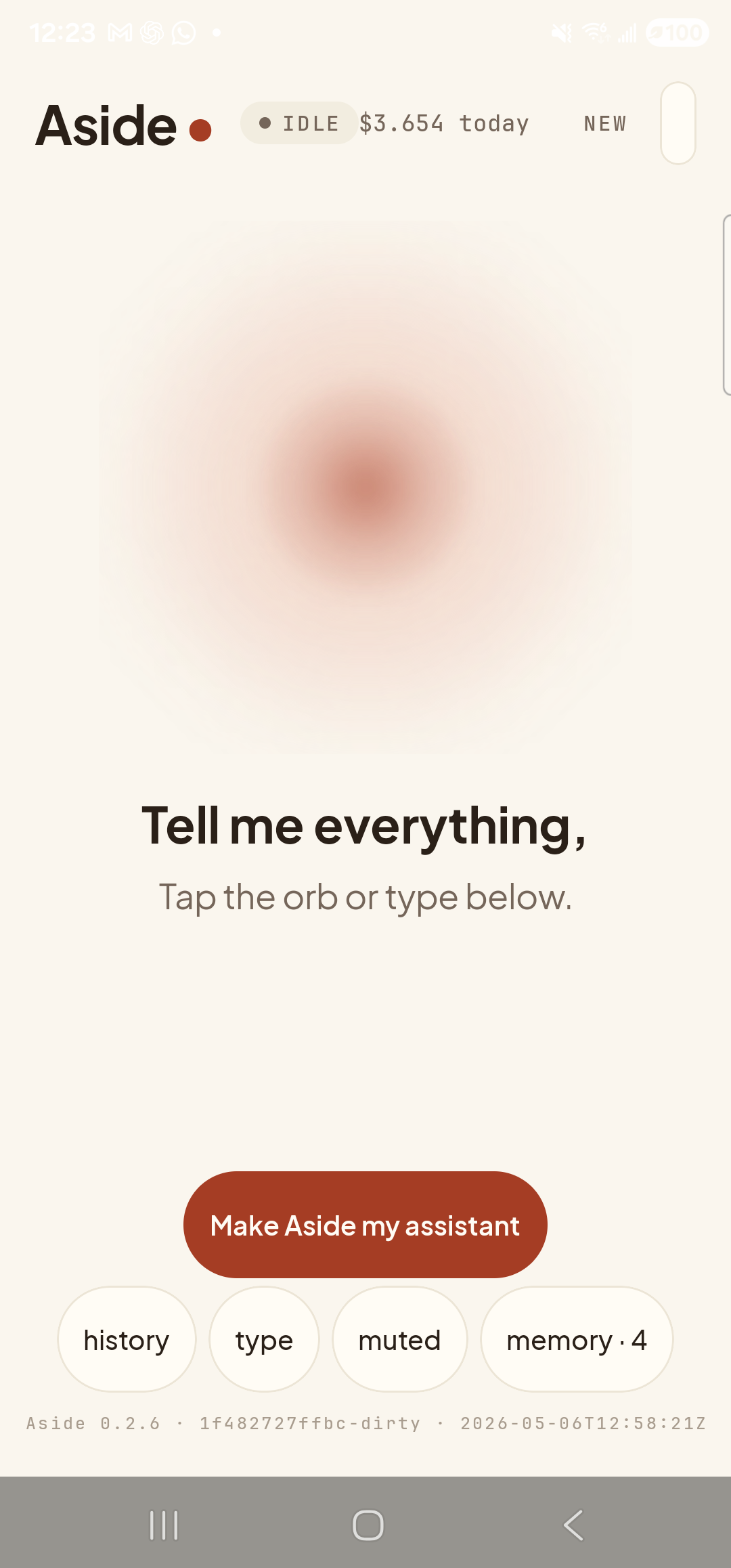
    The Aside main screen at idle on a Samsung Galaxy S23 Ultra. Across the top: the word ‘Aside’ with a red dot, a small mono status pill reading ‘● IDLE’, the cost counter ‘$3.654 today’, and a ‘NEW’ link top-right. Centered in the screen is a large warm-paper-colored orb with a soft brown core, slowly breathing. Below the orb, in large bold type: ‘Tell me everything,’. Below that, in lighter type: ‘Tap the orb or type below.’. Near the bottom is a clay-colored pill button reading ‘Make Aside my assistant’. Below that is a row of four mono pills: ‘history’, ‘type’, ‘muted’, ‘memory · 4’.
    Aside open at idle. The orb breathes; nothing else is happening.
  2. Say (or type) the panel you want

    Hold the orb to talk and say “Take me to Bluetooth settings,” or tap the type pill at the bottom and type the same phrase, then send. Aside knows thirteen named system Settings shortcuts — Wi-Fi, Bluetooth, Display, Sound, Battery, Storage, Apps, Connections, Notifications, Accessibility, Date & time, Language, and Location — and dispatches each as the right system intent.

    Take me to Bluetooth settings.
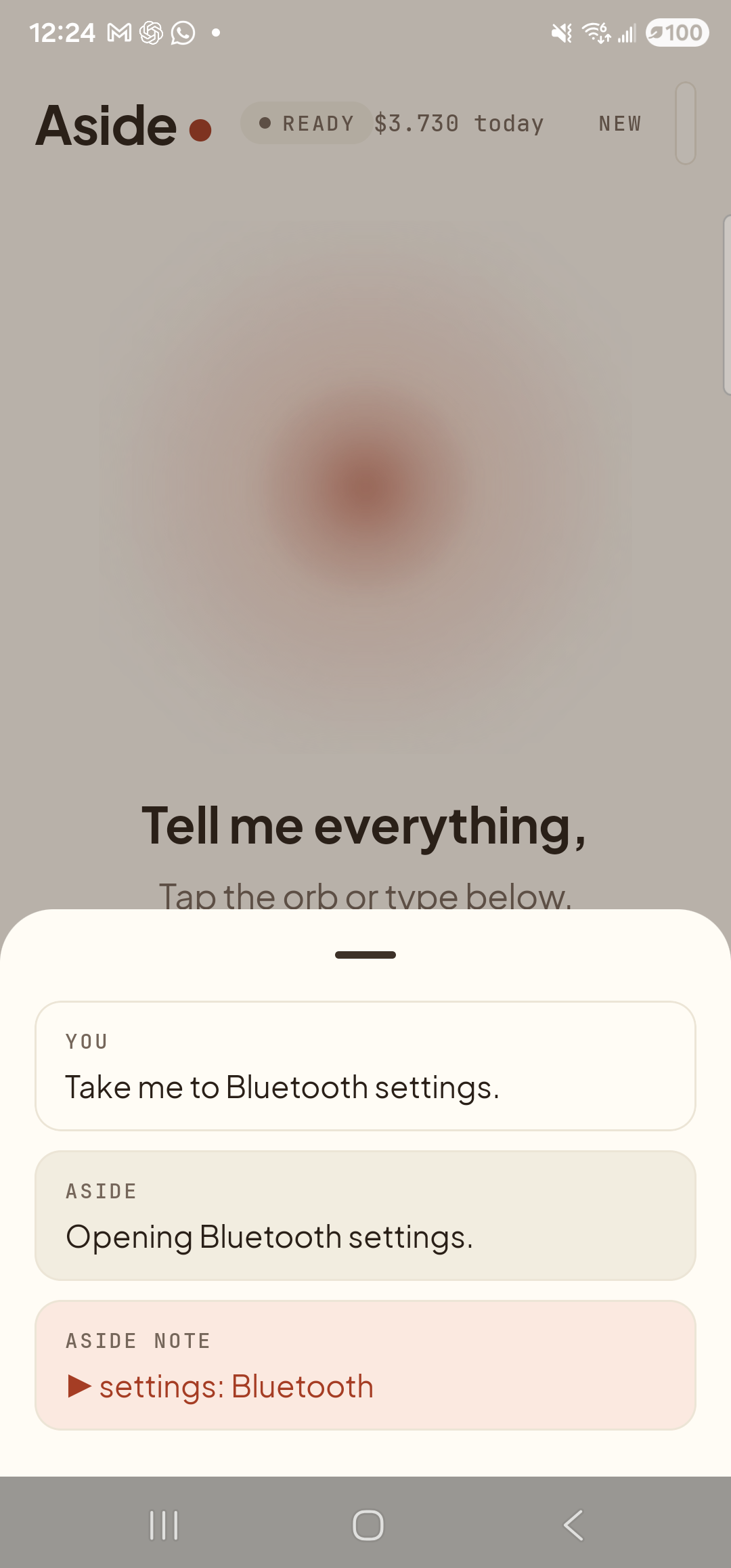
    The Aside main screen with the chat history bottom sheet covering the lower half of the screen. The status pill at the top reads ‘● READY’ and the cost counter has ticked up to ‘$3.730 today’. Behind a slight scrim the orb is dimmed; the words ‘Tell me everything,’ and ‘Tap the orb or type below.’ are still partially visible above the sheet. Inside the bottom sheet are three stacked entries: a small mono label ‘YOU’ above the line ‘Take me to Bluetooth settings.’; a label ‘ASIDE’ above the reply ‘Opening Bluetooth settings.’; and a clay-tinted ‘ASIDE NOTE’ chip showing ‘▶ settings: Bluetooth’ — the explicit action marker.
    Aside confirms the request and shows the action chip settings: Bluetooth before it hands off to the system.
  3. Bluetooth settings opens

    A moment later the screen switches to the Bluetooth settings page itself — not the Settings front page, the Bluetooth panel directly. Toggle the radio on or off, look at paired devices, scan for new ones — whatever you came here for. You skipped the entire Settings index.
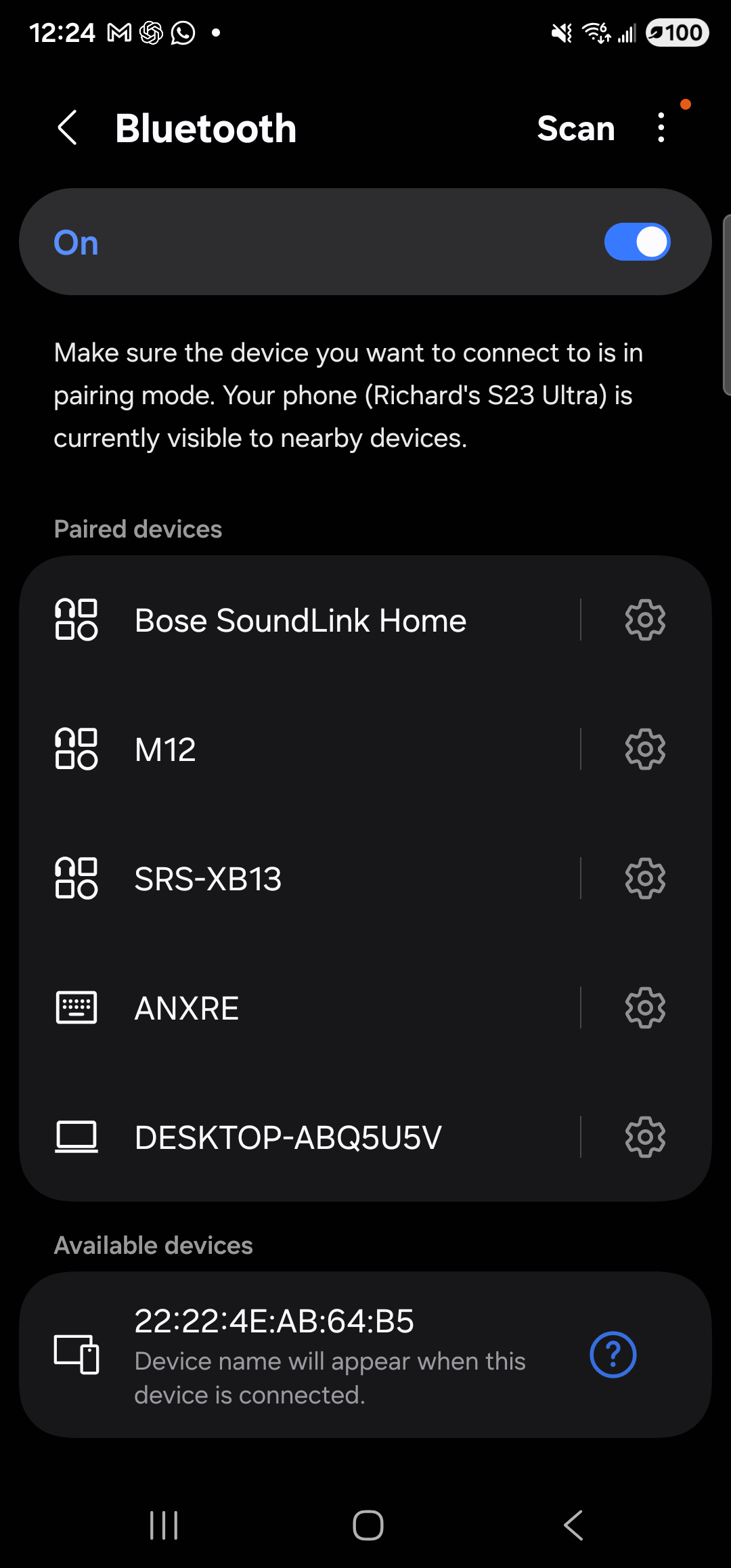
    The Samsung Bluetooth settings page open full-screen on the Galaxy S23 Ultra in dark mode. The header at the top shows a back arrow, the title ‘Bluetooth’, a ‘Scan’ link and a three-dot overflow menu on the right. A pill-shaped row immediately below the header reads ‘On’ on the left with a switch toggled on, on the right. Beneath it, a short note: ‘Make sure the device you want to connect to is in pairing mode. Your phone (Richard’s S23 Ultra) is currently visible to nearby devices.’. A ‘Paired devices’ section then lists five entries — Bose SoundLink Home, M12, SRS-XB13, ANXRE, DESKTOP-ABQ5U5V — each with a small icon on the left and a settings cog on the right. Below them an ‘Available devices’ section shows a single nearby device by MAC address ‘22:22:4E:AB:64:B5’ with a question-mark icon on the right.
    Bluetooth settings, open directly. No Settings index, no scrolling.
  4. Done — or come back to Aside

    Make whatever change you came for. When you’re finished, swipe back to the launcher and tap the Aside icon (or use your assist gesture). Aside picks up exactly where you left off, with the chat history of this turn still in place.

If Aside replies “I don’t have a shortcut for that”: The named shortcut list covers the thirteen panels people ask for most often. For everything else, ask Aside to open the Settings app itself with “open settings,” or jump to a specific app’s info screen with “open settings for <app name>.”
Note: Some Settings panels open in slightly different layouts on different Android skins (Samsung One UI, stock Android, etc.). Aside fires the standard system intent, so the destination is always correct — but the exact look of the page is set by your phone, not by Aside.