How-to guide · App launch & system navigation Search the web for a phrase

Actionopen_web_search
Audience Cognitive
Time Under 10 seconds
Permissions None — opens your default search provider
What this is: When you ask Aside a factual question it doesn’t already know in context — the elevation of a mountain, the population of a city, who won a match last night — Aside doesn’t guess. It opens your default search provider with your phrase already entered, so you get real, current results from the web instead of a maybe-correct paragraph from inside the assistant. You stay in control of what counts as the answer.
Try it now

Open Aside on your phone, then say or type:

“What’s the elevation of Mount Royal?”

Aside confirms in the chat history and opens your default search provider with that exact phrase already searched — results ready, no typing required.

Step by step

  1. Open Aside

    Tap the Aside icon, or trigger your assist gesture if you’ve set Aside as your default assistant. Aside opens to the orb in its idle state with the prompt “Tell me everything,” beneath it.
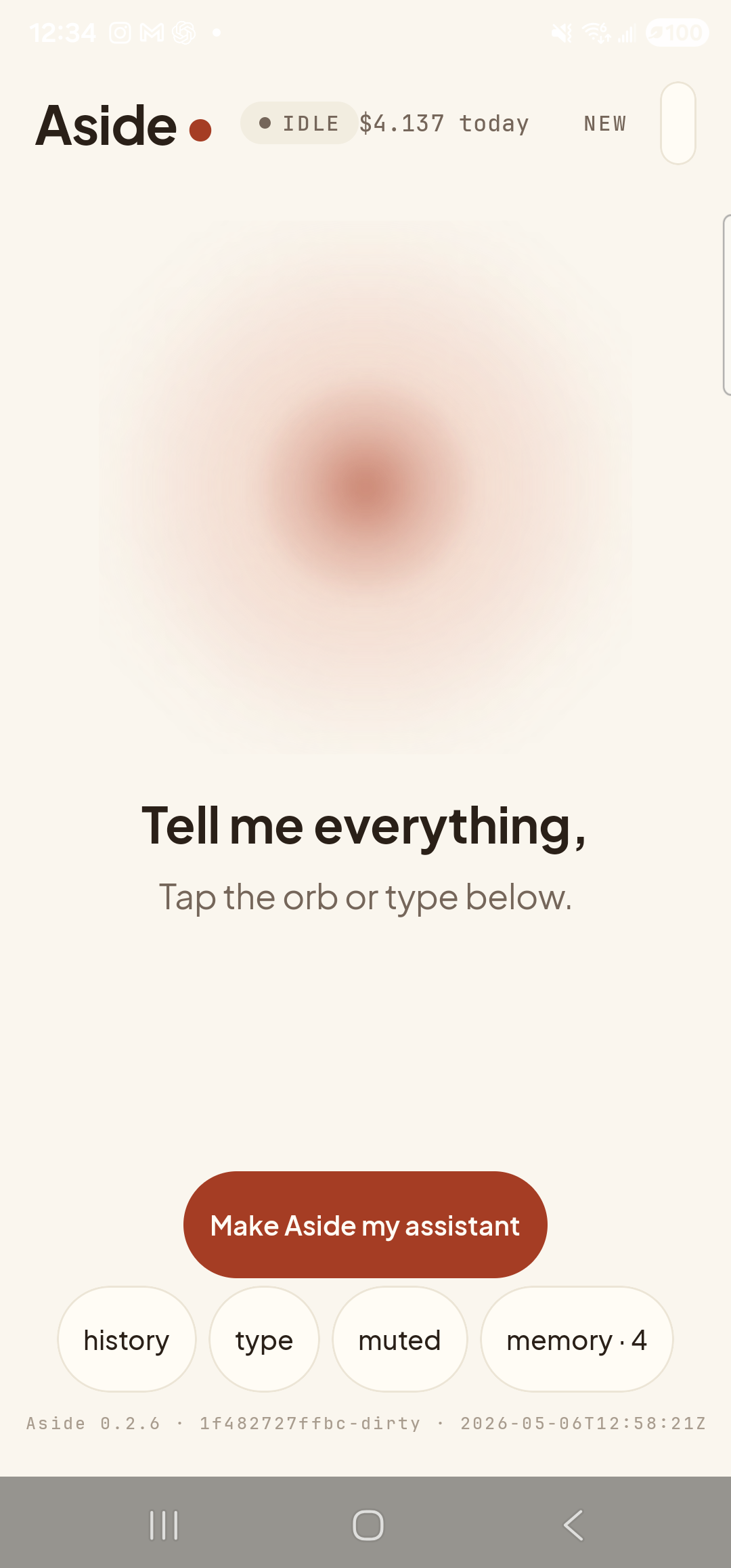
    The Aside main screen at idle on a Samsung Galaxy S23 Ultra. Across the top: the word ‘Aside’ with a red dot, a small mono status pill reading ‘● IDLE’, the cost counter ‘$4.137 today’, and a ‘NEW’ link top-right. Centered in the screen is a large warm-paper-colored orb with a soft brown core, slowly breathing. Below the orb, in large bold type: ‘Tell me everything,’. Below that, in lighter type: ‘Tap the orb or type below.’. Near the bottom is a clay-colored pill button reading ‘Make Aside my assistant’. Below that is a row of four mono pills: ‘history’, ‘type’, ‘muted’, ‘memory · 4’.
    Aside open at idle. The orb breathes; nothing else is happening.
  2. Ask the question

    Hold the orb to talk and ask “What’s the elevation of Mount Royal?” — or tap the type pill at the bottom and type the same question, then send. Phrase it like you’d ask a person. Aside notices the question is a factual lookup it can’t answer from context alone and chooses the web-search action automatically.

    Search the web for the elevation of Mount Royal
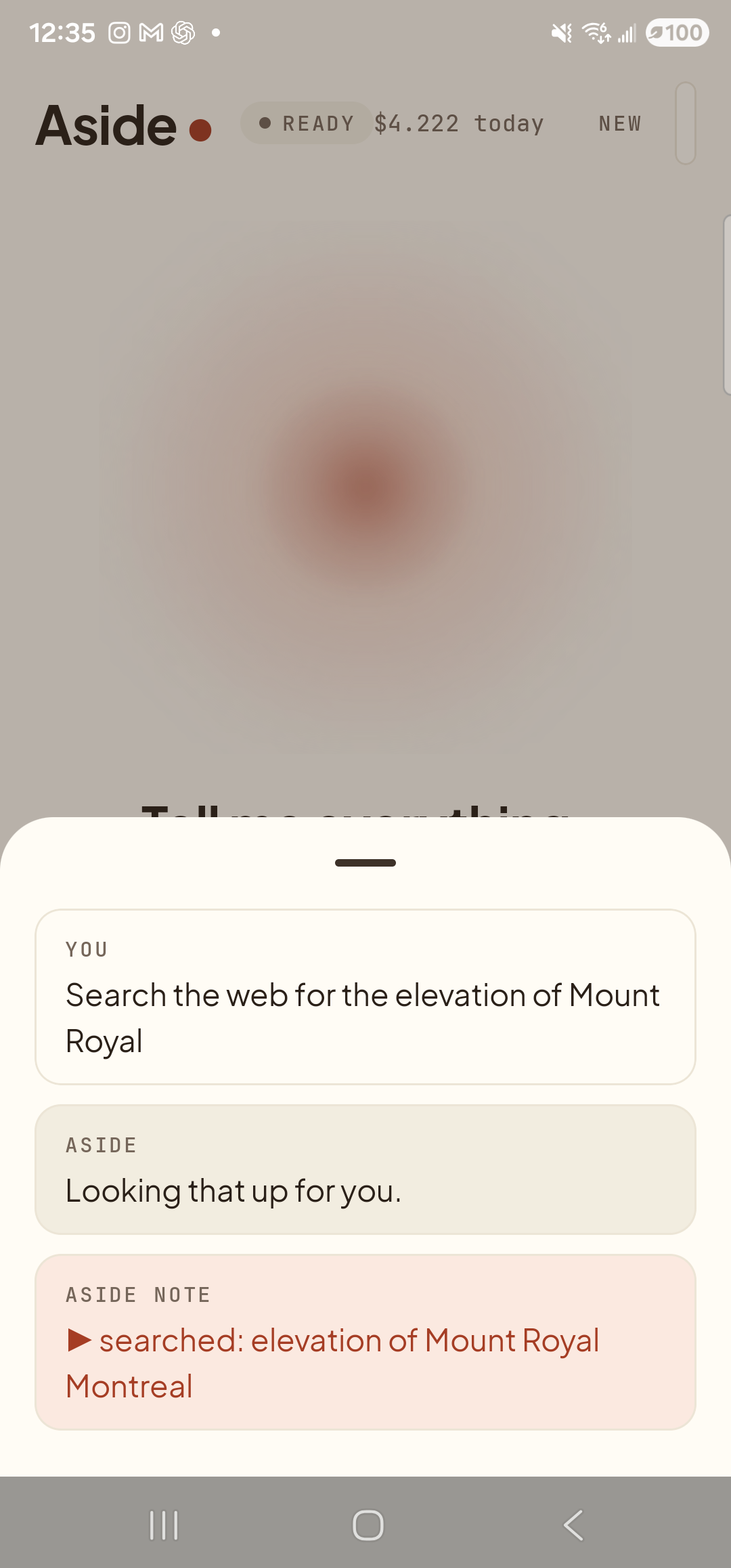
    The Aside main screen with the chat history bottom sheet covering the lower half of the screen. The status pill at the top reads ‘● READY’ and the cost counter has ticked up to ‘$4.222 today’. Behind a slight scrim the orb is dimmed; the words ‘Tell me everything,’ are still partially visible above the sheet. Inside the bottom sheet are three stacked entries: a small mono label ‘YOU’ above the two-line text ‘Search the web for the elevation of Mount Royal’; a label ‘ASIDE’ above the reply ‘Looking that up for you.’; and a clay-tinted ‘ASIDE NOTE’ chip showing ‘▶ searched: elevation of Mount Royal Montreal’ — the explicit action marker with the search query Aside dispatched.
    Aside confirms the question and shows the action chip with the exact search query before it hands off to the browser.
  3. Search results open

    A moment later the screen switches to your default search provider with the phrase already entered — you can see the results, the snippets, and the source pages instead of a single one-liner from the assistant. For factual questions this is the right thing to do: real sources, current, and you can compare them.
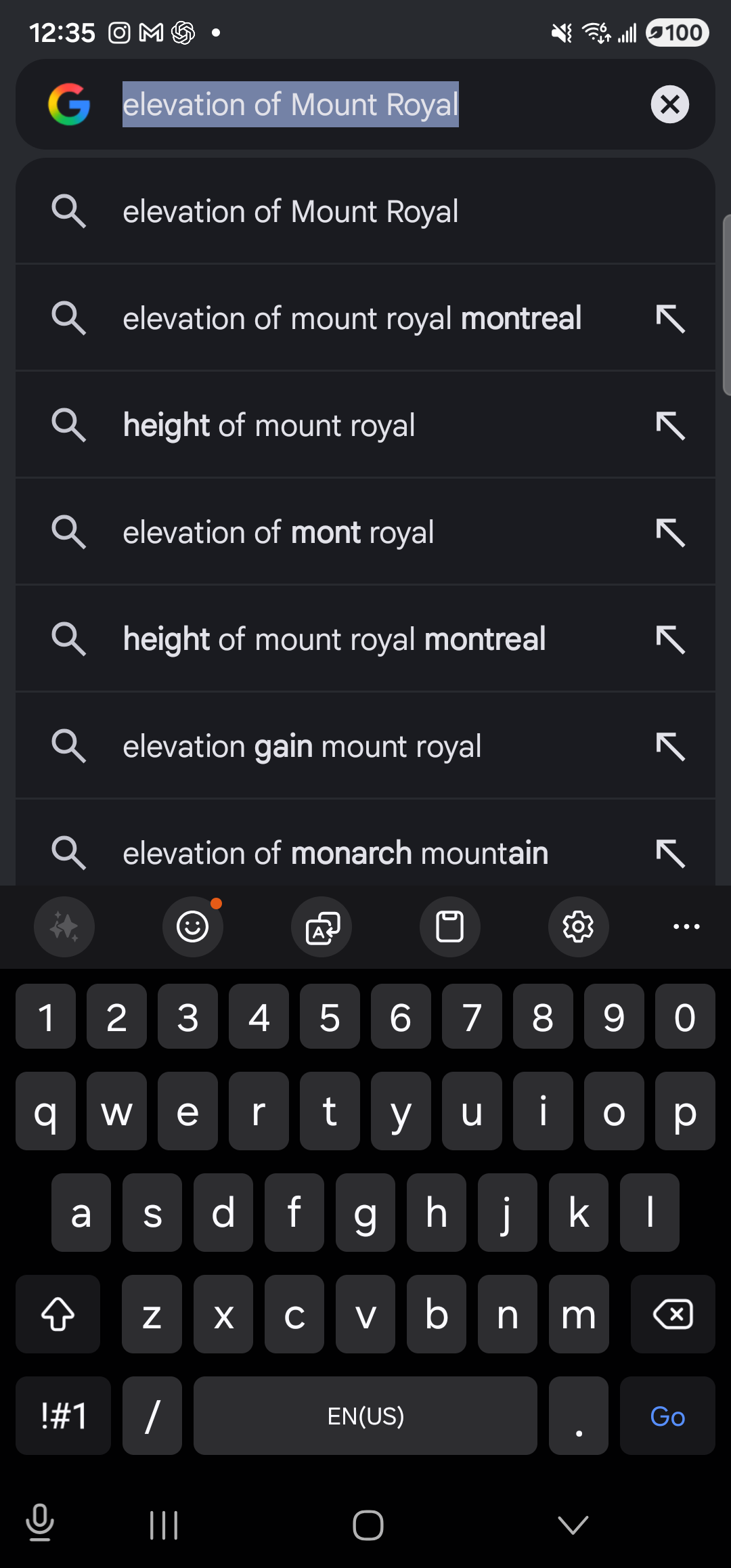
    The Google app open full-screen on the Galaxy S23 Ultra in dark mode, on its search-input page. At the top, a dark search bar with the multicolored Google ‘G’ icon on the left contains the pre-filled query ‘elevation of Mount Royal’ with the text selected/highlighted in blue, and a small ✕ clear button on the right. Below the search bar is a vertical list of suggested completions, each with a magnifying-glass icon on the left and an up-and-left arrow on the right: ‘elevation of Mount Royal’, ‘elevation of mount royal montreal’, ‘height of mount royal’, ‘elevation of mont royal’, ‘height of mount royal montreal’, ‘elevation gain mount royal’, ‘elevation of monarch mountain’. Below the suggestions list is the soft keyboard with the standard QWERTY layout, an emoji and clipboard row above it, and the system 3-button nav at the very bottom.
    Google search lands ready to fire, query already filled in. Tap a suggestion or hit Go to see the results.
  4. Done — or come back to Aside

    Read the answer, click through to a source, or open the knowledge panel. When you’re ready to ask Aside something else, swipe back to the launcher and tap the Aside icon (or use your assist gesture). Aside picks up exactly where you left off, with the chat history of this turn still in place.

When Aside punts to search and when it doesn’t: Aside answers from context for things it can be sure about — what’s on your calendar, what you’ve told it to remember, the time, the weather it just looked up. For knowledge-cutoff questions, recent events, or anything it can’t verify, it punts to a real search rather than make something up. The action chip in the chat history always tells you which path it took.
Note: Search results are served by your default search engine — Aside does not host them, doesn’t reorder them, and doesn’t see what you click on. The privacy posture of the search results page is whatever your browser and search provider set it to be.