How-to guide · Memory tab Forget a single memory
Open the Memory tab (rightmost pill at the bottom of the screen), pick any row, and tap its Forget button:
The row vanishes immediately and a quiet memory updated chime plays. The rest of the Memory tab is unchanged.
Step by step
-
Open the Memory tab
From the main Aside screen, tap the memory pill at the bottom-right of the screen. The Memory tab slides up over the orb. (Walk-through of this step lives in the Memory tab overview.)
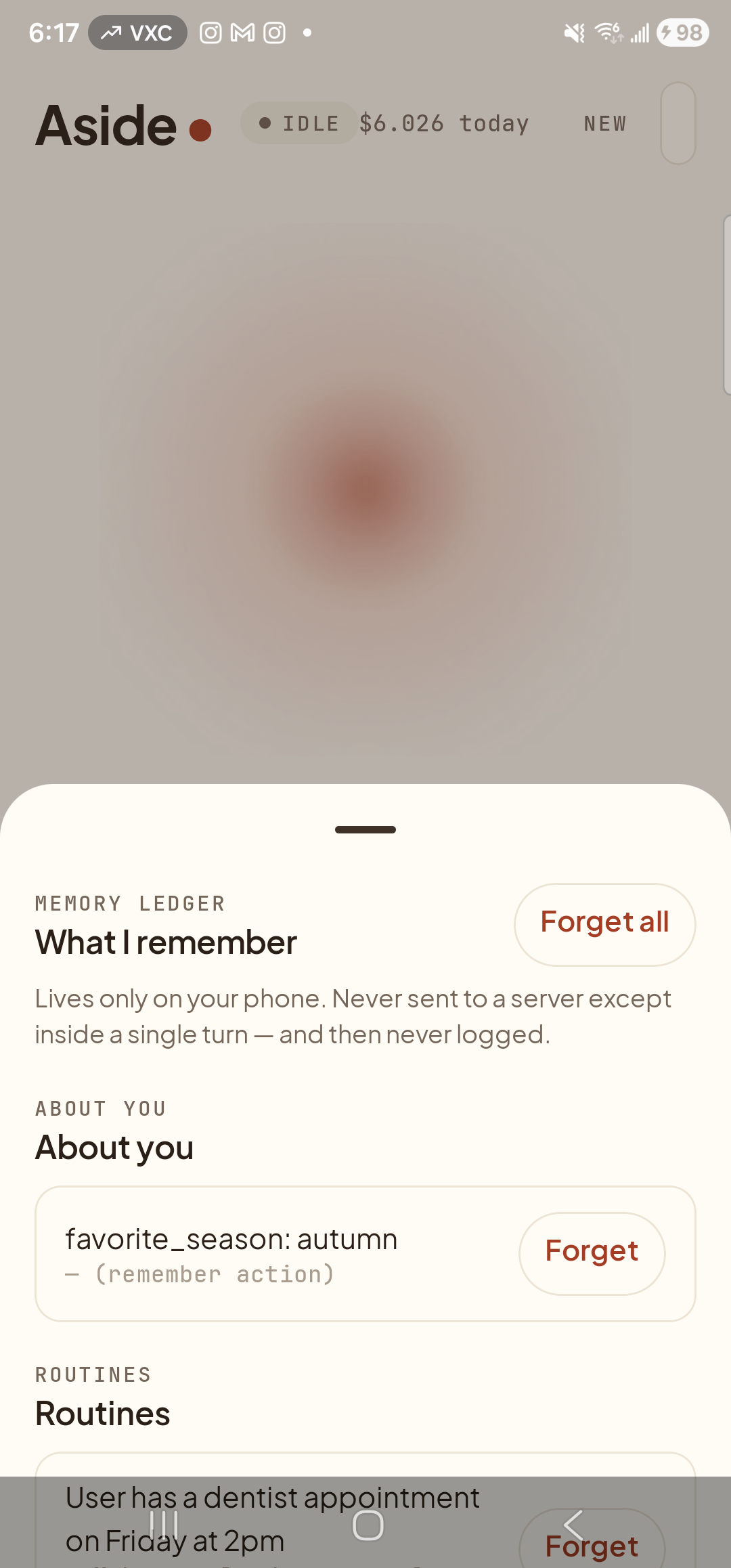
Memory tab open. Every row has its own small Forget button on the right. -
Find the row you want to forget
Scroll the sheet if you need to. Each row has three parts you can use to identify it: the small mono eyebrow label (the key — for example FAVOURITE SEASON), the content (the value — for example autumn), and a Forget button on the right. The Forget button is part of the row itself, not a separate menu — nothing to long-press, nothing to swipe.
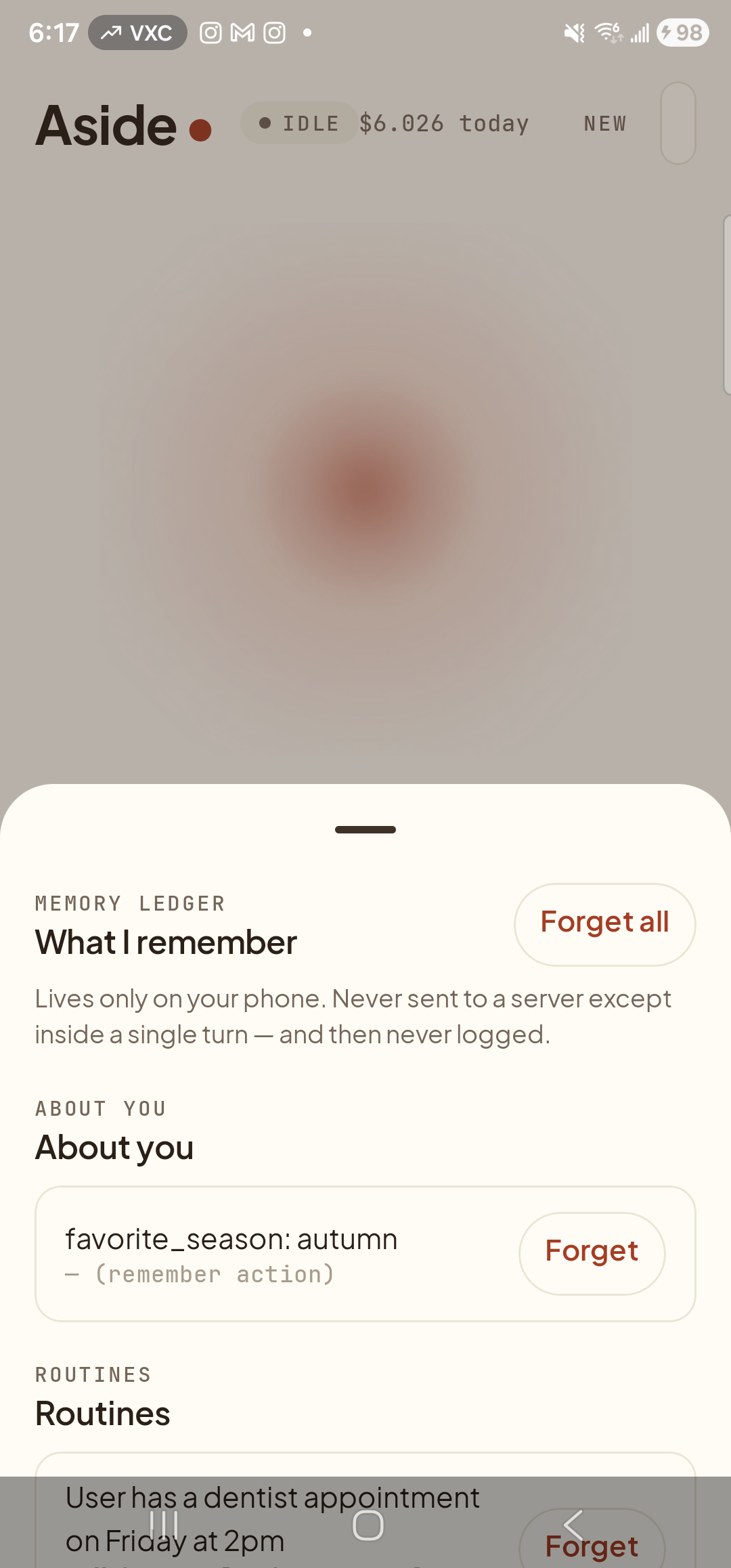
Each row is self-contained: label, content, and per-row Forget. No long-press, no swipe. -
Tap the row’s ‘Forget’ button
Tap the small Forget button at the right of the row. It’s a 56×56 dp hit target so you don’t have to be precise. A quiet memory updated chime plays as confirmation; if you’ve set Aside to read updates aloud, you’ll also hear a short spoken “forgotten.”
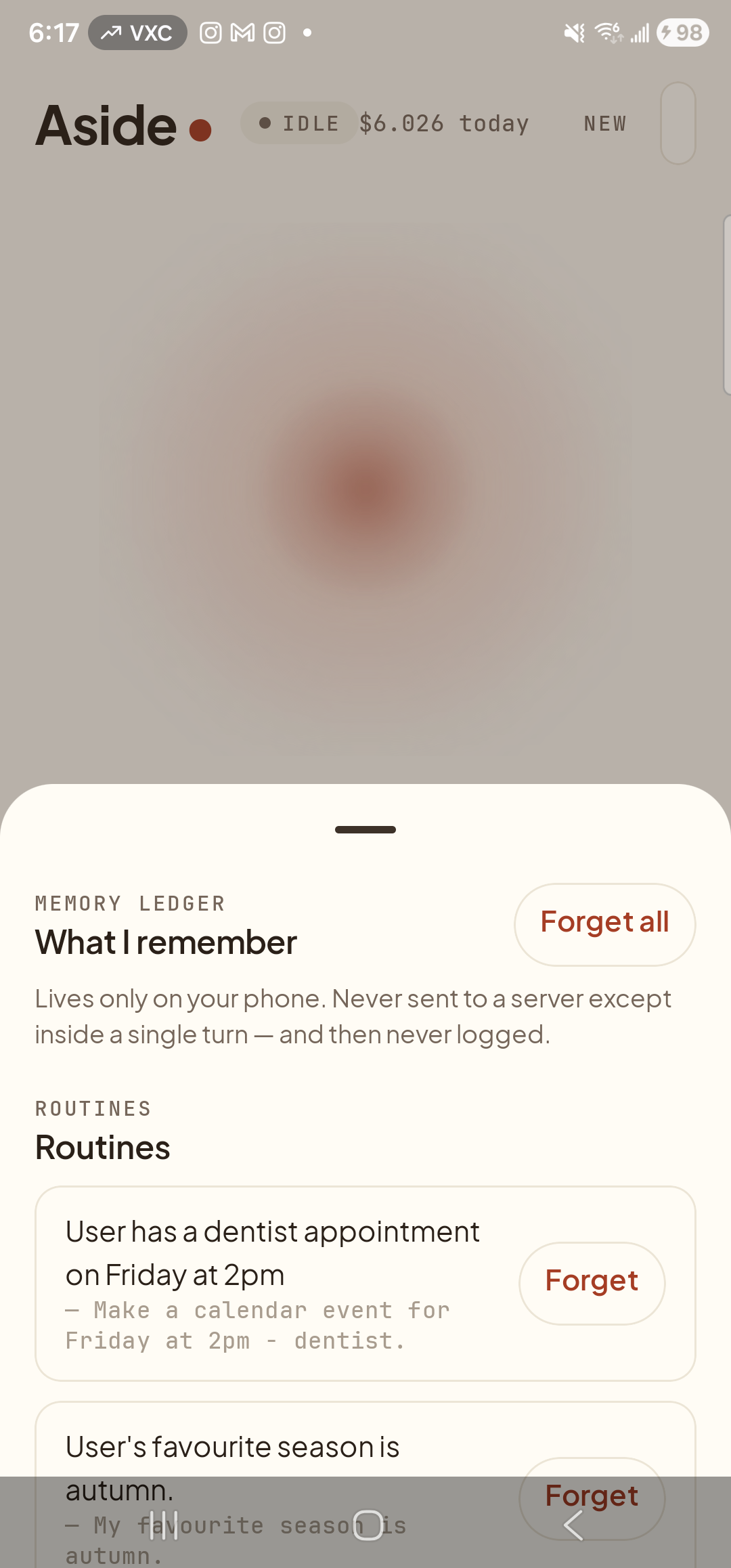
Tap and the row leaves immediately. There is no “are you sure?” for individual rows — that’s reserved for the all-at-once Forget all. -
Confirm it’s gone
The Memory tab redraws without the deleted row. The category heading stays even if it’s now empty (so you can still see what kinds of facts exist; nothing is hidden). From the next turn onward, that fact is no longer in the small slice of memory shipped to the model — it’s as if you’d never said it.
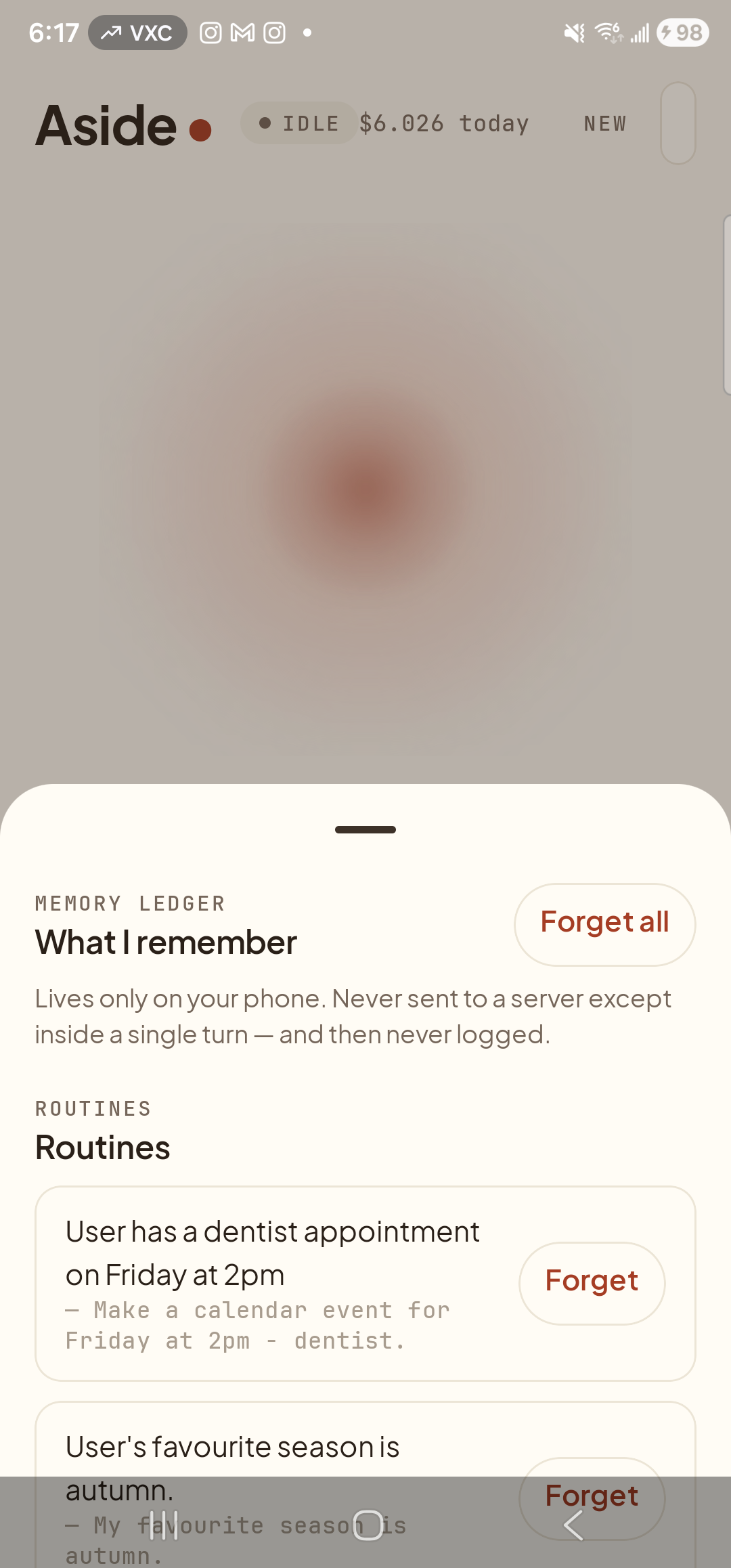
Row gone, sheet redrawn. The category heading stays visible even if it’s now empty.