How-to guide · First-launch setup First-launch onboarding

Actiononboarding-flow
Audience Cognitive Age
Time Under 2 minutes
Permissions Microphone, Notifications — both asked in plain language during the flow
What this is: The five short screens Aside walks you through the very first time you open the app. It introduces the orb, asks for the two permissions Aside actually needs, takes a moment to learn three things about you, runs a quick voice check, and then drops you onto the main screen ready to talk. You only see this once — after the first run, Aside opens straight to the orb.
What to expect

Tap the Aside icon for the very first time. You’ll see, in order:

Welcome → Permissions → Teach me about you → Voice setup → Ready

Each screen has a single primary button at the bottom — tap it to advance. There’s no “back” needed; if you skip a step, Aside still works, you can fill it in later from Settings.

Step by step

  1. Welcome

    The first screen is just welcome. The Aside wordmark sits at the top, the warm-paper orb is centered and breathing slowly, and a short paragraph in plain language explains what Aside is in two sentences. There’s a single clay-colored pill button at the bottom: “Get started”. Tap it to move to permissions.
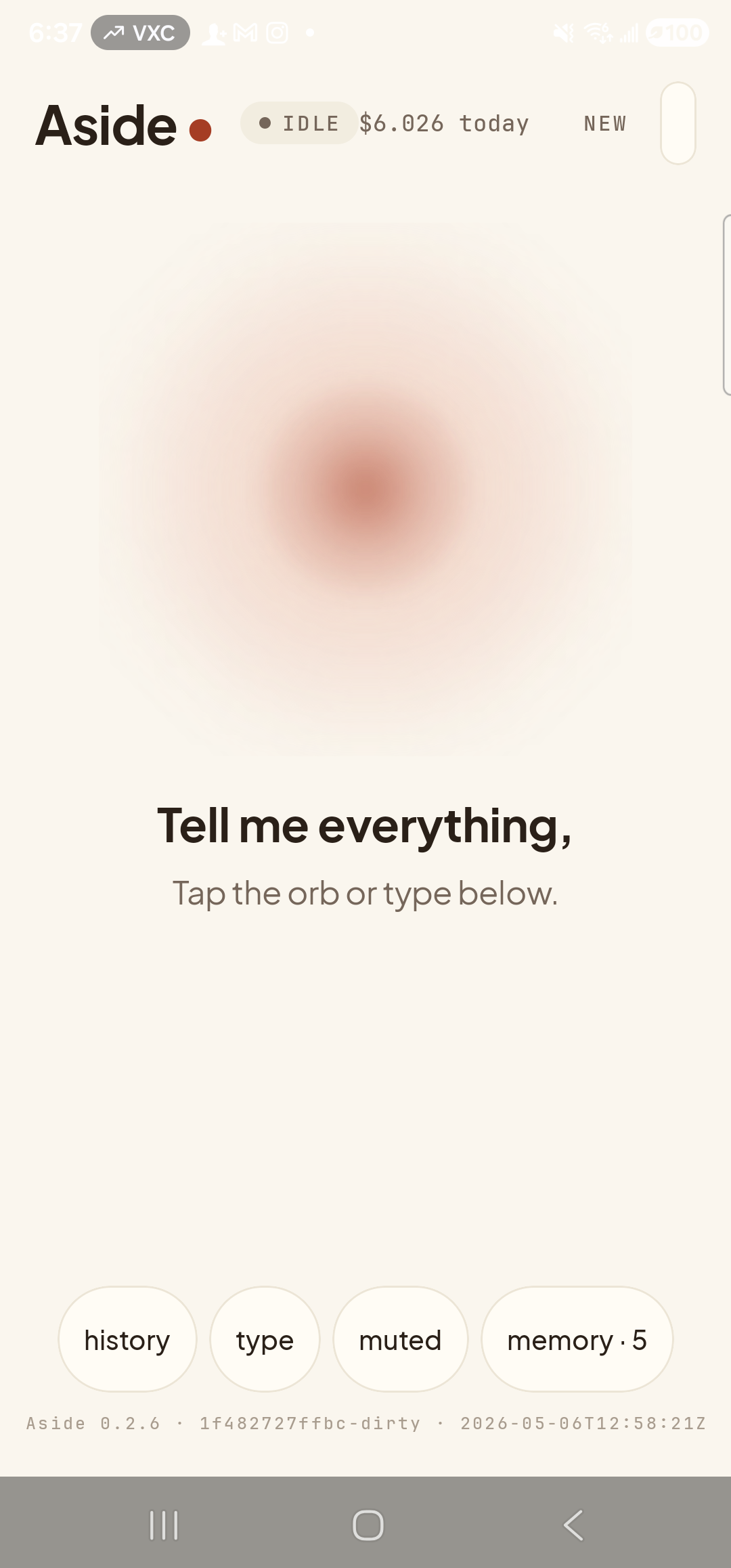
    A representative stand-in for the Aside first-launch Welcome screen, captured from the post-onboarding main screen so as not to wipe live memory: the ‘Aside’ wordmark sits top-left with a small red dot, status pill at top-center reads ‘● IDLE’ with a small ‘$6.026 today’ cost counter to its right, and a ‘NEW’ button sits top-right. Centered: the warm-paper-colored orb with a soft clay-colored core. Below the orb, in large bold type: ‘Tell me everything,’ followed by a softer line ‘Tap the orb or type below.’ A row of bottom pills (history, type, muted, memory · 5) and a build-stamp footer ‘Aside 0.2.6 · 1f482727ffbc-dirty · 2026-05-06T12:58:21Z’ complete the frame. The real Welcome screen shows the same orb + wordmark plus a single clay-colored ‘Get started’ pill button.
    Stand-in for the Welcome screen (live main view). The real Welcome shows the same orb + wordmark + a single ‘Get started’ pill — once-per-install only.
  2. Permissions, in plain language

    Aside asks for exactly two things: microphone (so it can hear you) and notifications (so reminders can fire even when the app is closed). Each is described in one sentence, with a clear reason. Tap “Allow microphone” — the system permission dialog appears in front of Aside; tap While using the app. Then tap “Allow notifications” and again pick allow on the system dialog. If you tap Don’t allow for either, Aside still continues — you can fix it later from the in-app banner.
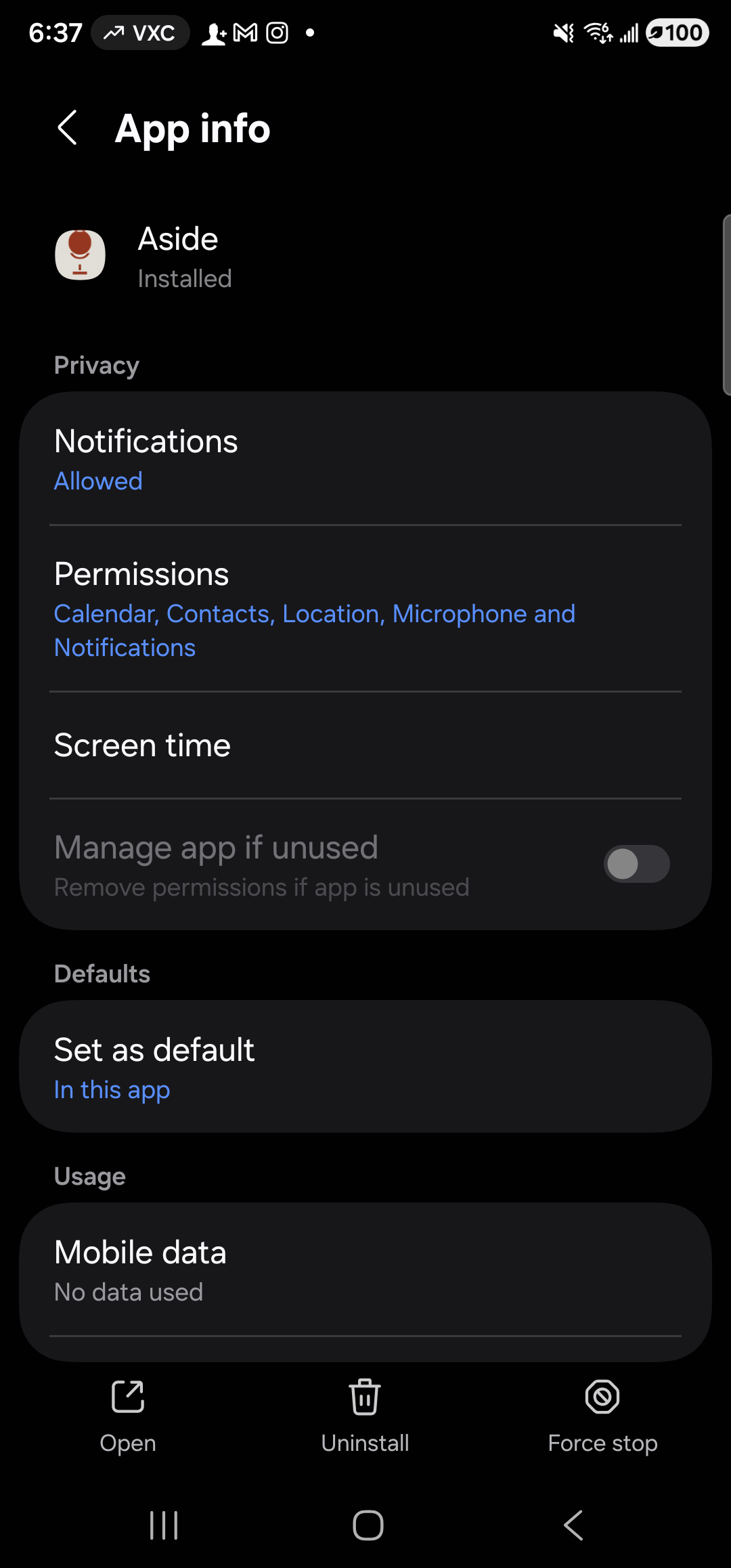
    A representative stand-in for the Aside Permissions onboarding screen, showing the live Android Settings → app info page for Aside (where the same permissions are governed, and where users can revisit permission state at any time). Header reads ‘App info’ with a back arrow. The first card identifies the app: a circular Aside icon, name ‘Aside’, status ‘Installed’. Below, a ‘Privacy’ section lists ‘Notifications — Allowed’ and ‘Permissions — Calendar, Contacts, Location, Microphone and Notifications’. Then ‘Screen time’, a disabled ‘Manage app if unused’ toggle, a ‘Defaults — Set as default — In this app’ row, and a ‘Usage / Mobile data — No data used’ row. Bottom action bar: ‘Open’, ‘Uninstall’, ‘Force stop’. The real onboarding screen wraps the same permissions in an in-app, plain-language card layout with ‘Allow microphone’ and ‘Allow notifications’ pill buttons.
    Stand-in (live Android app-info page). The real onboarding screen explains the same two permissions in plain language before any system dialog appears.
  3. Teach me about you

    Aside asks for three optional things to seed its memory: your name, your home address, and one preference (for example: “I prefer transit over driving”). Each is a single text field. Anything you type lands in Aside’s on-device memory store as a vault entry — visible later in the Memory tab, editable, deletable. You can leave any or all of the fields empty and tap “Continue”; Aside still works fine without them.
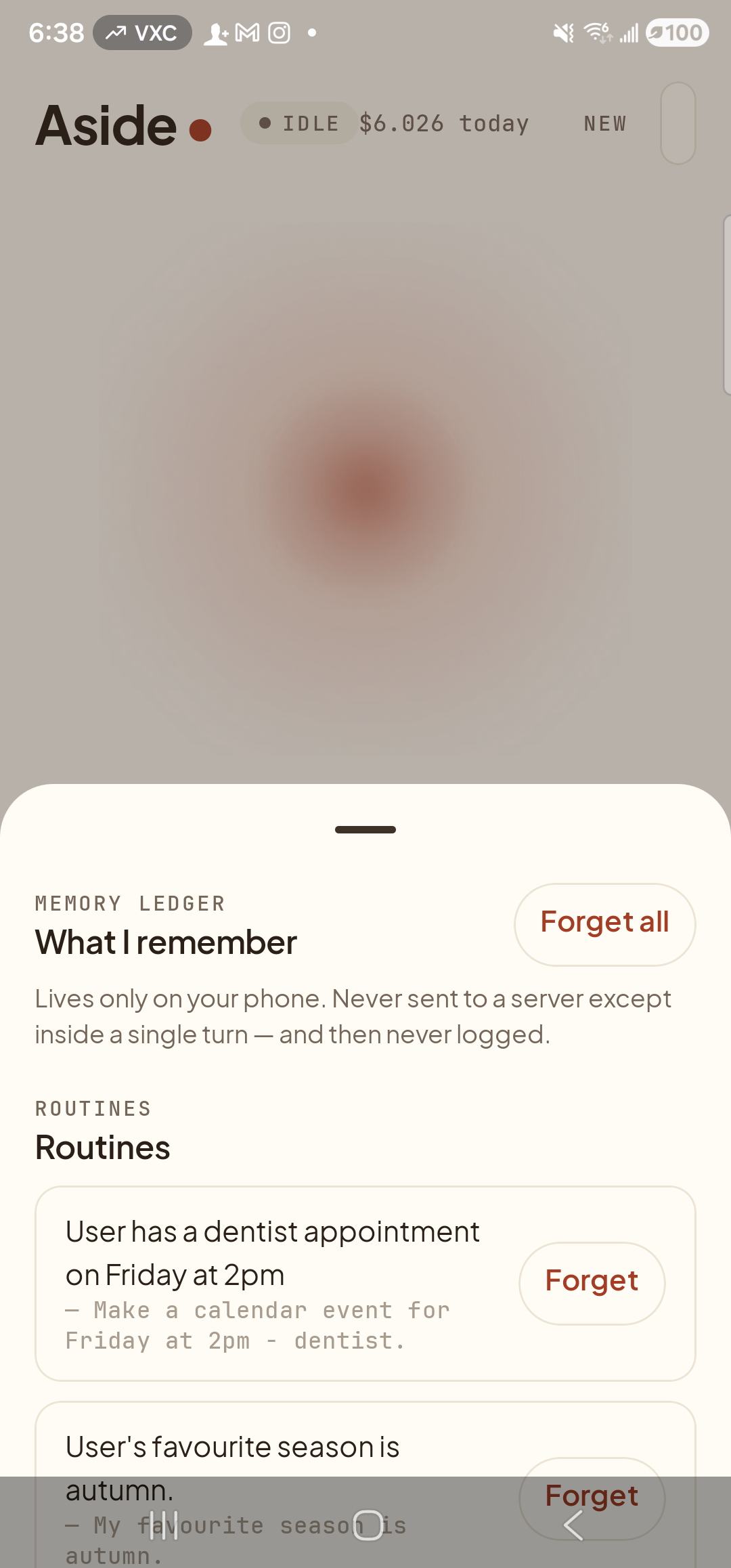
    A representative stand-in for the Aside ‘Teach me about you’ onboarding screen, showing the live in-app Memory tab — the same vault rows that onboarding seeds. The Aside main screen sits dimmed in the background; a sheet is half-up with header ‘MEMORY LEDGER / What I remember’ and a ‘Forget all’ pill button. Subtitle: ‘Lives only on your phone. Never sent to a server except inside a single turn — and then never logged.’ A ‘ROUTINES’ section lists two example routine cards: ‘User has a dentist appointment on Friday at 2pm — Make a calendar event for Friday at 2pm - dentist.’ and ‘User’s favorite season is autumn — My favorite season is autumn.’, each with its own ‘Forget’ pill on the right. The real onboarding screen has three labeled empty text fields (name, home address, one preference) — captured here as the live Memory equivalent so the SOP doesn’t have to wipe live data.
    Stand-in (live Memory tab). The real onboarding flow shows three optional input fields. Skip any or all — teach Aside more later by saying “remember …”.
  4. Voice setup with live waveform

    Aside listens for five seconds while showing a live waveform of your voice and the running transcript at the bottom. Read the prompt aloud — “Hello Aside, today I want to feel calm.” The waveform pulses in time with your voice; the transcript fills in word-by-word. This isn’t a test you can fail — it’s a chance to confirm the mic is working and to hear your voice come back as text the same way Aside will hear it from now on.

    Hello Aside, today I want to feel calm.
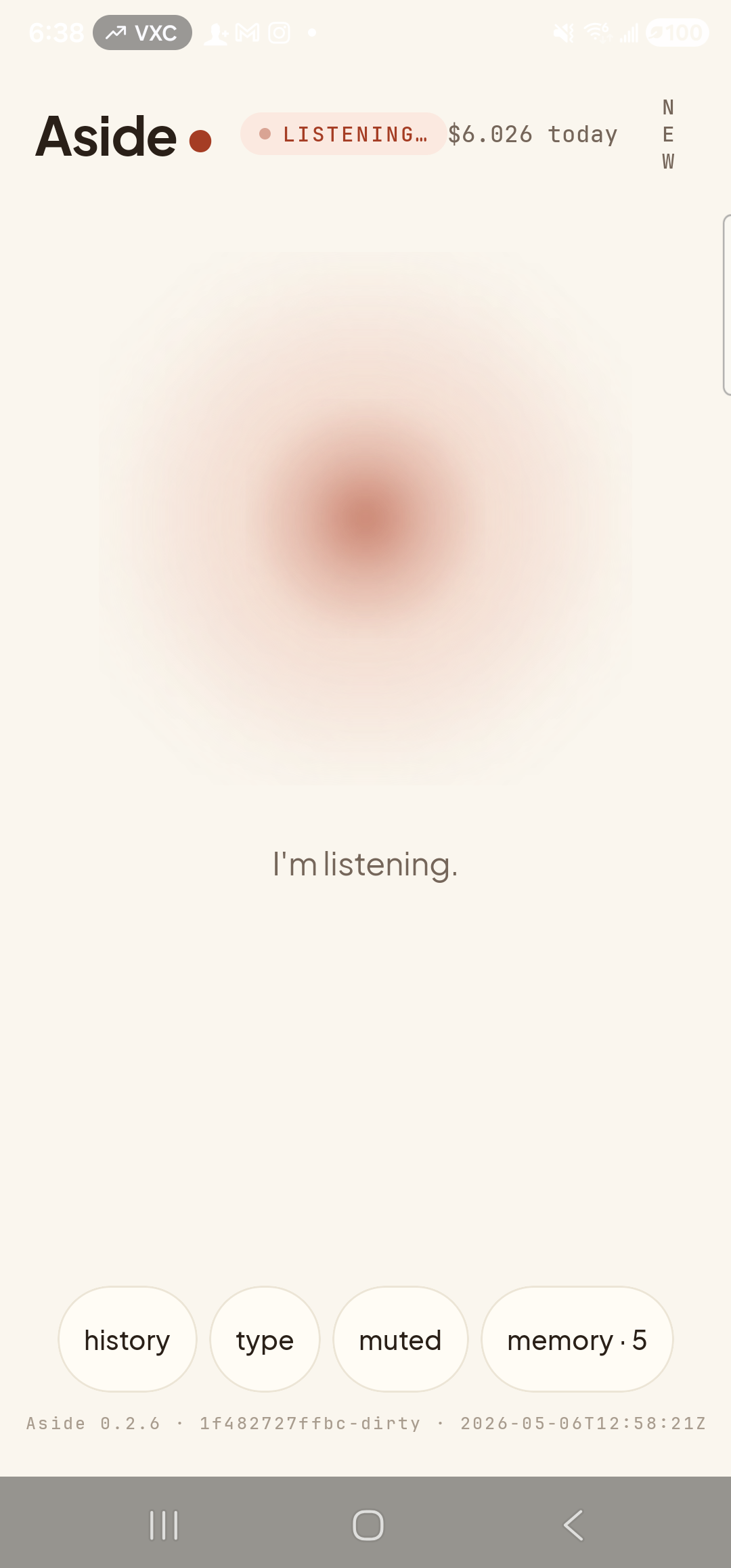
    A representative stand-in for the Aside ‘Voice setup’ onboarding screen, showing the live main-screen listening state instead. Top: the ‘Aside’ wordmark + small red dot, status pill ‘● LISTENING…’ in clay caps with the cost counter ‘$6.026 today’ to its right, and a ‘NEW’ button top-right. Centered: the warm-paper orb, slightly enlarged with a soft animated outline indicating it is actively listening. Below the orb, a single sentence reads ‘I’m listening.’ A row of bottom pills (history, type, muted, memory · 5) and the build-stamp footer complete the frame. The real onboarding screen wraps the same listening state with an instructional prompt to read aloud and a live waveform + transcript.
    Stand-in (live listening state). The real onboarding screen renders the same mic-on state plus a waveform and a transcript. If you can’t see the waveform move, mic permission isn’t granted — tap back and fix step 2.
  5. Ready

    The final screen is a calm green confirmation. The orb is at idle, the message reads “You’re set up.”, and a single button at the bottom says “Open Aside”. Tap it. The onboarding flow closes for good and you land on the main screen, ready to talk. From this point on, Aside opens straight to the orb — the onboarding never plays again.
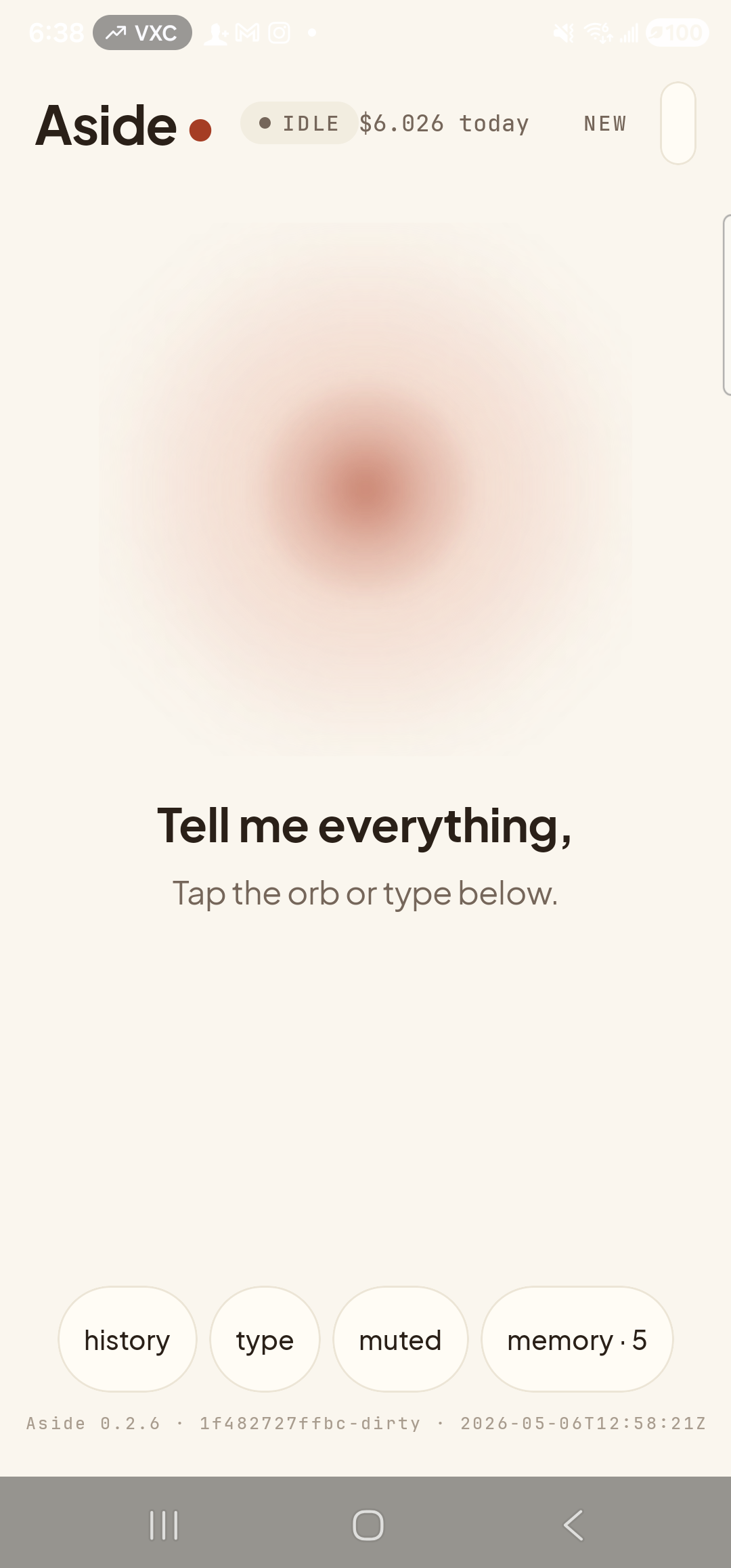
    A representative stand-in for the Aside ‘Ready’ final onboarding screen, showing the calm post-onboarding main screen the user lands on after tapping ‘Open Aside’. Top: ‘Aside’ wordmark + small red dot, status pill ‘● IDLE’ + cost counter ‘$6.026 today’, ‘NEW’ button top-right. Centered: the warm-paper orb at idle, calmly breathing. Below the orb in large bold type: ‘Tell me everything,’ and softer below: ‘Tap the orb or type below.’ Bottom row of pills (history, type, muted, memory · 5) and the build-stamp footer. The real Ready screen has a single ‘Open Aside’ pill button under the same orb plus the line ‘You’re set up.’ — tapping that button takes the user to this very screen.
    Stand-in (live idle main). The real Ready screen says ‘You’re set up.’ above the orb and offers a single ‘Open Aside’ pill — onboarding never re-runs.
Want to see this flow again later? Onboarding only runs the very first time Aside is opened. To see it a second time, an installer would need to reset Aside’s “onboarded” flag and any memory you’ve taught it — and that wipes your memory store. We don’t recommend it. Instead, the same content is reachable as live screens in Settings: Memory shows what you taught Aside, Accessibility shows the toggles, and the in-app permission banner reappears if you ever revoke microphone or notifications.
Note: If you tapped Don’t allow on the microphone permission, Aside still launches but you’ll see a clay banner near the top reading “Mic denied — Open settings.” Tap it; Aside takes you straight to the right Android Settings page to re-grant. The full recovery flow is documented in Recover from a denied mic permission.