How-to guide · Voice & conversation Push-to-talk: tap the orb, speak, hear the reply

Action
Audience Motor Vision Hearing
Time About 8 seconds end to end
Permissions Microphone (already granted at first launch)
What this is: The simplest way to talk to Aside — a single big tap target in the middle of the screen. Tap the orb to start listening; tap it again, or just stop talking, and Aside answers. No small buttons, no menus, no hunting. The orb is also the visual indicator that the mic is live, so you always know when Aside can hear you.
Try it now

Open Aside, tap the orb, and say:

“What time is it?”

Aside answers aloud and writes the reply into the chat history. The orb returns to its calm idle state when it’s done.

Step by step

  1. Open Aside at idle

    Launch Aside from your home screen, or use your assist gesture if you’ve set Aside as your default. Aside opens to the orb in its idle state — calm, slowly breathing — with the prompt “Tell me everything,” beneath it. Nothing is recording yet.
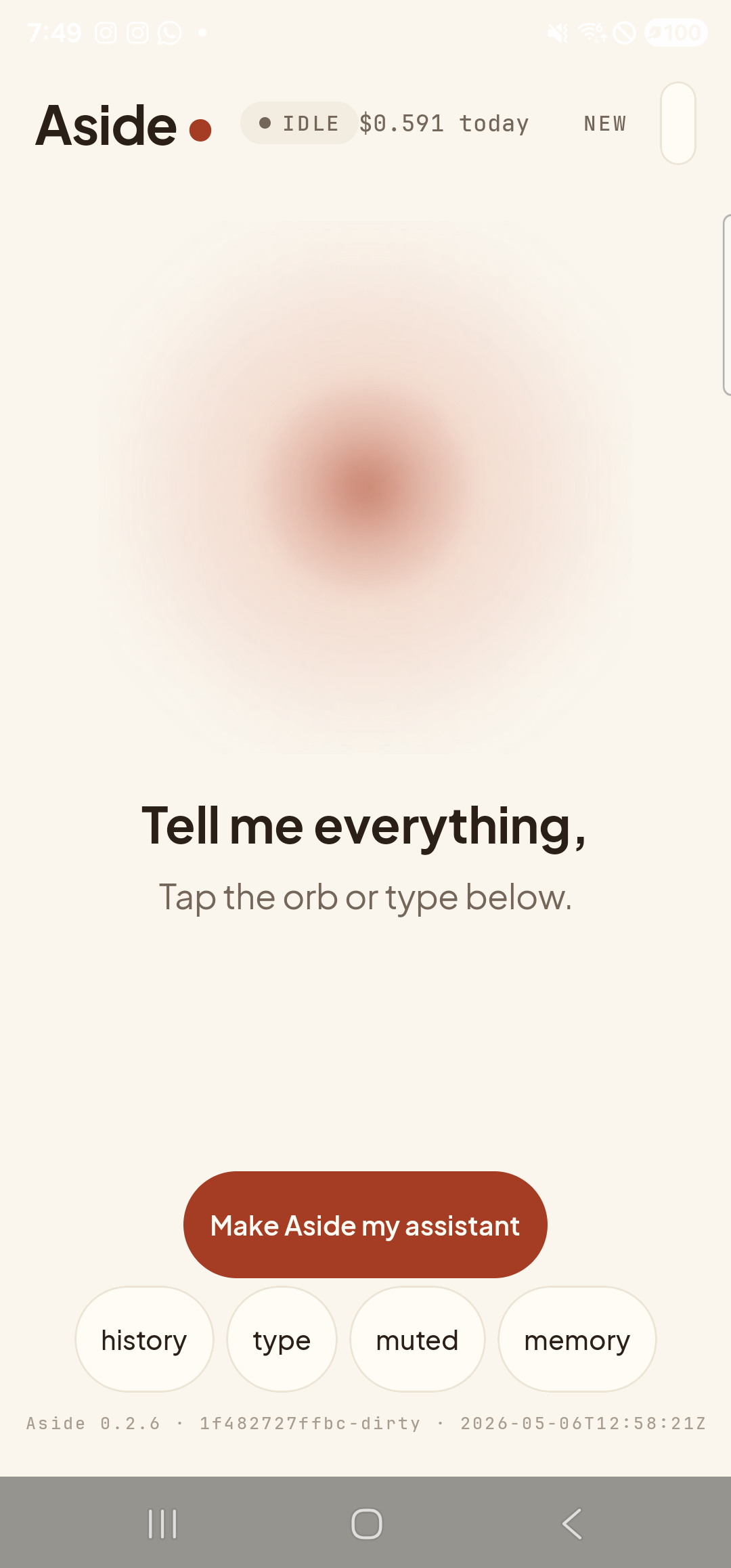
    The Aside main screen at idle on a Samsung Galaxy S23 Ultra. Across the top: the word ‘Aside’ with a red dot, a small mono status pill reading ‘● IDLE’, the cost counter ‘$0.591 today’ to its right, and a ‘NEW’ link top-right. Centered in the screen is a large warm-paper-colored orb with a soft brown core, slowly breathing. Below the orb, in large bold type: ‘Tell me everything,’. Below that, in lighter type: ‘Tap the orb or type below.’. Near the bottom is a clay-colored pill button reading ‘Make Aside my assistant’. Below that is a row of four mono pills: ‘history’, ‘type’, ‘muted’, ‘memory’. The very bottom shows a build-identity line ‘Aside 0.2.6 · 1f482727ffbc-dirty · 2026-05-06T12:58:21Z’.
    Aside open at idle. The orb is breathing; nothing is happening yet.
  2. Tap the orb to start listening

    Tap anywhere on the orb — it’s a giant target that fills the center of the screen. The mic opens immediately. The orb visibly changes shape and the status pill at the top swaps from IDLE to LISTENING. The caption beneath the orb changes to “I’m listening.” so you have both visual and textual confirmation that Aside can hear you.

    Tap the orb in the center of the screen.
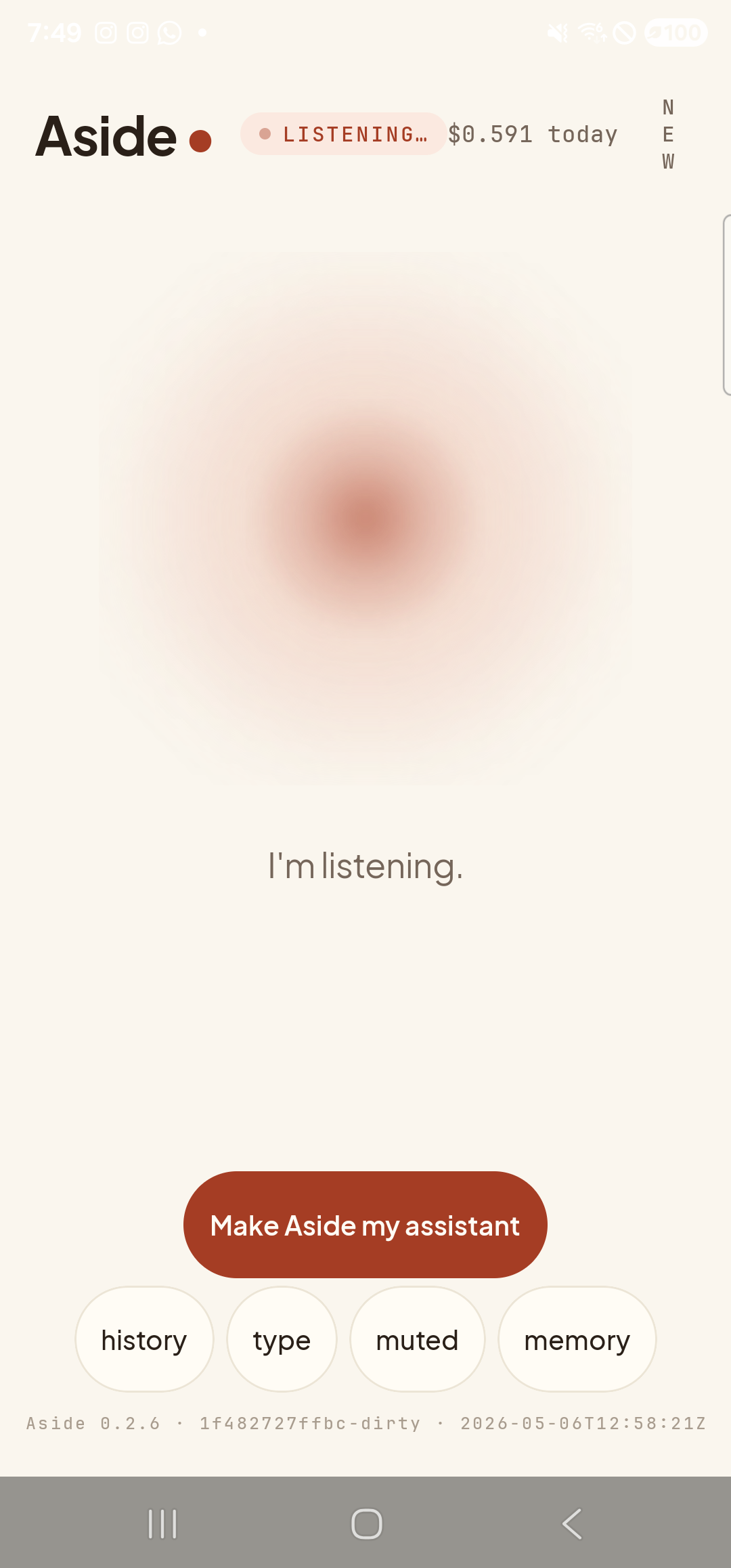
    The Aside main screen now in the listening state. The status pill at the top has changed to ‘● LISTENING…’. The orb is the same warm shape, slightly larger and animated with a soft outline that pulses with the microphone level. Beneath the orb, replacing the earlier two-line prompt, a single sentence reads ‘I’m listening.’. The ‘Make Aside my assistant’ button is still visible below; the bottom pill row and build stamp are unchanged.
    The orb shifts to listening state. Mic is open; Aside can hear you.
  3. Speak your request

    Talk in plain language. You don’t need a wake word, a trigger phrase, or special grammar — just say what you want. Aside listens for a natural pause; once you stop talking, it sends the turn automatically. You can also tap the orb a second time if you want to send the moment you finish.

    What time is it?
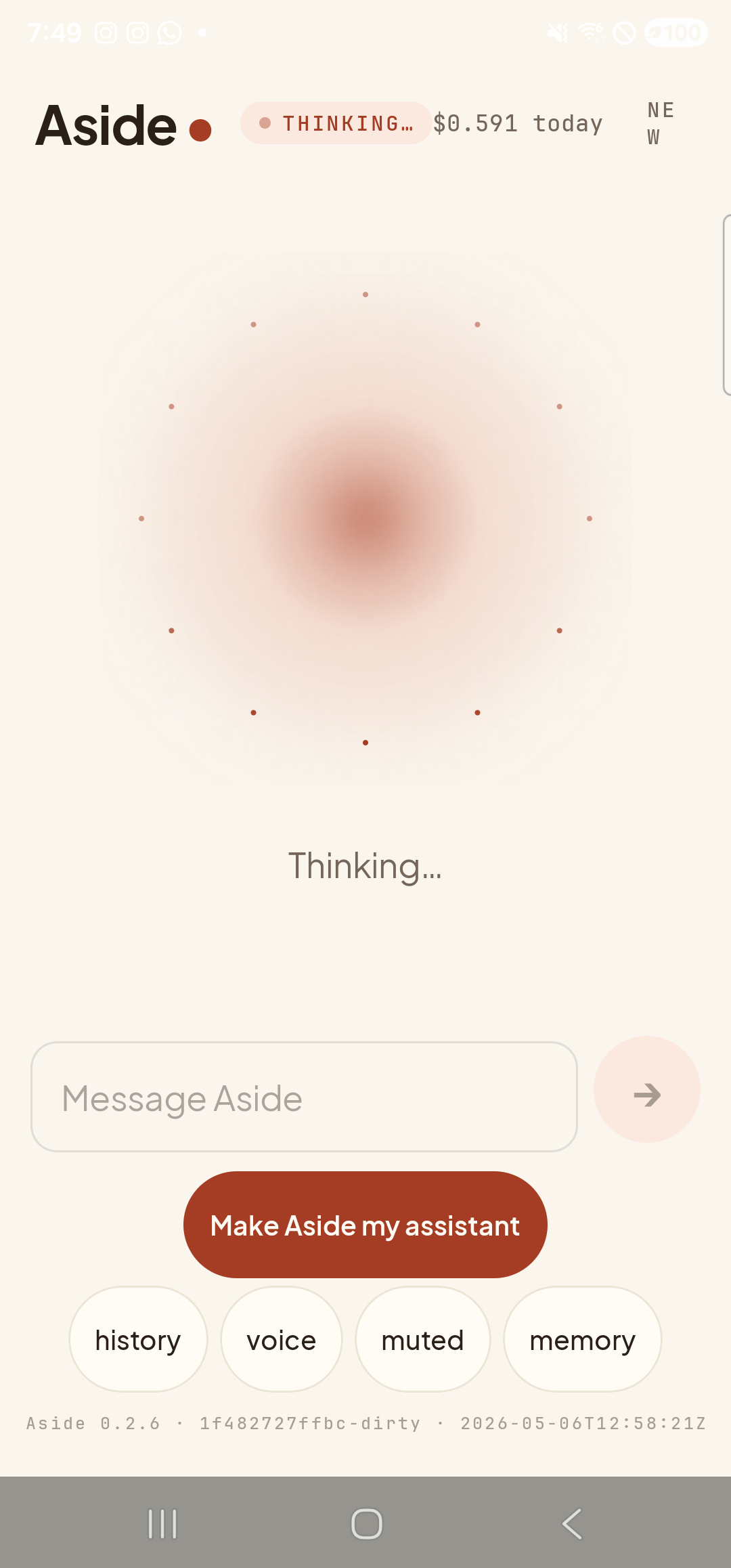
    The Aside main screen has moved past listening into the thinking state. The status pill at the top now reads ‘● THINKING…’ with the cost counter ‘$0.591 today’ alongside. The orb is warm-paper colored with a deeper brown core, surrounded by a constellation of small dotted particles suggesting activity. The caption beneath the orb has changed to ‘Thinking…’. Below the orb a ‘Message Aside’ text input field is visible (because this turn was sent in text mode for capture), with the ‘Make Aside my assistant’ pill below. The bottom pill row reads ‘history’, ‘voice’, ‘muted’, ‘memory’ — the second pill is now labeled ‘voice’ because the type pill has been toggled.
    The orb shifts to thinking. Aside has heard you and is composing the reply.
  4. Hear and read the reply

    Aside speaks the reply through your phone’s speaker (or your headphones, if connected) and shows it as text in the chat history. The orb pulses gently in its speaking state while audio is playing. When it’s done, the orb returns to idle and the status pill goes back to READY.
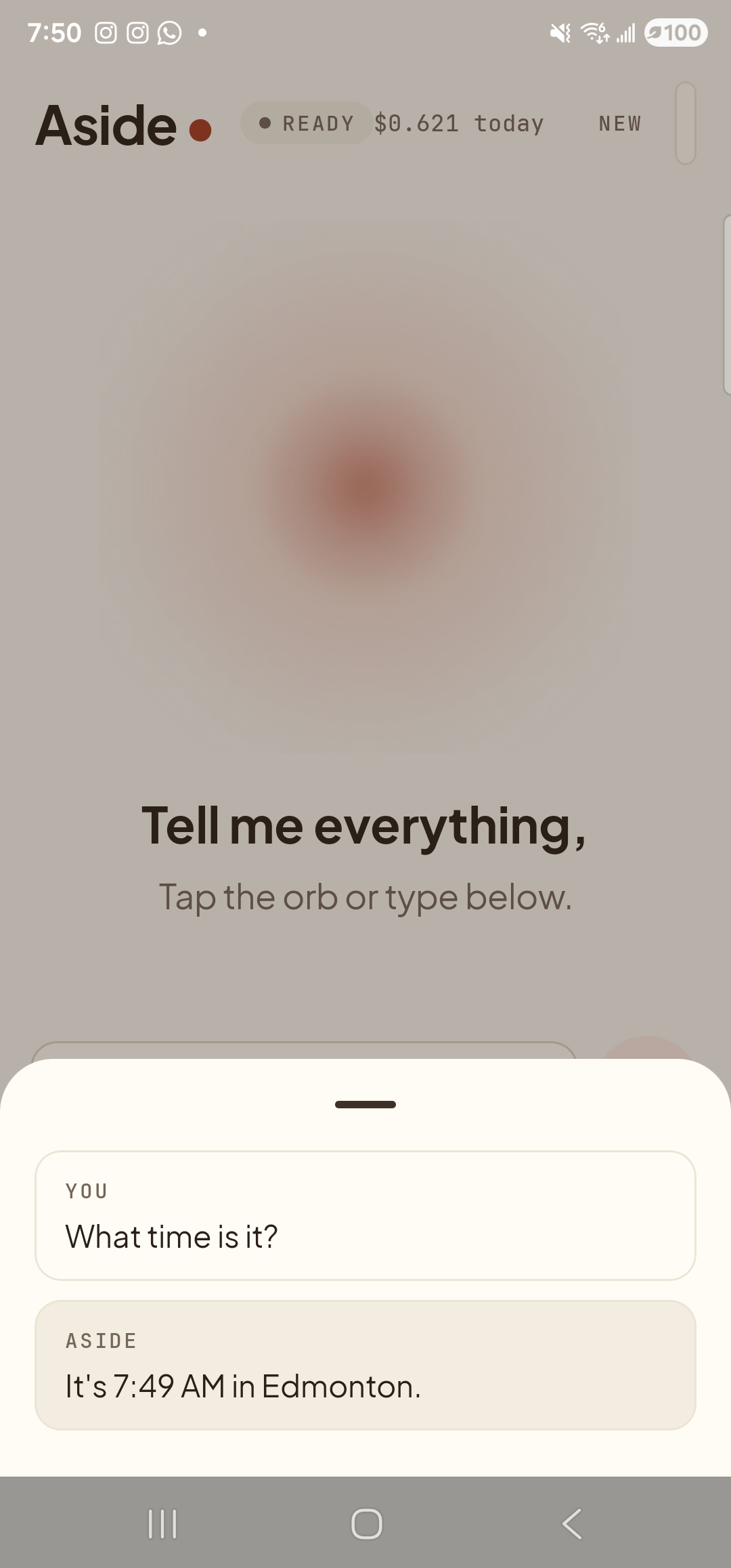
    The Aside main screen with the chat history modal sheet covering the lower half of the screen. The status pill at the top reads ‘● READY’ and the cost counter has incremented to ‘$0.621 today’. Behind a slight scrim, the orb is visible at its calm idle shape; the captions ‘Tell me everything,’ and ‘Tap the orb or type below.’ remain partially in view above the sheet. Inside the bottom sheet are two stacked entries: a small mono label ‘YOU’ above the line ‘What time is it?’; and a label ‘ASIDE’ above the reply ‘It’s 7:49 AM in Edmonton.’
    Aside replies aloud and on screen. The orb pulses while audio is playing.
  5. Ask another, or close the app

    You can tap the orb again the moment you’re ready — even while Aside is still speaking, which interrupts the reply and starts a new turn. Or just put the phone down; Aside settles back into idle on its own. The chat history bottom-sheet stays available behind the history pill at the bottom-left if you want to scroll back.
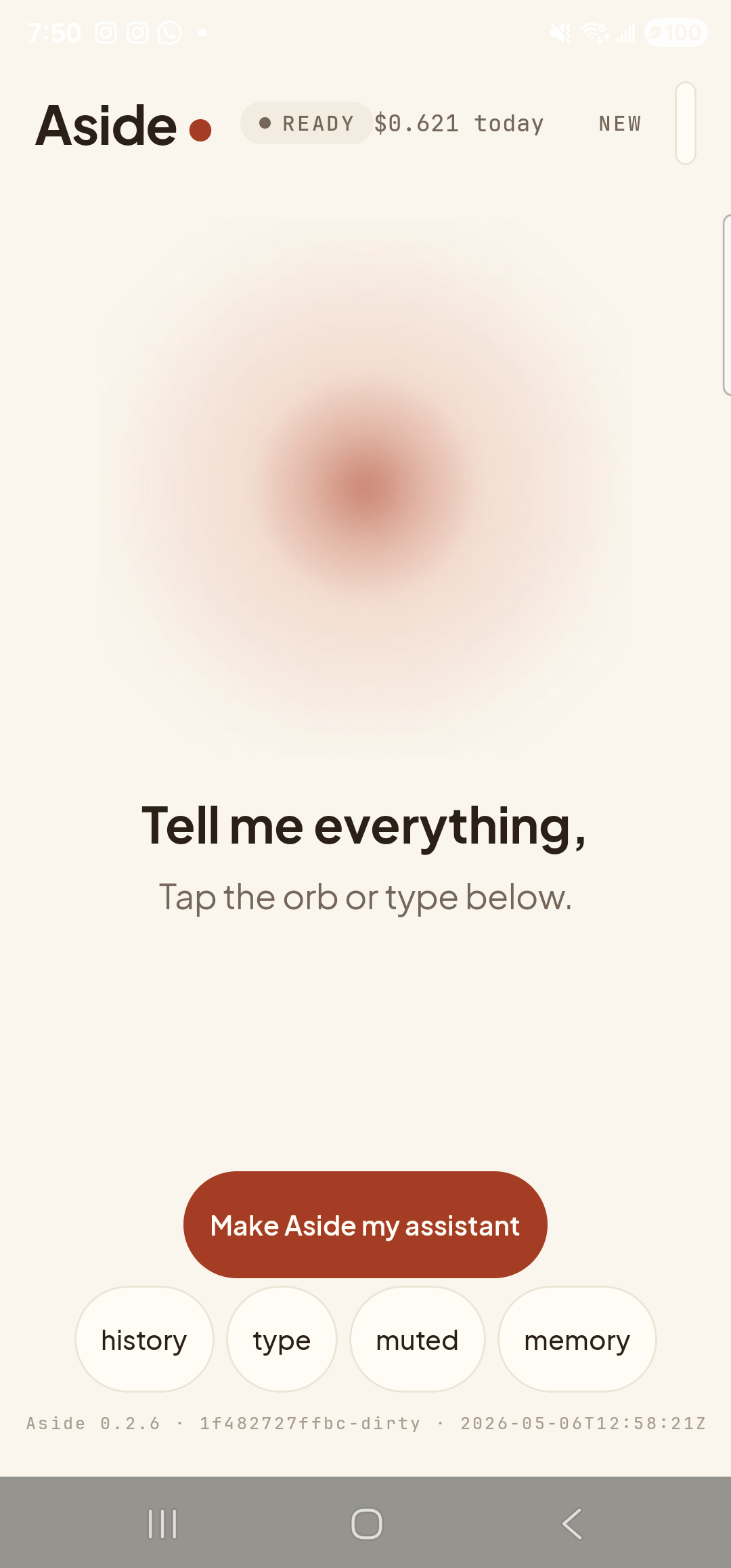
    The Aside main screen back at the idle state, after the reply has finished playing. The status pill at the top reads ‘● READY’ and the cost counter shows ‘$0.621 today’. The orb is back to its calm slow-breathing form. The caption ‘Tell me everything,’ and the prompt ‘Tap the orb or type below.’ have returned. Bottom pill row reads ‘history’, ‘type’, ‘muted’, ‘memory’ as before.
    Back at idle. Aside is ready for the next request whenever you are.
Prefer not to speak right now? Tap the type pill at the bottom and you’ll get a chat-style text input instead. Same conversation, same memory, same actions — just keyed in. See Type instead of speak.
If the orb doesn’t shift to listening: Microphone permission may not be granted. Aside will show an inline banner with a one-tap path straight to the right Settings page; see Recover from a denied mic permission.