How-to guide · First-launch setup Set Aside as your default assistant

Actionset-default-assistant
Audience Motor Vision Situational Age
Time About a minute
Permissions None — uses the Android Default apps screen
What this is: A one-time setting change that makes Aside the app your phone runs when you fire its assist gesture. After this step, no Aside icon hunting required — long-press the home button (Galaxy S23 Ultra) or use whatever assist gesture your phone has, and Aside opens already listening. This is the setup-flow companion to the in-app “Make Aside my assistant” CTA: same destination, walked through here in detail.
Try it now

Open Settings, then walk:

Settings → Apps → Default apps → Digital assistant app → Aside

Or, faster: open Aside, tap the clay-colored “Make Aside my assistant” pill near the bottom of the main screen, and skip straight to the Digital assistant chooser.

Step by step

  1. Open Settings → Apps

    Open the system Settings app. (You can say “take me to settings” from inside Aside if it’s already running and you have voice working.) On a Galaxy device the main Settings list shows a category called Apps — it has a small grid icon. Tap Apps.
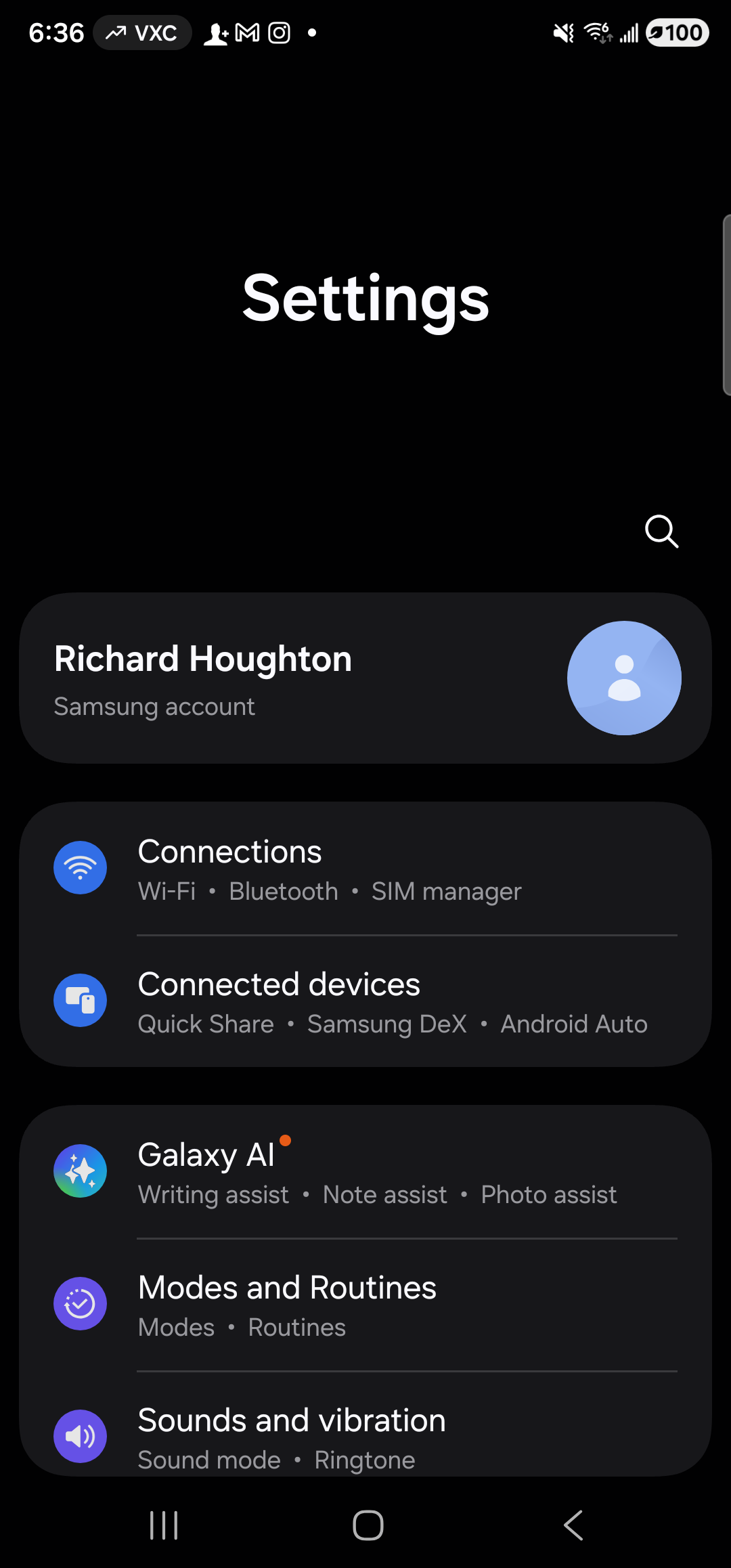
    The Samsung One UI Settings app on a Galaxy S23 Ultra. Header reads ‘Settings’ with a search icon. The first card is a Samsung-account row showing the user’s name and a generic profile silhouette. Below that, scrollable rounded cards group setting categories: ‘Connections (Wi-Fi · Bluetooth · SIM manager)’, ‘Connected devices (Quick Share · Samsung DeX · Android Auto)’, ‘Galaxy AI (Writing assist · Note assist · Photo assist)’, ‘Modes and Routines (Modes · Routines)’, and ‘Sounds and vibration (Sound mode · Ringtone)’. Scroll further to find the ‘Apps’ category — that’s the next tap target.
    Settings root. Scroll down to find the Apps category. On Pixels the wording is identical; on stock Android it’s Apps & notifications.
  2. Find “Default apps”

    Inside Apps, scroll until you see Choose default apps (Samsung) or Default apps (most other Androids). The label varies but the destination is the same. Tap it.
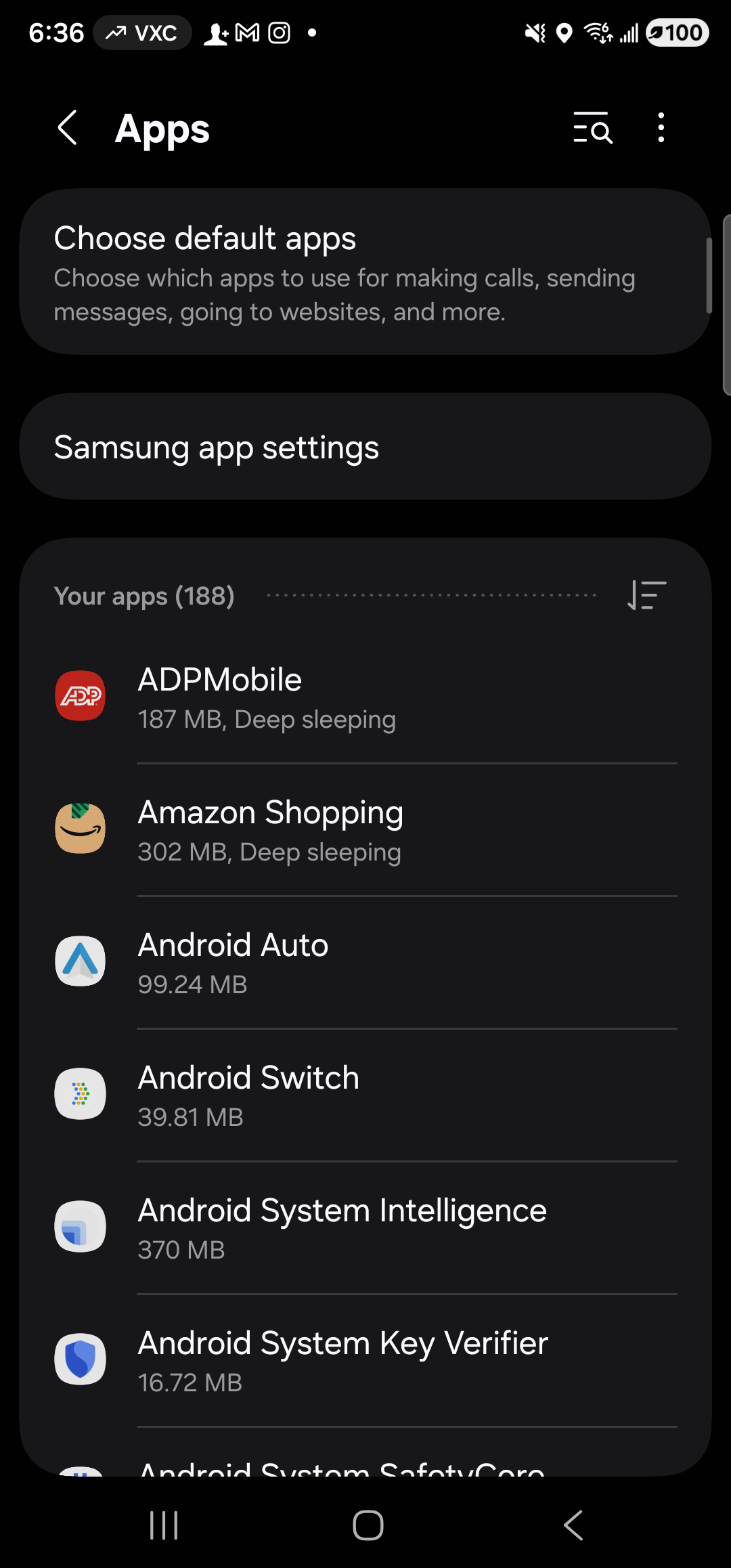
    The Samsung One UI Apps screen on a Galaxy S23 Ultra. Header reads ‘Apps’ with a back arrow on the left and a search/sort icon plus an overflow menu on the right. The first highlighted card is ‘Choose default apps’ with a one-line summary ‘Choose which apps to use for making calls, sending messages, going to websites, and more.’ — that’s the next tap target. Below it sits a card for ‘Samsung app settings’. Beneath those is a section header ‘Your apps (188)’ followed by an alphabetically-sorted list of installed app rows, each with the app’s icon, name, and disk-space usage on the right.
    Tap the highlighted Choose default apps card — that’s the gateway to the digital assistant slot.
  3. Pick “Digital assistant app”

    The Default apps screen lists each role you can override: browser, caller-ID, dialler, SMS, and the one we want — Digital assistant app. Tap it. The next screen lists every app on your phone that knows how to be the system assistant. Bixby is usually the current selection on a Samsung; on a Pixel it’s Google. Aside appears in the list with the warm-paper Aside icon.
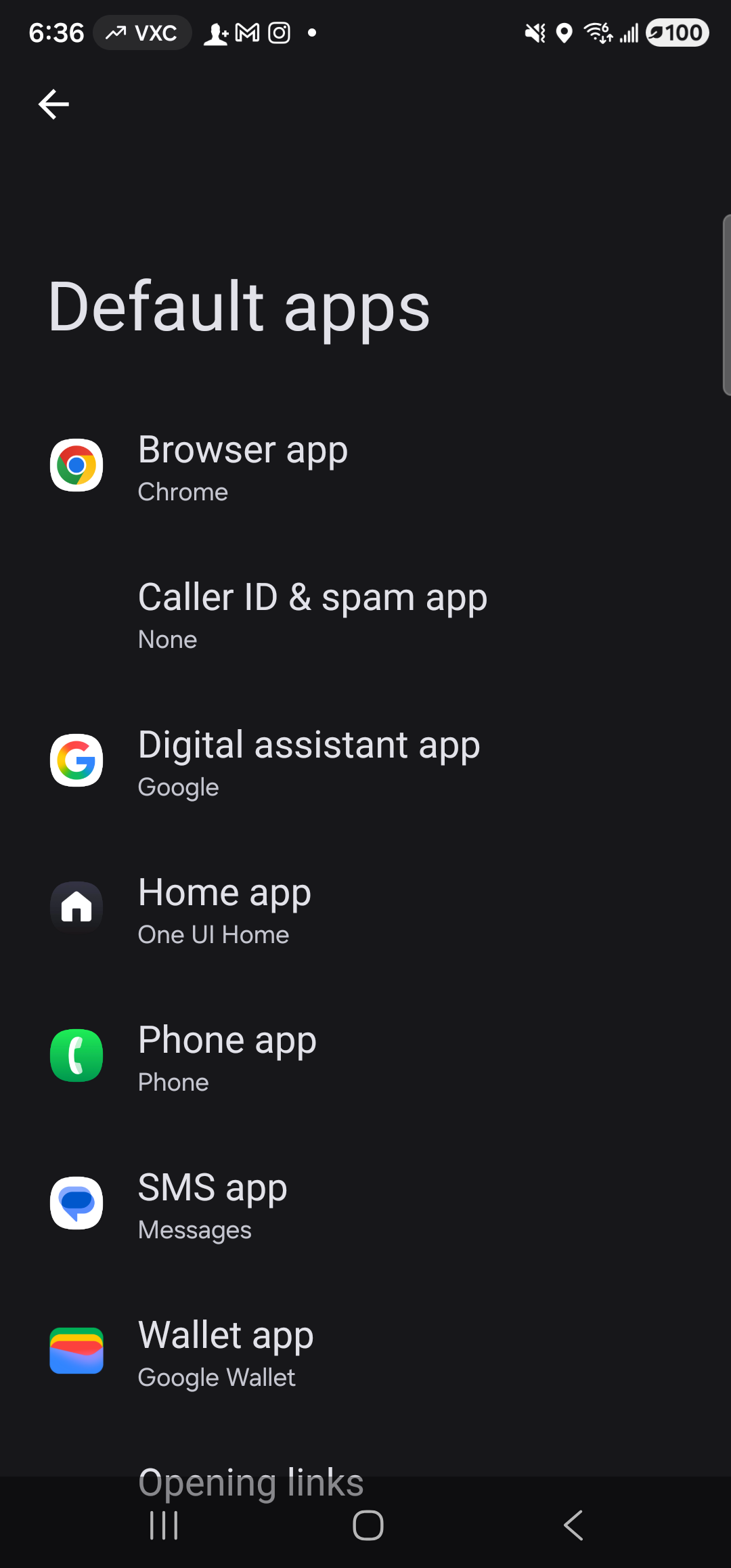
    The Android Default apps screen on a Galaxy S23 Ultra. Header reads ‘Default apps’ with a back arrow. A vertical list of role rows: ‘Browser app — Chrome’, ‘Caller ID & spam app — None’, ‘Digital assistant app — Google’ (highlighted as the next tap target), ‘Home app — One UI Home’, ‘Phone app — Phone’, ‘SMS app — Messages’, and ‘Wallet app — Google Wallet’. A trailing entry ‘Opening links’ sits at the bottom of the visible list. Each row shows the current default in lighter type beneath its label.
    Each role has a current default. Tap into Digital assistant app — that’s the assist-gesture slot. The current default may be Google, Bixby, or another assistant depending on your device.
  4. Pick Aside

    Tap the Digital assistant app row to open the chooser. Tap the row labeled Aside. The radio button fills in. There is no separate Save step — the change applies immediately. Press back to return to the Digital assistant app screen and confirm the summary now reads Aside instead of the previous default.
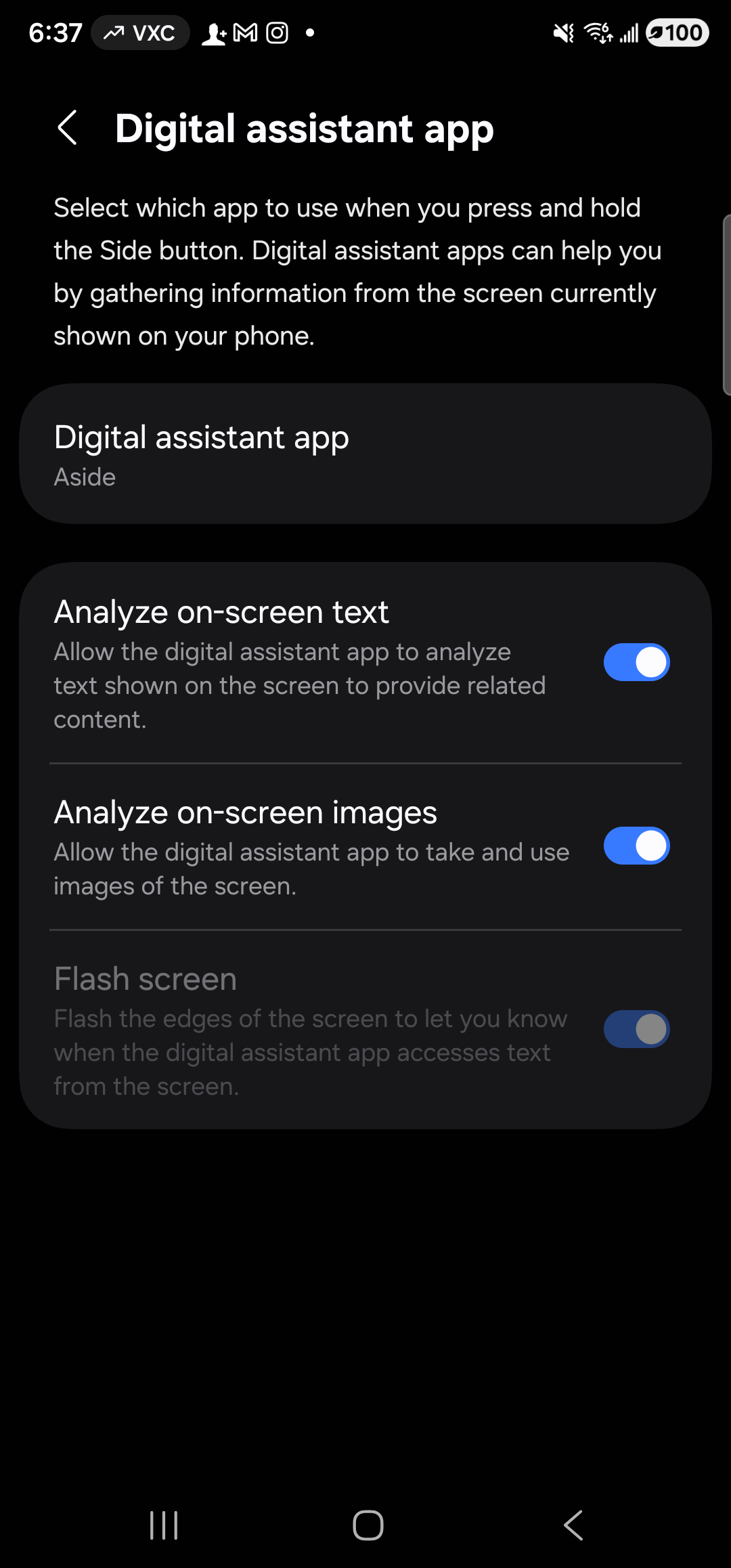
    The Android Digital assistant app settings page after Aside has been chosen. Header reads ‘Digital assistant app’ with a back arrow. A short paragraph explains: ‘Select which app to use when you press and hold the Side button. Digital assistant apps can help you by gathering information from the screen currently shown on your phone.’ Below the explanation, a single highlighted card titled ‘Digital assistant app’ shows ‘Aside’ as the current default. Three further rows below that govern what the assistant is allowed to read or flash on screen: ‘Analyze on-screen text’ (toggle on), ‘Analyze on-screen images’ (toggle on), and ‘Flash screen’ (toggle off, greyed because no assistant app provides it).
    Aside is now the default. The page’s ‘Digital assistant app’ summary updates immediately — no confirm dialog, no save button.
  5. Trigger Aside with your assist gesture

    From any screen — the home screen, inside another app, even a fresh-unlocked lock screen — perform your assist gesture and Aside opens straight into listening. On a Galaxy S23 Ultra that’s a long-press of the home button or home gesture area. On Pixels it’s typically power + home. On older Samsungs it’s the side key. Whatever your device uses, no Aside icon-tap is needed any more.

    Be honest: the gesture itself can’t be triggered by software from the desk — it has to be a real physical button-press or swipe on the phone. The screenshot below was taken immediately after a long-press of the home button.
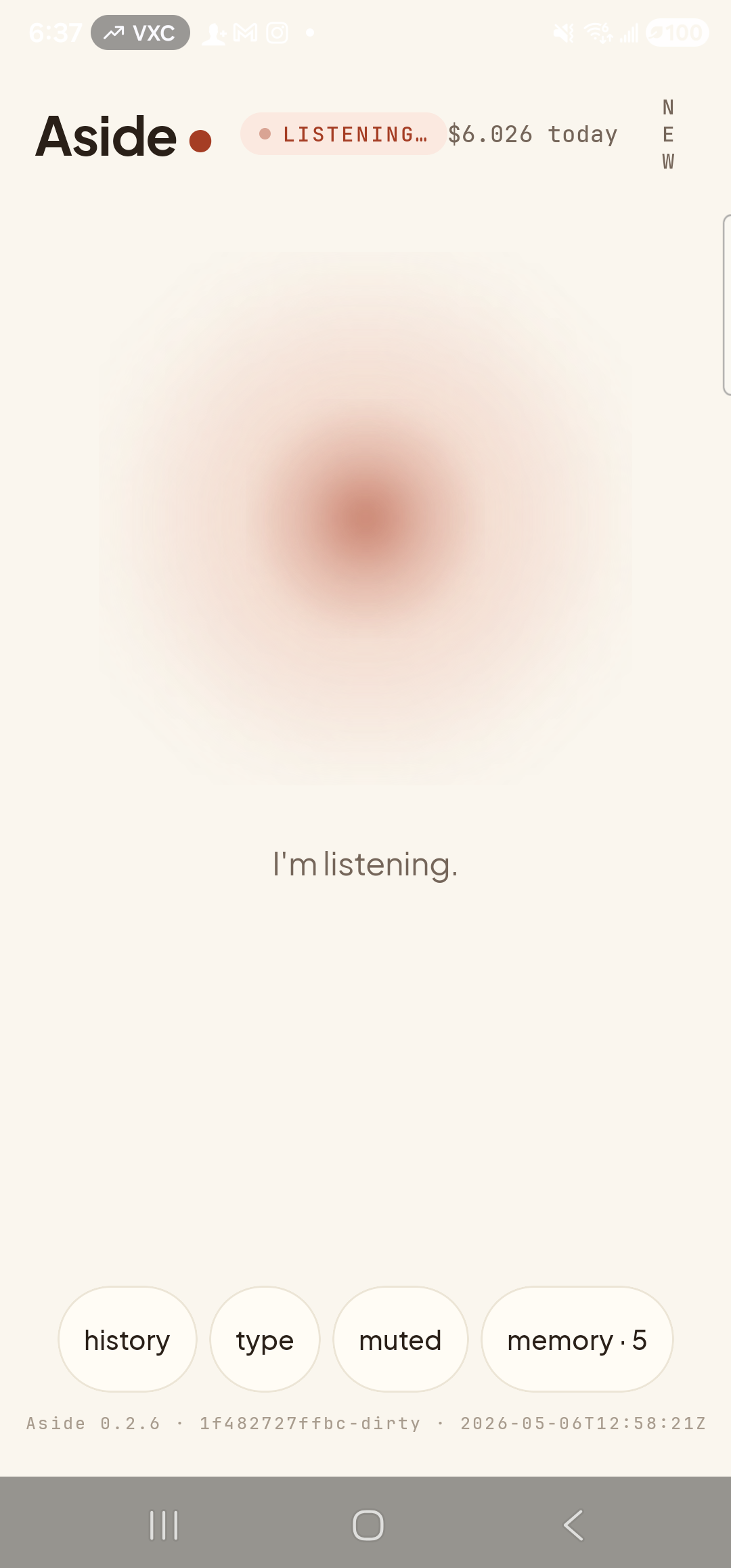
    The Aside main screen, just opened by the assist gesture from another app. The status pill at the top reads ‘● LISTENING…’. The orb is in its listening state — slightly larger, with a soft animated outline. Beneath the orb, in place of the usual two-line idle prompt, a single sentence reads ‘I’m listening.’. The bottom toolbar (history, type, ear, memory) is visible. No app launcher icon was tapped to get here — the assist gesture fired Aside via Android’s VoiceInteractionService.
    One gesture, no taps, listening. Works from anywhere — this screenshot was taken from inside Settings.
Faster shortcut from inside Aside: If you’re already in the app, tap the clay-colored “Make Aside my assistant” pill. It uses Android’s RoleManager to skip steps 1–3 entirely and drop you straight on the chooser from step 4. Once Aside is the default, the pill quietly disappears.
Note: Some Samsungs split assistant into two settings: the Android Digital assistant app (the one that matters for Aside) and a separate Bixby settings panel. The radio you want is on the screen titled Device assistance app or Digital assistant app, not in Bixby’s own preferences.