How-to guide · Core capabilities Add the Quick Settings tile
Pull down from the top of your screen with two fingers to open the full Quick Settings tray, then tap the edit button (it looks like a pencil or three dots, depending on your phone). Find the Aside tile in the lower “available tiles” tray, then drag it up into the active tray.
From now on, one tap on that tile from any screen launches Aside listening — no orb tap needed.
Step by step
-
Open the full Quick Settings tray
From any screen, swipe down from the very top of the display with two fingers — or swipe down once with one finger and then once more — to expand the full Quick Settings tray. You’ll see a grid of round tiles (Wi-Fi, Bluetooth, flashlight, and so on).
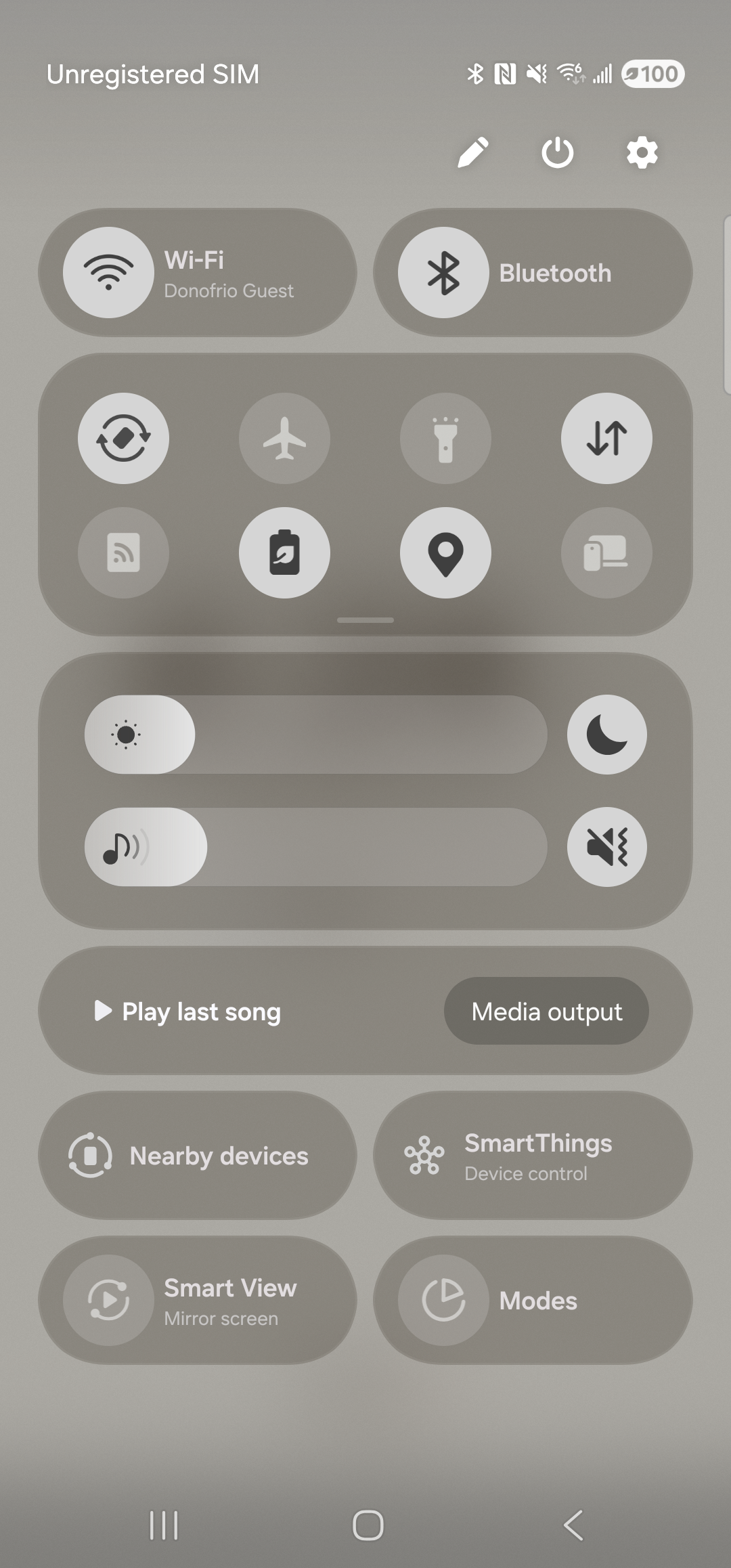
The full Quick Settings tray. The pencil edit affordance lives at the top-right of the tray. -
Tap the edit button
Tap the small pencil icon at the top-right of the tray. (Samsung One UI 6 also exposes ‘Panel settings’ at the top-left, but the pencil is the one that puts you into reorder + edit mode.) The view changes into edit mode: ‘Panel settings’ appears top-left, ‘Done’ top-right, and the tile grid is now interactive with the caption ‘Touch and hold to change order.’ above it. To find Aside specifically, scroll the available-tiles list — on Samsung One UI 6 the available drawer is reached by scrolling the active tray vertically. If Aside is not yet visible, force-quit and re-launch Aside once (the tile registers with Android on first launch); if it still doesn’t appear, restart the phone — Samsung’s SystemUI caches the tile list aggressively.
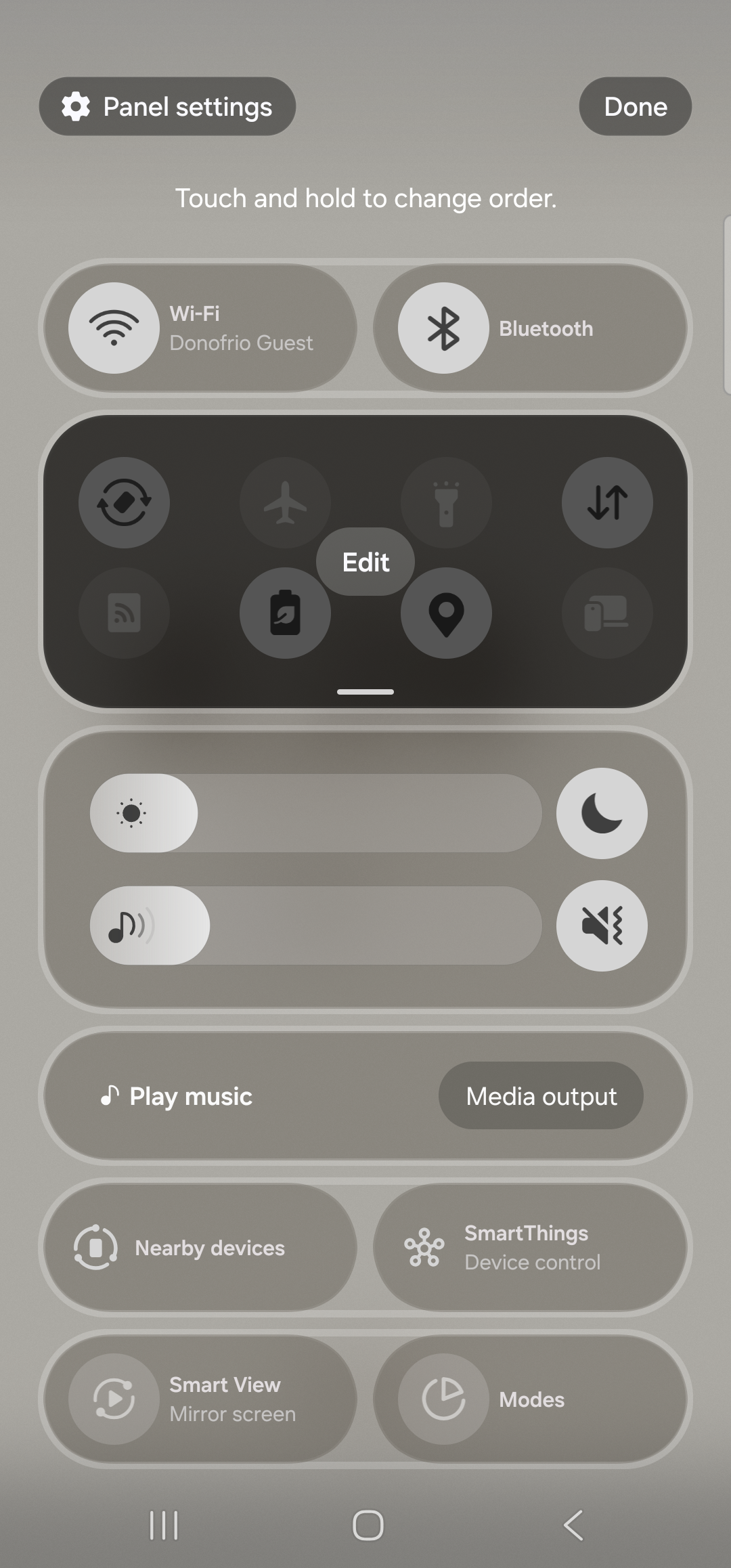
Edit mode. Scroll to find available tiles; if Aside isn’t there yet, restart the phone to refresh Samsung’s tile cache. -
Drag the Aside tile into the active tray
Touch and hold the Aside tile in the available tray, then drag it up into the active tiles area. Drop it wherever you want it — first slot for fastest access, or after the tiles you already use most. When you let go, the tile snaps into place and the rest of the active tray rearranges around it. If your phone has a Done or back arrow in the top-left of edit mode, tap that to leave edit mode. Otherwise just swipe up to dismiss the tray.
No screenshot of this step: Drag-and-drop on the Quick Settings tray is a hand gesture — we couldn’t reliably script the drag from our test rig, so the captured-screenshot pipeline skips this frame. The description above is the canonical reference for what to do. -
Tap the tile from anywhere
From now on, pull down the Quick Settings tray from any screen and tap the Aside tile once. Aside opens straight into listening — the orb is already in its listening state, the status pill reads LISTENING, and the next thing you say becomes the turn. No icon hunt, no orb tap, no waiting.