How-to guide · Voice & conversation Ask Aside what it can do

Actioncapabilities-tour
Audience Vision Cognitive Age
Time About 20 seconds for the full reply
Permissions None
What this is: Instead of reading a settings menu or scrolling through a feature list, you can ask Aside out loud what it can do. The reply is a curated, spoken tour of every capability — calls, texts, calendar, weather, navigation, the flashlight, memory, the daily briefing, all of it — delivered one sentence at a time so you can follow along by ear. Perfect for a first-day-with-the-app moment, a demo, or coming back after a few weeks and forgetting what’s on offer.
Try it now

Open Aside and say or type:

“What can you do?”

Other phrasings that work the same way: “Give me a tour,” “Show me what you’ve got,” “What are your features?”. Aside speaks the list aloud while the same words appear in the chat history.

Step by step

  1. Open Aside

    Open the app. Orb at idle. Status pill reads IDLE. Same starting point as every other guide.
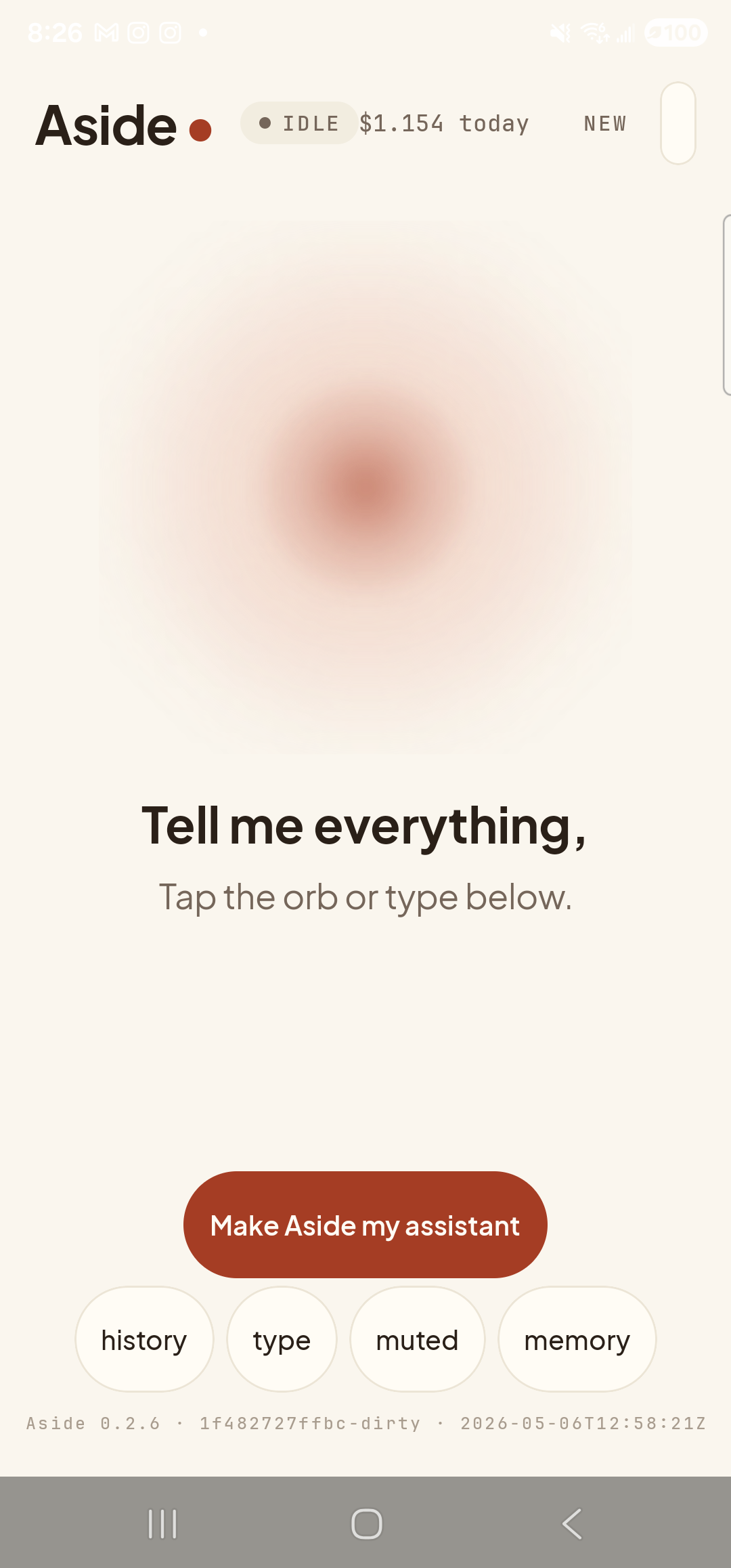
    The Aside main screen at idle on a Samsung Galaxy S23 Ultra. Across the top: the word ‘Aside’ with a red dot, a status pill reading ‘● IDLE’, the cost counter, and a ‘NEW’ link top-right. The warm-paper-colored orb sits centered, slowly breathing. Below the orb, the prompt ‘Tell me everything,’ with helper text ‘Tap the orb or type below.’. The bottom row shows four mono pills: ‘history’, ‘type’, ‘ear’, ‘memory’.
    Calm idle screen. Tap the orb or the type pill, your call.
  2. Ask the question

    Speak it (hold the orb) or type it (tap the type pill, type, send). It’s the same prompt either way. Aside flips to thinking almost immediately, then to speaking within a second or two as the first sentence of the reply lands.

    What can you do?
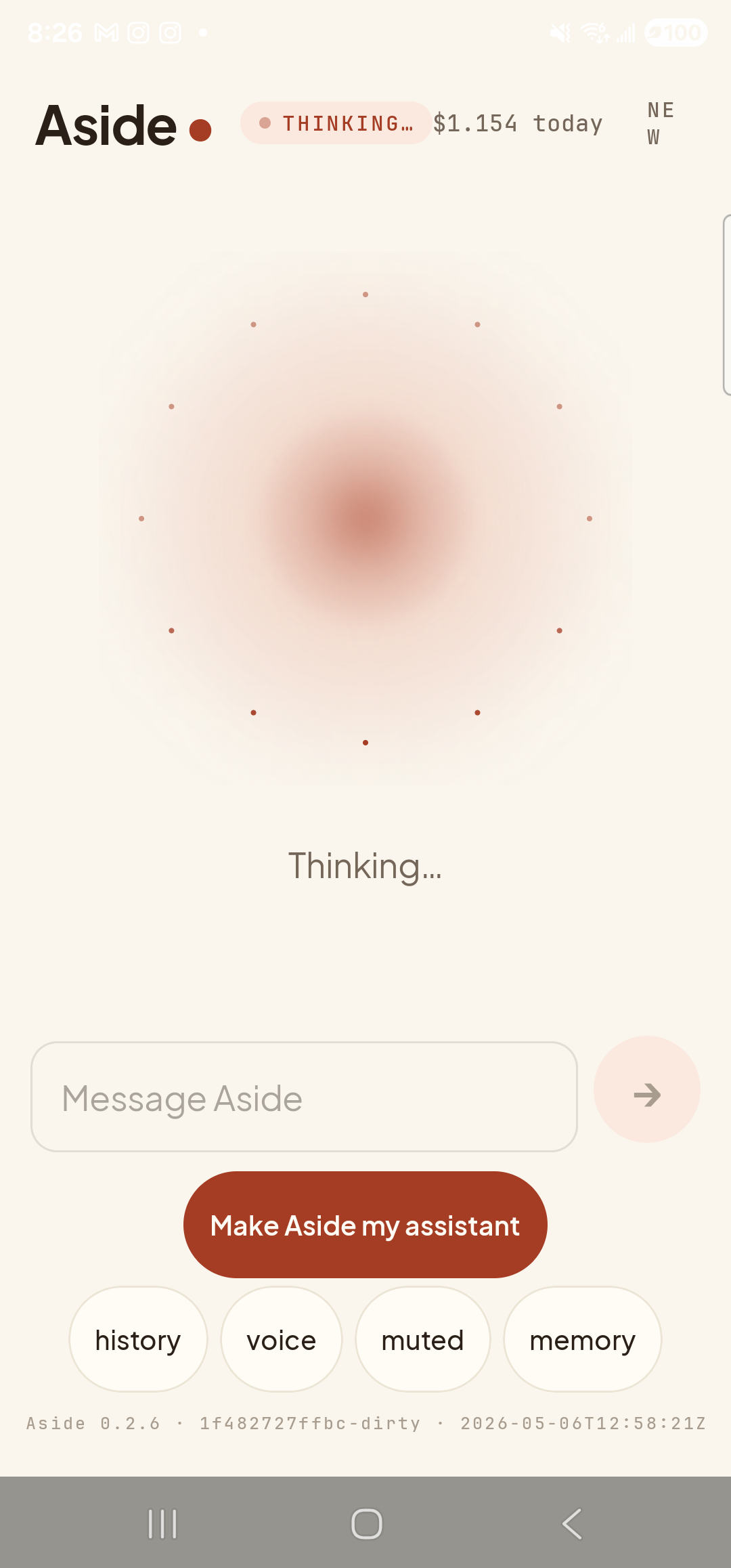
    The Aside main screen now in the thinking state. The status pill at the top has changed to ‘● THINKING…’. The orb has shifted from idle into a denser, more saturated color state — a warm terracotta with subtle inner motion. The caption beneath the orb reads ‘Working on it.’. The bottom toolbar pills (history, type, ear, memory) remain visible.
    The model is composing the capabilities tour. Speaking starts in roughly a second.
  3. Watch the reply stream in — sentence by sentence

    The status pill moves to SPEAKING. Audio begins playing immediately, before the full reply is finished — that’s the streaming TTS. If you open the history sheet now, you’ll see the reply being built up sentence by sentence in real time. Each sentence is one of Aside’s capability areas.
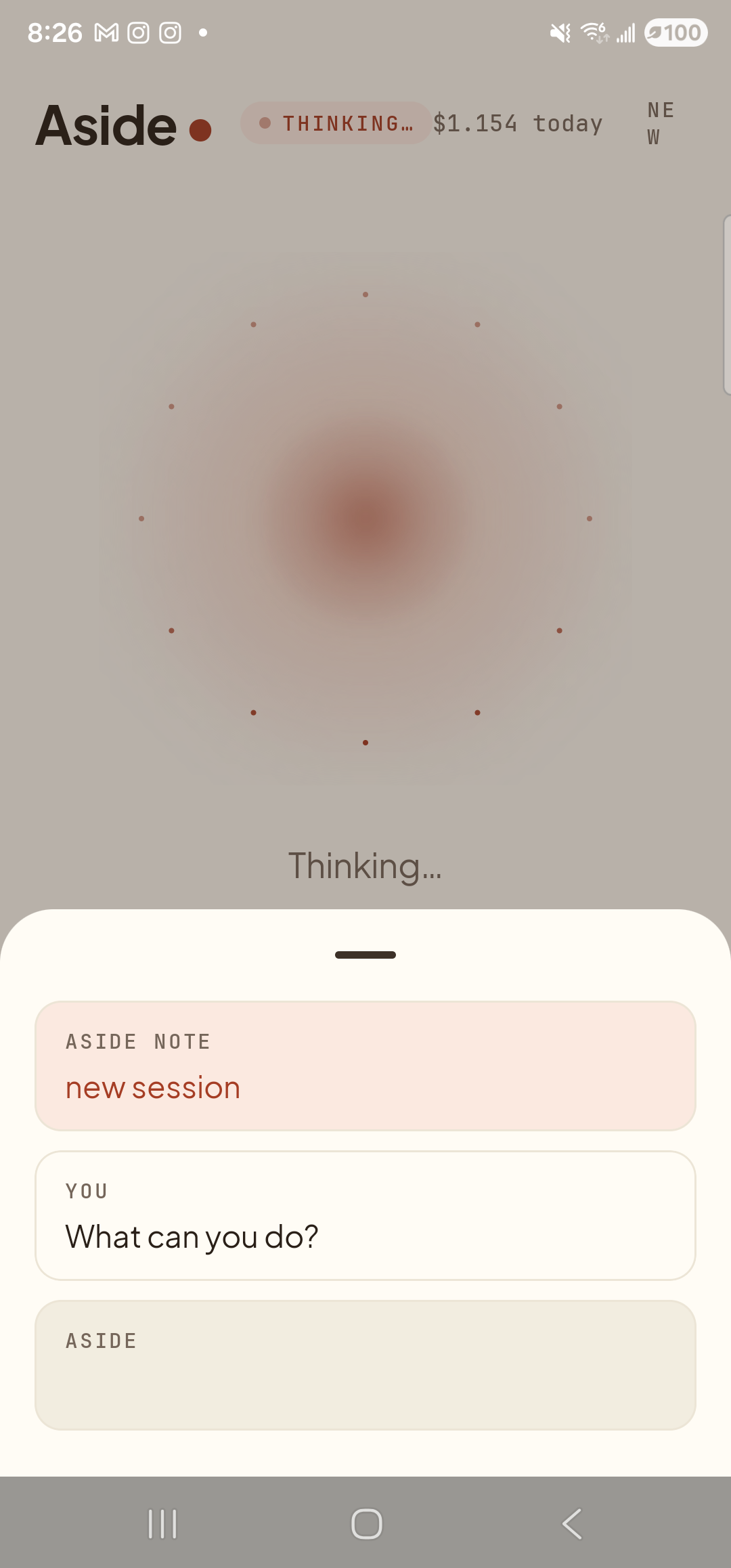
    The Aside main screen with the chat history bottom sheet pulled up to mid-screen, showing the capabilities reply mid-stream. The status pill at the top reads ‘● SPEAKING…’. Inside the sheet, two stacked entries: ‘YOU — What can you do?’; and an in-progress ‘ASIDE’ reply showing the first few sentences along the lines of ‘I can take notes, draft texts and emails, find places on the map and start navigation, set timers and alarms,’ — with a visible streaming indicator (a soft typing cursor or pulsing dot) where the next word will land. Behind the sheet the orb is dimmed but visibly in its speaking-state color. The cost counter has incremented since the idle screen.
    Words appearing live. Audio is already playing the first sentence.
  4. The full capabilities tour

    When the reply finishes, the status pill returns to READY and the history sheet shows the complete capabilities tour — one paragraph spanning what Aside can do today: take notes, draft messages, navigate, time things, control system bits like flashlight and volume, give the daily briefing, remember what you tell it. Skim it on screen or play it back from the history.
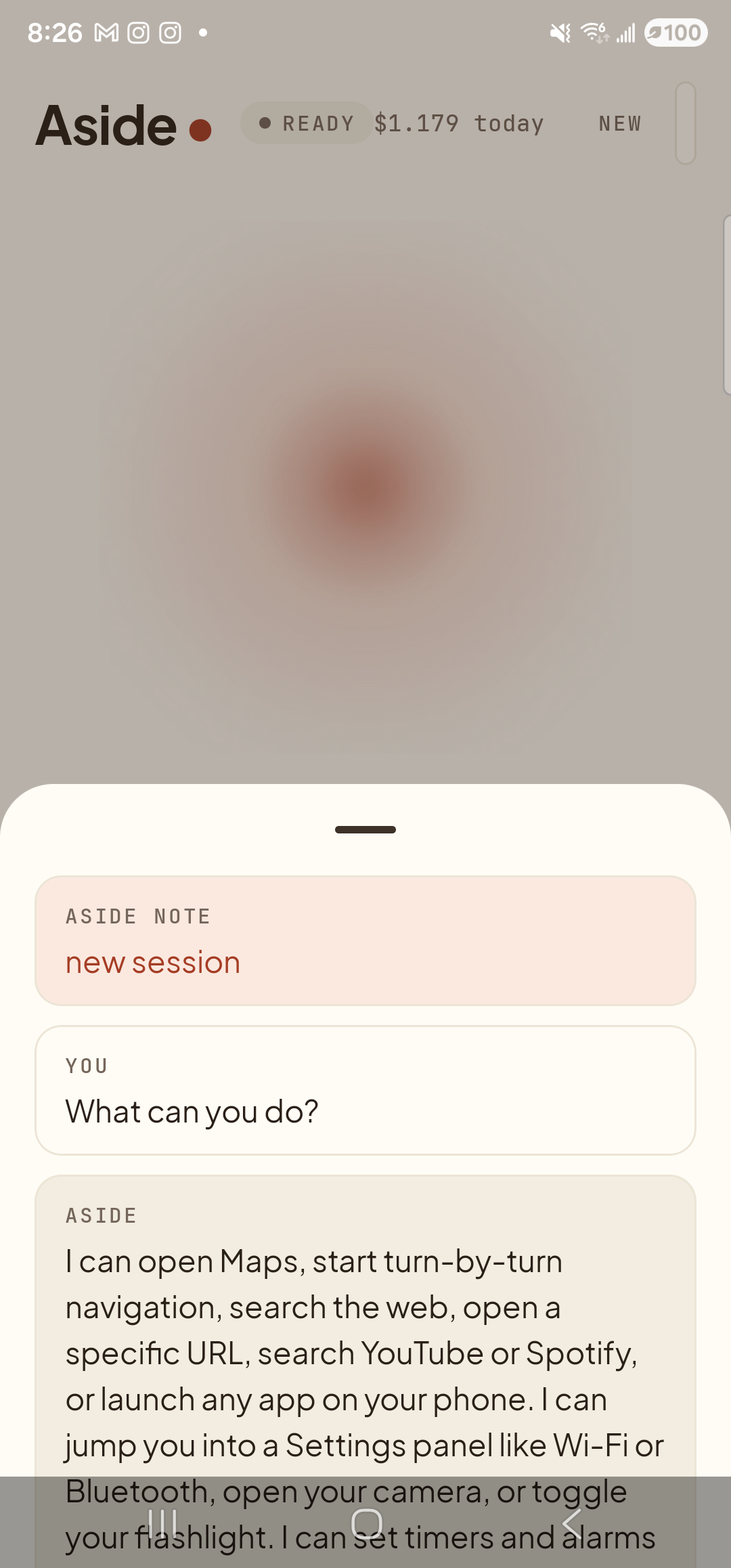
    The Aside main screen with the chat history bottom sheet now showing the complete capabilities reply. The status pill at the top has settled back to ‘● READY’. Inside the sheet: ‘YOU — What can you do?’ at the top, and below it a substantial multi-line ‘ASIDE’ reply spanning the bottom half of the screen, covering the full capability surface — calls and texts (drafts only), email drafts, calendar reads and writes, navigation, weather, timers, alarms, reminders, flashlight, volume and ringer, find-my-phone, daily briefing, persistent memory, and a closing ‘ask me to do any of these by name and I’ll show you’. The cost counter has climbed by a noticeable amount, reflecting the longer turn. Behind the dimmed sheet the orb is visible in its calm idle color.
    Complete tour. Anything in this list can now be triggered just by asking.
  5. Follow up on anything that caught your ear

    Heard something interesting? Just ask the next question right away — “Tell me more about the daily briefing,” or “How do I set a timer?”. Multi-turn context is on by default, so Aside knows you’re still asking about its own features. See the follow-up questions guide for how that works.
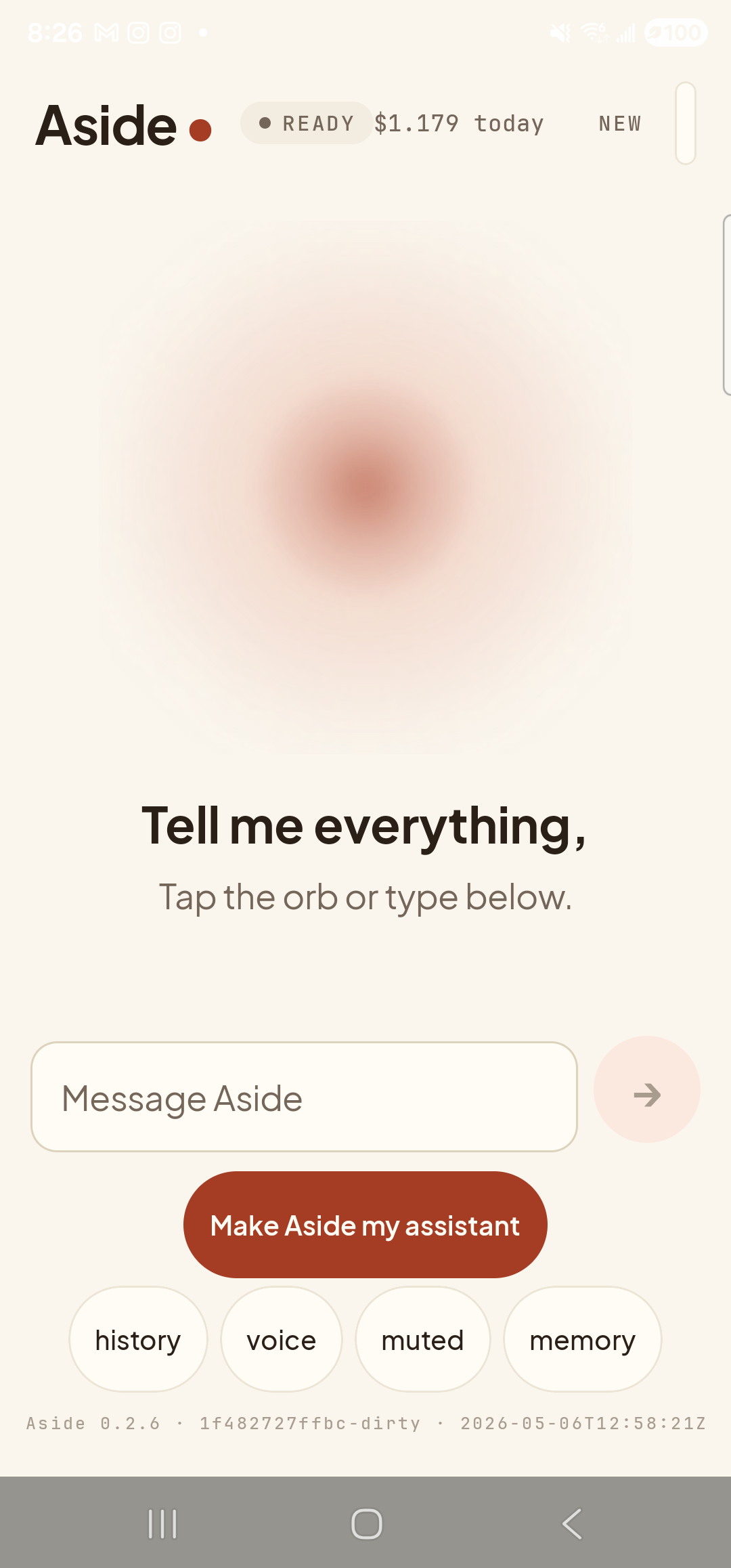
    The Aside main screen back at idle with the history sheet collapsed. The status pill reads ‘● READY’. The orb breathes calmly. Beneath the orb, the usual ‘Tell me everything,’ prompt with helper text ‘Tap the orb or type below.’. The cost counter shows the cost of the just-completed capabilities tour. The screen looks ready for the next turn — there are no banners or errors and the bottom toolbar (history, type, ear, memory) is visible.
    Back at ready. Pick anything from the tour and ask Aside to show you.
Other phrasings that trigger the tour: “Give me a tour.” · “Show me what you’ve got.” · “What are your features?” · “Help.” · “What can I ask you?”. The reply varies slightly each time but always covers the same canonical capability surface.
Note: The capabilities reply describes everything Aside can do today. The roadmap (notification reading, contacts-aware actions, scheduled reminders that fire when Aside is closed) isn’t in the tour yet because those features aren’t shipped. Check the Specification page for the full roadmap.